Reply or forward to the right people
Choose the audience for your next message
Choose a reply action for a message sent to several people.
Distinguish Reply, Reply All and Forward by their recipients.
A received email can lead to different conversations. Reply normally returns to its sender, Reply All includes the sender and the other visible recipients, and Forward prepares the message for people you choose. The useful choice depends on who needs your next words.

Read the recipient line each time
How this works
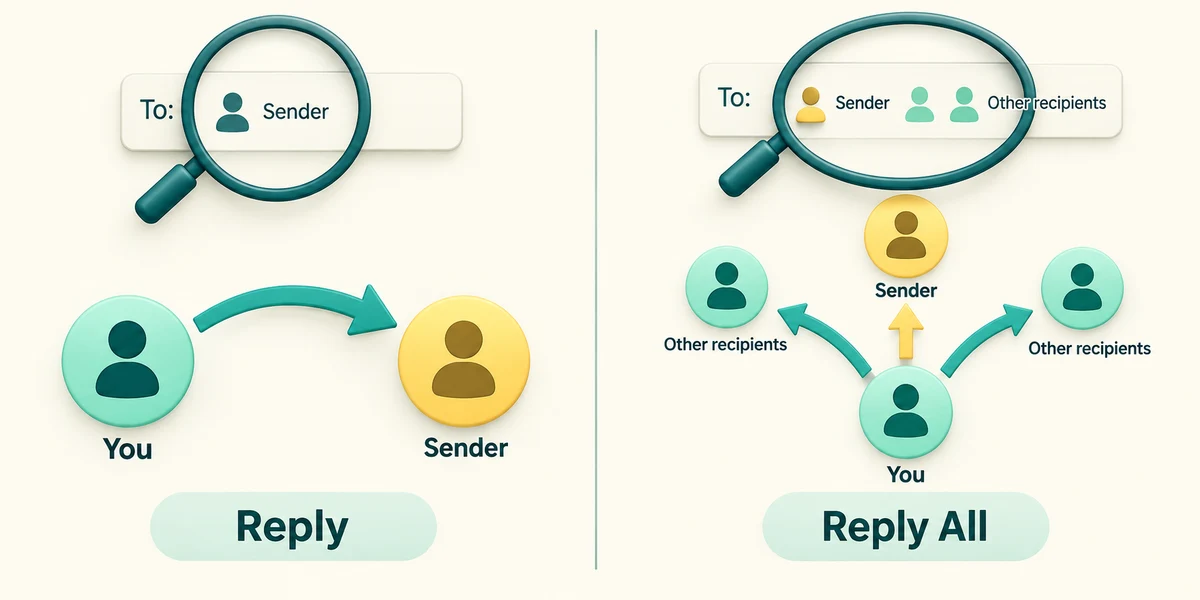
Open the message you intended to answer. In Outlook, click Reply or Reply All in its response controls; a small arrow or More menu may reveal the alternatives. Reply targets the sender or configured reply address. Reply All includes the sender and the other To/CC recipients, normally excluding you. Check the actual recipient line before typing or sending.

Use Reply for a response only the sender needs, such as a private question about your booking. Use Reply All when the whole visible group needs your answer. It does not uncover hidden BCC recipients, and a group address can distribute the message to more people than the names you can see.

To pass an email to a new person, click Forward, enter that person's address in To, and add any explanation in the message area. Read the quoted conversation before sending: earlier messages may include addresses or details you did not intend to pass on. Remove unnecessary private content or start a new message instead.
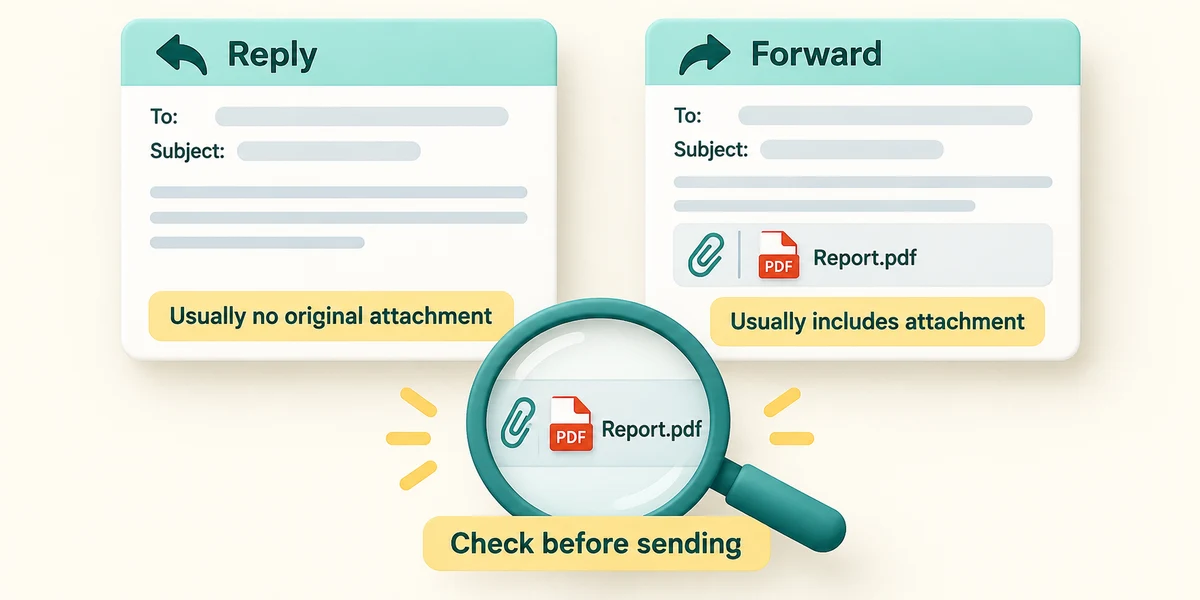
In Outlook, replies do not normally include the original file attachments; forwarding usually does. Check the attachment area rather than assuming either action includes exactly what you need. Review recipients and contents, then click Send only for a message you really intend to send.
A club organiser emailed six members about a walk. You need to ask the organiser privately about your own circumstances. Which action fits?
Reply, then check that only the intended organiser is addressed.
Check what you understand
In guided learning, click Start 3 questions to receive a selection from this lesson. Click the circle beside an answer, then click Check answer. Read the feedback and try again if needed. Click Next question after each correct answer. Answer all 3 correctly to continue.
Returning to guided learning keeps the questions and answers in your current attempt.
Read all 3 questions and explanations
You need to pass a received timetable to someone not in the conversation. Which action prepares that?
Answer: Forward, with the new recipient entered and the content reviewed.
Forward lets you choose new recipients. Review quoted material and attachments before sending.
What should you inspect before forwarding a long conversation?
Answer: Earlier quoted messages and included files as well as the latest words.
Forwarded content can include earlier text and attachments. Review the whole prepared message.
You reply in Outlook and expect the original document to travel back. What is sensible?
Answer: Check and attach the intended file if it is needed.
Outlook replies normally omit the original attachment. A typed name does not include the file.
Take this to your computer
- 1
This lesson's decision needs no mailbox access.
- 2
For a real reply you already intend, read the To/CC lines after choosing the response control. Change or cancel the draft if the audience is wrong.
Mailing lists and service settings can affect recipients. Always inspect the prepared message.
Prefer a more personal, one-to-one lesson? Basic Computing can help. Explore our services.