Protect your passwords and accounts
Protect your passwords and accounts
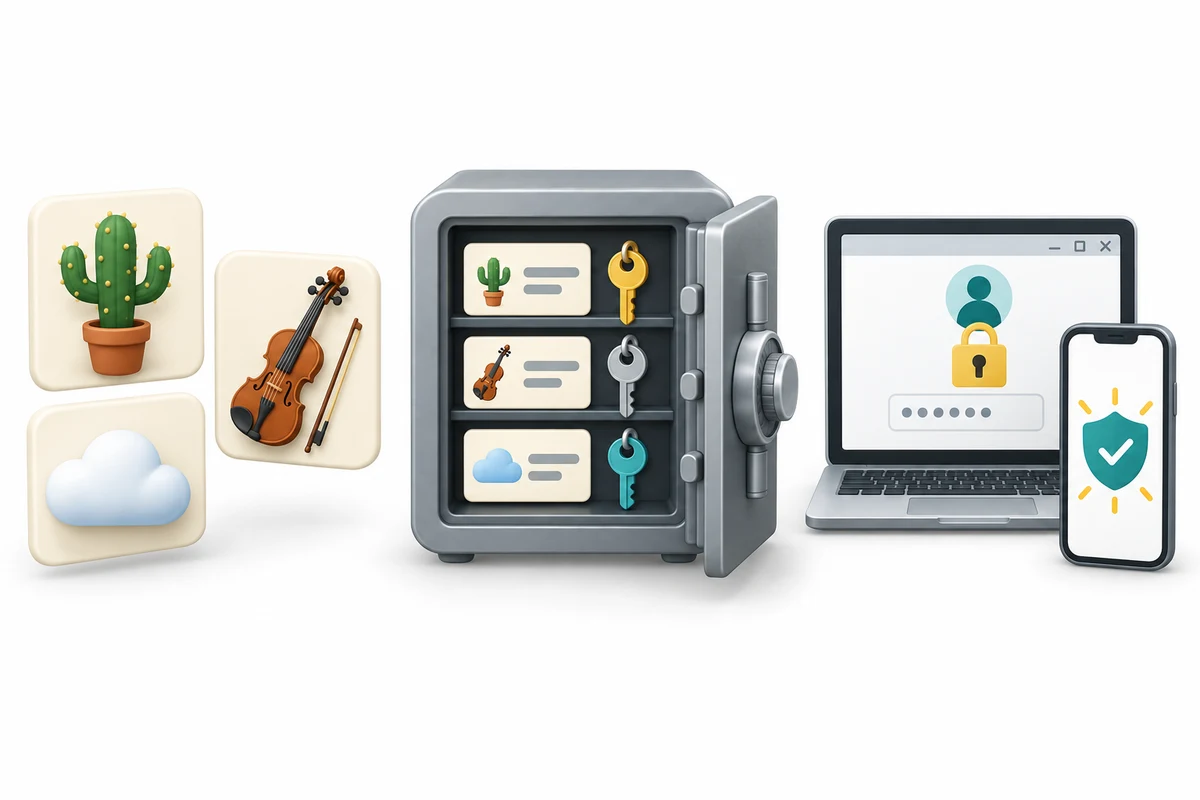
You are going to compare fictional password patterns, explore extra sign-in protection and answer three questions without typing a password.
Explain why every account needs its own password. Recognise better ways to create and remember passwords. Understand extra sign-in checks and the passkey option.
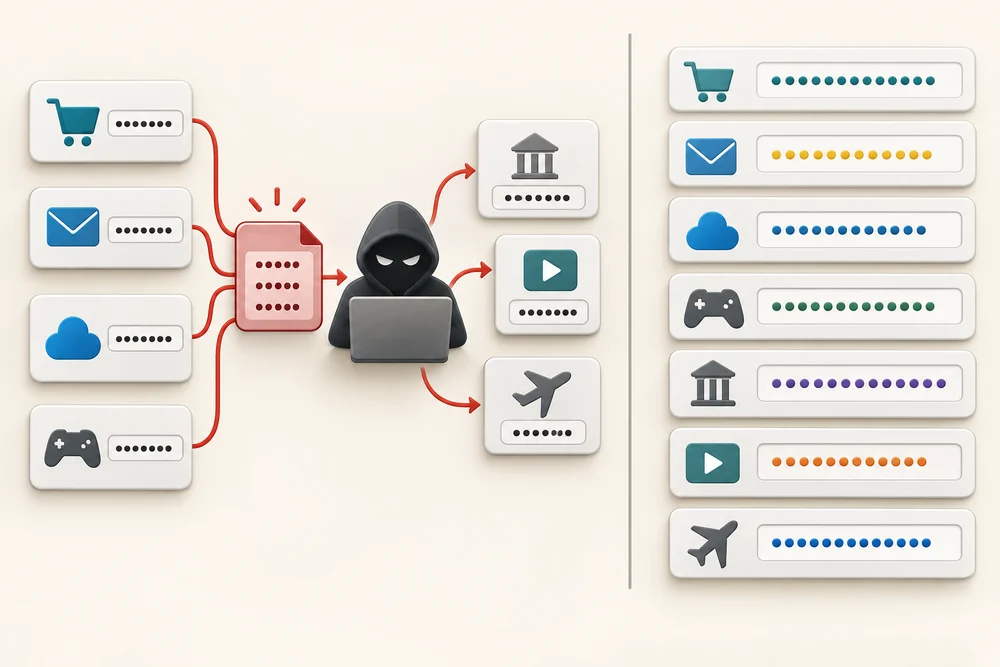
A password is a secret used to help prove that you may enter an account. Use a long, unique password for every account that needs one. Unique means used for that account only. If one service loses a reused password, a criminal can try it at other services. Even an account you rarely use should not share another account’s password.
Length and unpredictability help. A memorable approach is three randomly chosen, unrelated words joined together. Avoid a familiar saying, a sequence or words linked to your name, pets or birthday. Adding a year or swapping a letter for a similar-looking number does not make a predictable starting point reliably strong. Examples in a lesson are public and must never become your real password.
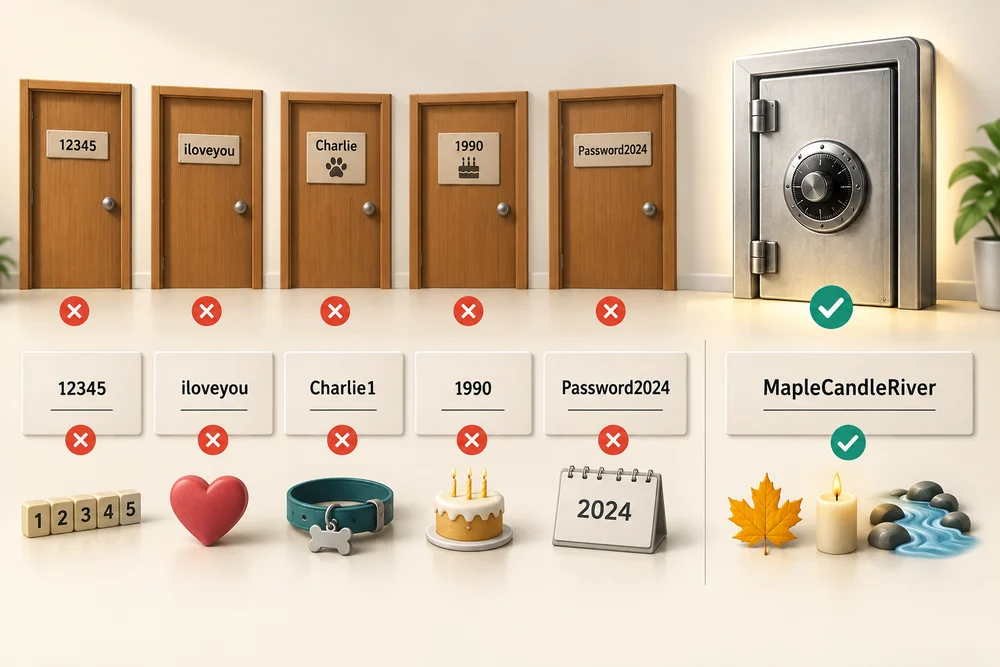
A website may insist on a number, capital letter, symbol or minimum length. Follow its requirements, but understand that meeting a checklist does not prove a password is difficult to guess. Start with a long, unique choice rather than reusing an old password and adding a symbol. A site’s strength label is guidance, not a guarantee.

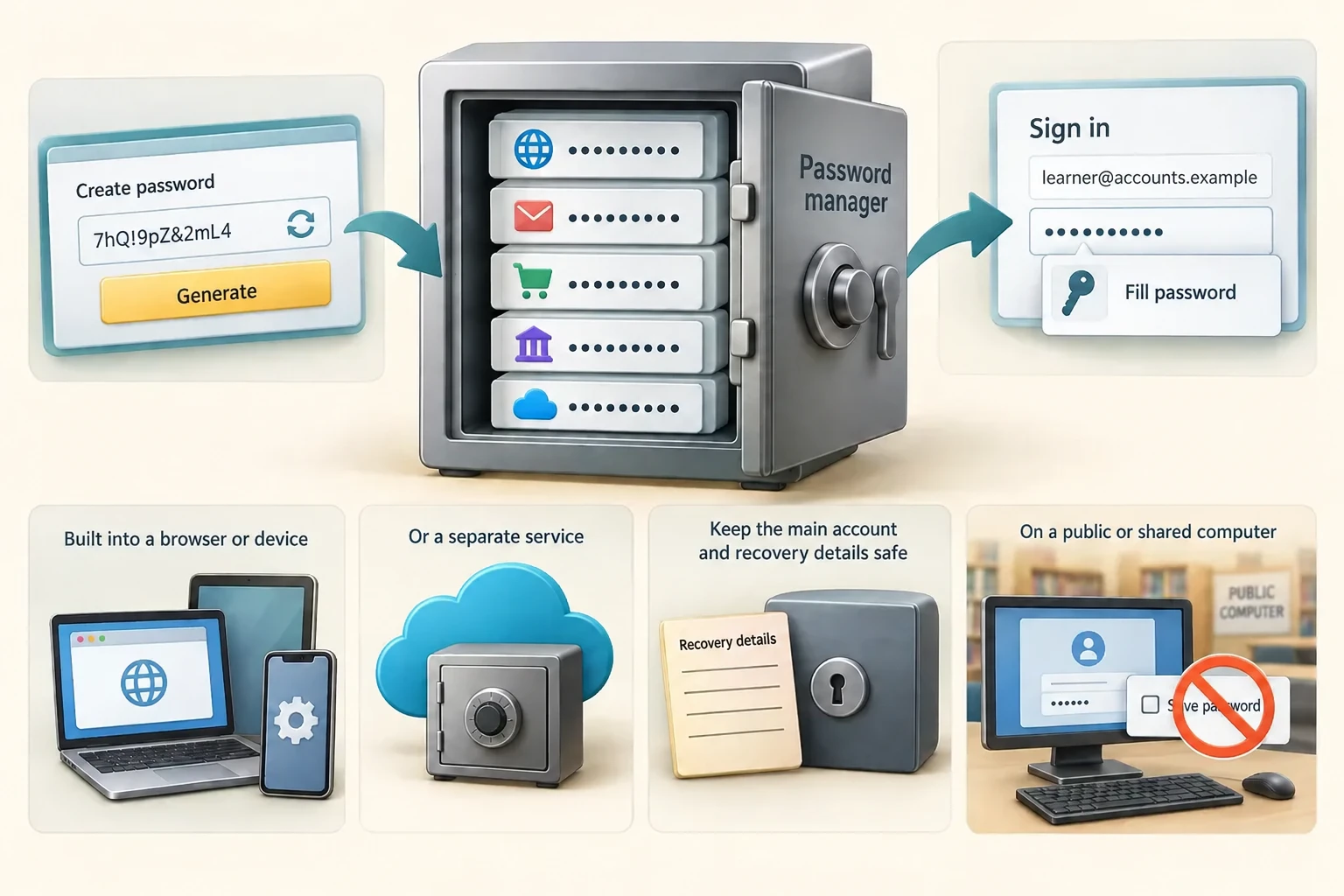
A password manager can create and store different passwords so you do not have to memorise them all. Some can fill a saved password into a sign-in form for you, called autofill. Managers may be built into a browser or device or offered as separate services. Protect the account that unlocks the manager carefully and keep its recovery instructions somewhere secure. On a public or shared-library computer, do not save passwords in the browser.
Two-step verification, also called 2SV, 2FA or MFA, adds a further check when signing in. It may use an authenticator app, a code or an approval on another device. It makes a stolen password less useful, but you still need unique passwords. Never give someone a sign-in code or approve a sign-in you did not start just because a message or caller asks.

Email deserves particular care because other services can send password-reset messages there. Banking and the account protecting a password manager also need extra care. Use available extra sign-in protection on these and other accounts. Taking care of important accounts is not a reason to reuse passwords on the rest.

Some services offer a passkey instead of a password. It uses a digital key protected by a device-unlock method, such as a fingerprint, face check or device passcode. The NCSC recommends passkeys where they are offered. If an account still uses a password, continue with a unique password and extra sign-in checks. The service’s own guidance explains device access and recovery.

This lesson compares patterns, not real secrets, and has no box for your password. Learning which pattern is better does not create a usable password. If you later improve an account, enter its settings through the app or website you already trust, not through an email asking you to change it. Keep recovery details private too.

Explore the examples
Explore how password choices and extra sign-in protection fit together. Compare the supplied example patterns using the labelled buttons. They are teaching examples only: do not use them for an account or enter a real password here. The separate Quick check comes next.
Protect each account separately
1. Make it long and unique
Use a long password that is different for every account. Three unrelated, randomly chosen words can make a memorable longer password where the service allows it. Avoid predictable phrases, names and small changes to a password you already use.
2. Let a manager help
A password manager can generate and store different passwords for different accounts. Protect the manager itself with a strong unique password and its available extra sign-in protection. A manager helps avoid reusing one password everywhere.
3. Add another sign-in check
Multi-factor authentication, often called MFA or two-step verification, adds another check when signing in. It helps protect an account if a password is stolen. Never share a sign-in code or approve a sign-in you did not start. It does not make password reuse a good choice.
Compare example patterns
These are descriptions, not passwords to copy. Do not enter a real password in a teaching activity.
A predictable pattern
A name followed by a familiar year. Personal details and common patterns can be guessed. Adding a year to the same base password for another account also leaves a reuse pattern.
Three unrelated words
Cactus + Violin + Cloud. These pictures show how three unrelated words can join into a longer password: CactusViolinCloud. This is a public teaching example, so never use it as a real password. Choose your own random words for one account only. Meet the service’s rules if it also requires a number or symbol; adding those does not make a reused password unique.
A manager-generated password
A different long generated password for each account. A manager can create and store unique passwords, so you do not need to memorise each one. The manager’s own account and recovery arrangements also need protection.
Check your understanding
Click Start 3 questions to begin. Click the circle beside your answer, then Check answer. After each of the first two correct answers, click Next question. When all three are correct, click Continue below. You can change a wrong answer and check again. With a keyboard, Tab reaches choices, arrow keys choose an answer, and Tab then Enter activates a button.
In guided learning, click Start 3 questions to receive a selection from this lesson. Click the circle beside an answer, then click Check answer. Read the feedback and try again if needed. Click Next question after each correct answer. Answer all 3 correctly to continue.
Returning to guided learning keeps the questions and answers in your current attempt.
Read all 10 questions and explanations
A small shopping site loses account details. Which choice best limits the effect on your other accounts?
Answer: Giving that site a password used nowhere else.
Yes. A separate password prevents a password stolen from one service being reused directly at another. Rarely used accounts need separate passwords too.
You want a password you can remember without building it from personal facts. Which starting method fits?
Answer: Three unrelated words chosen randomly and combined.
Yes. Random, unrelated words provide length without relying on a known phrase or personal information. Keep the result unique to one account.
A person changes a few letters in a familiar short password into similar-looking numbers. What is the limitation?
Answer: Common substitutions may still leave it predictable.
Yes. Attackers know common substitutions. They do not make reuse safe or replace extra sign-in protection.
A site accepts a password containing a capital, number and symbol. What has the acceptance established?
Answer: It meets that site’s rules, but may still be predictable or reused.
Yes. A composition checklist is not a guarantee of strength or uniqueness. Start with a long, unpredictable, separate choice.
Remembering a different secret for each account feels difficult. Which approach is intended to help?
Answer: A password manager that generates and stores separate credentials.
Yes. A manager stores account credentials and can generate them. Predictable variations and bookmarks do not provide the same protection.
A library browser offers to remember your login for next time. Which choice fits this shared setting?
Answer: Decline to save the password there.
Yes. Do not save passwords in a public computer’s browser. Closing a window or using an encrypted connection does not remove the saved credential.
A service checks a password and then requests a code from an authenticator app. What is the extra check doing?
Answer: Adding another way to confirm the person signing in.
Yes. An additional sign-in check makes account access harder for someone with only the password. Unique passwords and private recovery details still matter.
Why can someone who enters your inbox sometimes reach other accounts whose passwords they do not know?
Answer: Password-reset messages for those services may arrive in that inbox.
Yes. Email is often a recovery route for other accounts. Protect it with a separate password and available extra sign-in checks.
A sign-in approval appears on your phone, but you are not trying to sign in. Which action fits?
Answer: Do not approve it; check your account through its usual trusted route.
Yes. Approve only sign-ins you initiated and understand. A code or approval can let someone else enter your account.
A service offers sign-in using a digital key unlocked by your device’s fingerprint check. What is this option?
Answer: A passkey, which can replace a password for that service.
Yes. A passkey uses a digital key and a device-unlock method. It differs from filling in a saved password or copying a one-time code. Follow the service’s guidance for access and recovery.
Connect the idea to everyday use
These observations are optional. You can finish with the lesson examples. No real message, installation, password entry or settings change is required.
- 1
You can complete this lesson with its preset examples. To revisit them, click Learn at the top, then use the labelled example-pattern buttons in the practice area. Do not type, say aloud or show anyone a real password.
- 2
For an optional observation on your own device, notice whether its usual sign-in page offers a passkey or mentions two-step verification. Only use an app or saved website address you already trust. You do not need to sign in, set anything up or change a password to finish.
- 3
If you later want help protecting an account, use that service’s official instructions reached independently. A helper can explain the controls while you keep passwords, sign-in codes and recovery details private. On a public computer, decline any offer to save a password.
If your screen differs or you prefer not to use a real account, stay with the fictional examples. Nothing needs to be sent, bought, installed or revealed.
Prefer a more personal, one-to-one lesson? Basic Computing can help. Explore our services.