Present and share a checked slide deck
Check what other people will see
Distinguish audience slides, speaker notes and editable files.
Run and exit a slide show and select a suitable sharing format.
The screen you use to prepare or present slides is not always the same as the audience’s view. Notes, editing tools and file permissions can change what another person receives. A quick check of the actual shared view prevents surprises.

Practise the show before sharing
How this works
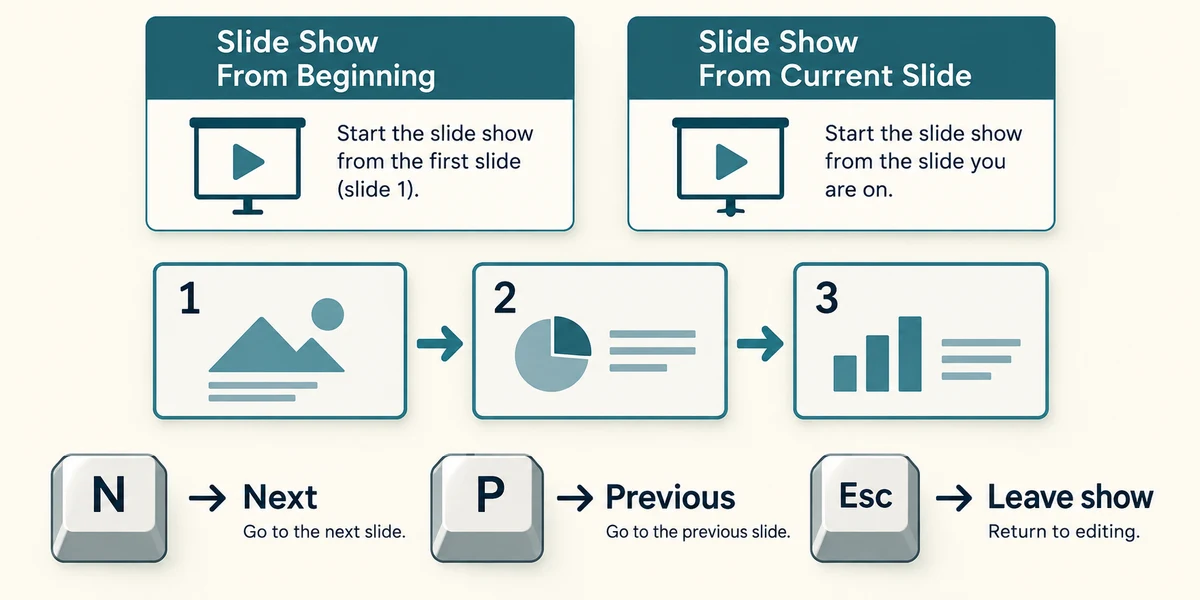
Open a practice deck in desktop PowerPoint. Click Slide Show in the top ribbon, then From Beginning to start at slide one. From Current Slide begins at the selected slide instead. In a slide show, press N to move forward and P to move back. Press Esc to leave the show and return to editing.
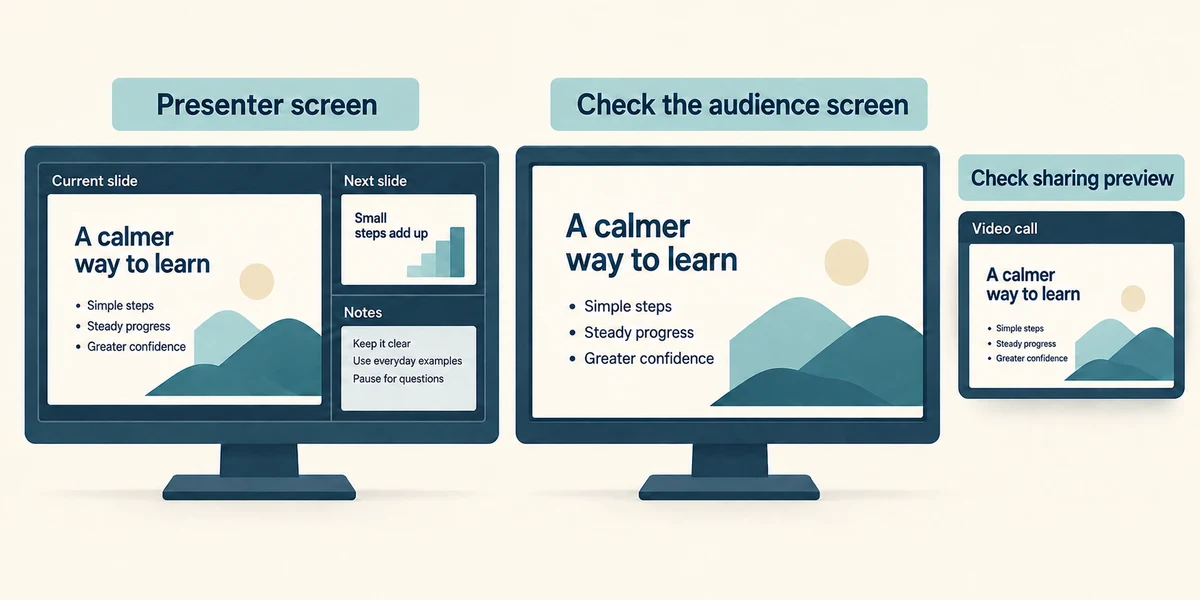
Presenter View can show your notes and upcoming slides on your screen while an audience display shows the current slide. This depends on the display setup. Before presenting, check the actual audience screen. If joining a video call, share the intended slide-show window and verify the preview rather than assuming your notes are hidden.

Practise reading the slides at their displayed size. Check pictures, contrast, spelling and the order. Avoid depending on a transition or animation to explain a fact that disappears in another format. Keep a simple fallback, such as a checked PDF, if the recipient only needs to read the slides.
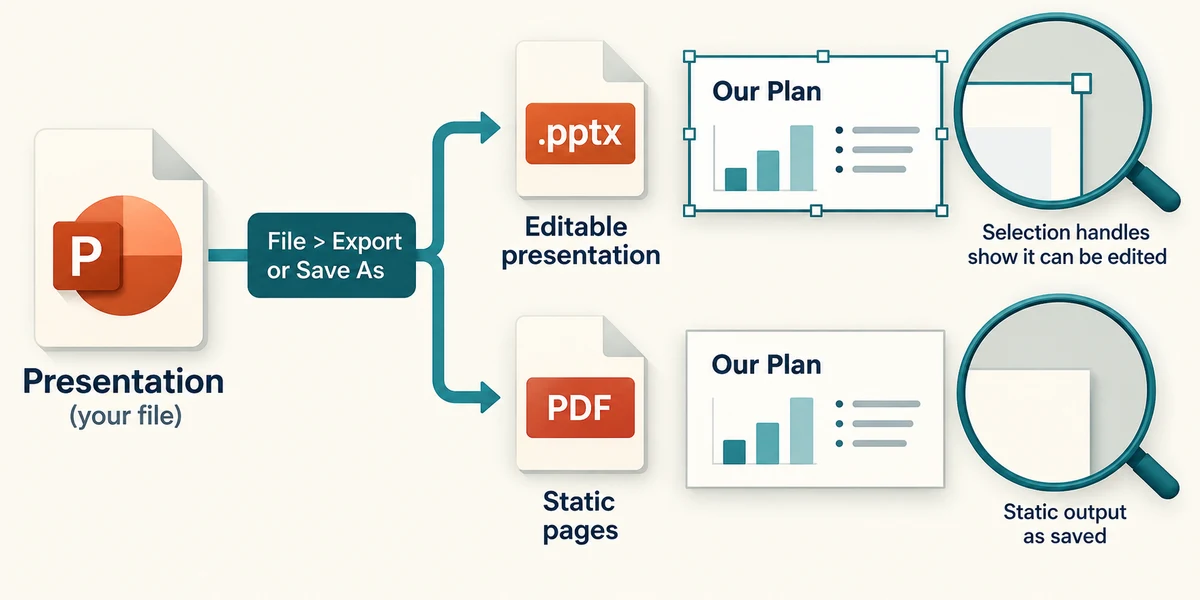
A .pptx copy keeps an editable presentation for a compatible app. A PDF is useful for static pages, but it does not preserve the live slide-show experience. Use File and Export or Save As to produce the supported format, then open the actual output and inspect it.
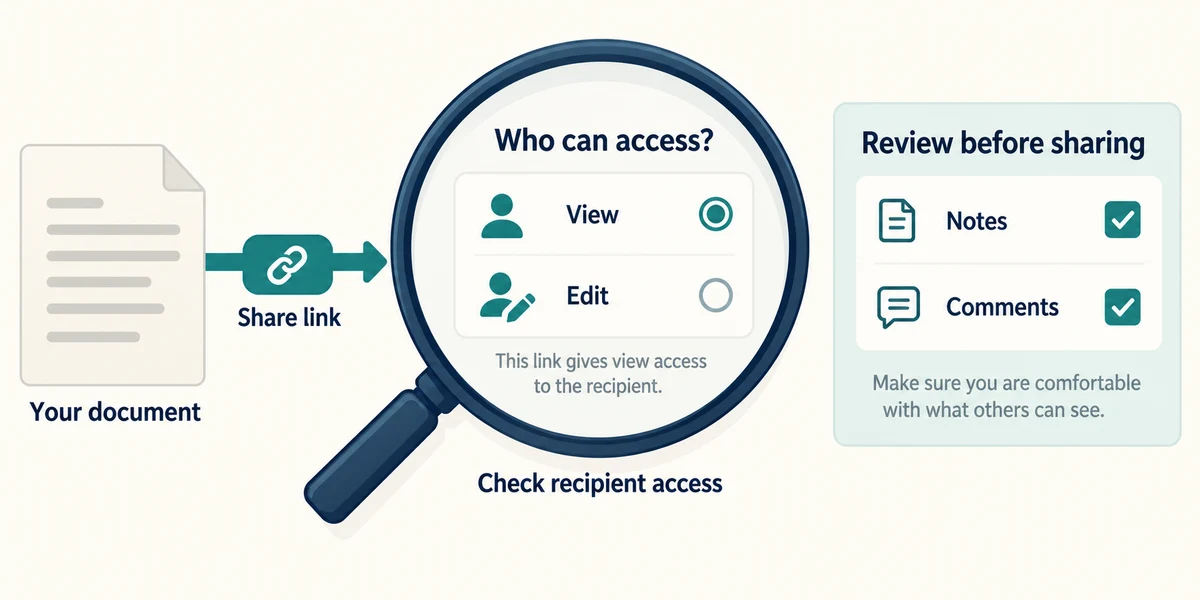
Use Share only after checking who can view or edit. Review notes and comments before distributing an editable file, and do not assume changing the name removes them. Test a shared link through the intended recipient access where possible. You can complete this lesson without sending a deck or starting a call.
Try a short slide sequence
The example has an opening purpose, a plan and a closing checklist. Each slide has one job. Speaker notes guide the presenter and are separate from the audience slide. Reordering a slide moves its title, body and notes together. End the presentation before returning to other private work.
You need private reminders while the audience sees the slides. What must you verify?
That the audience display or shared window shows slides rather than your notes.
Check what you understand
In guided learning, click Start 3 questions to receive a selection from this lesson. Click the circle beside an answer, then click Check answer. Read the feedback and try again if needed. Click Next question after each correct answer. Answer all 3 correctly to continue.
Returning to guided learning keeps the questions and answers in your current attempt.
Read all 3 questions and explanations
The slide show starts on slide four, but you want the introduction first. Which control fits?
Answer: From Beginning.
From Beginning starts at the first slide.
You want to stop the slide show without closing the presentation file. Which key is suitable?
Answer: Esc.
Esc leaves Slide Show view.
A recipient needs only static slides to read, not animations or editing. What is a useful option?
Answer: A checked PDF export.
PDF suits a static reading copy when its output has been checked.
Take this to your computer
- 1
Run a practice deck using Slide Show > From Beginning, move forward and back, and press Esc.
- 2
Export a practice PDF if wanted and inspect what the reader will actually receive.
Use fictional practice information. These explanations and decisions do not change your real files. Desktop Microsoft 365 controls are used where named; web editions and other versions can differ. No purchase or account is needed to complete this lesson.
Prefer a more personal, one-to-one lesson? Basic Computing can help. Explore our services.