Prepare an envelope or label sheet
The page must match the material
Choose dimensions and a safe alignment check for a fictional address.
Prepare a matching envelope or label layout and test it without wasting a batch.
Envelopes and label sheets have fixed shapes and positions. A layout that looks tidy on screen can still print in the wrong place if the selected size or product does not match the material. A small test can prevent an entire sheet or batch being wasted.
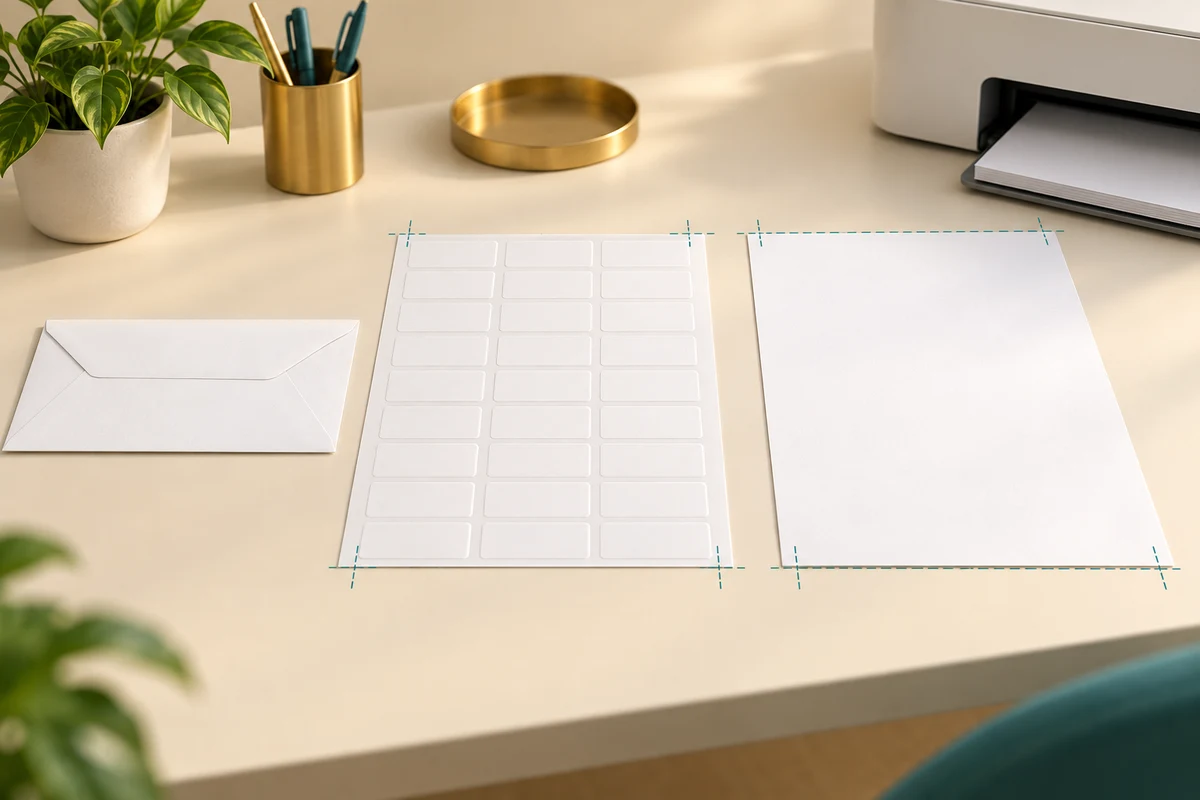
Match the product before printing
How this works
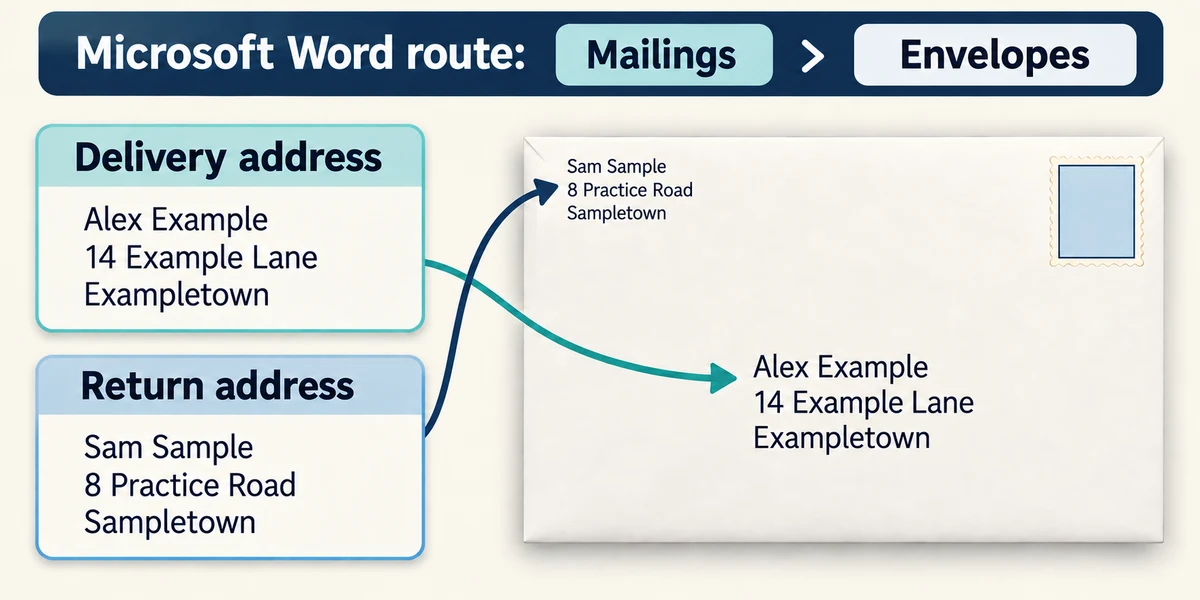
These controls use desktop Word; Word for the web handles labels differently and may need a template. For a single envelope, click Mailings in the top ribbon, then Envelopes. Enter fictional delivery details and a return address if needed. Check which box is which before continuing.
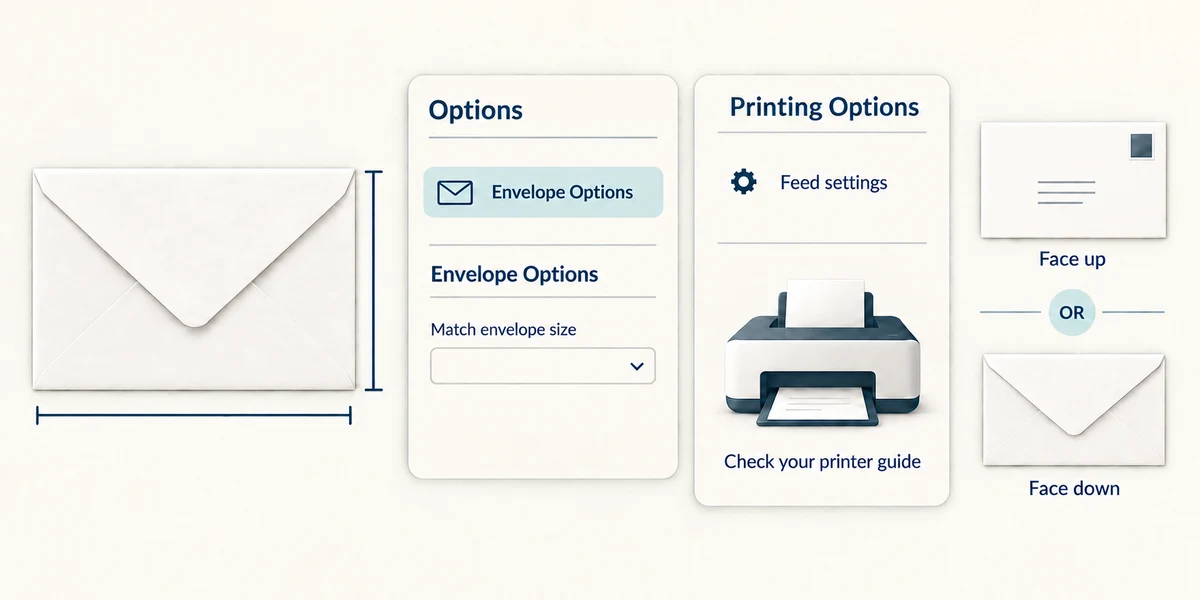
Click Options in the envelope dialog. Under Envelope Options, choose the size matching your envelope. Check Printing Options for the feed method, then compare it with your printer’s instructions. Printers can require different face-up or face-down orientations; do not copy another person’s loading direction without checking.
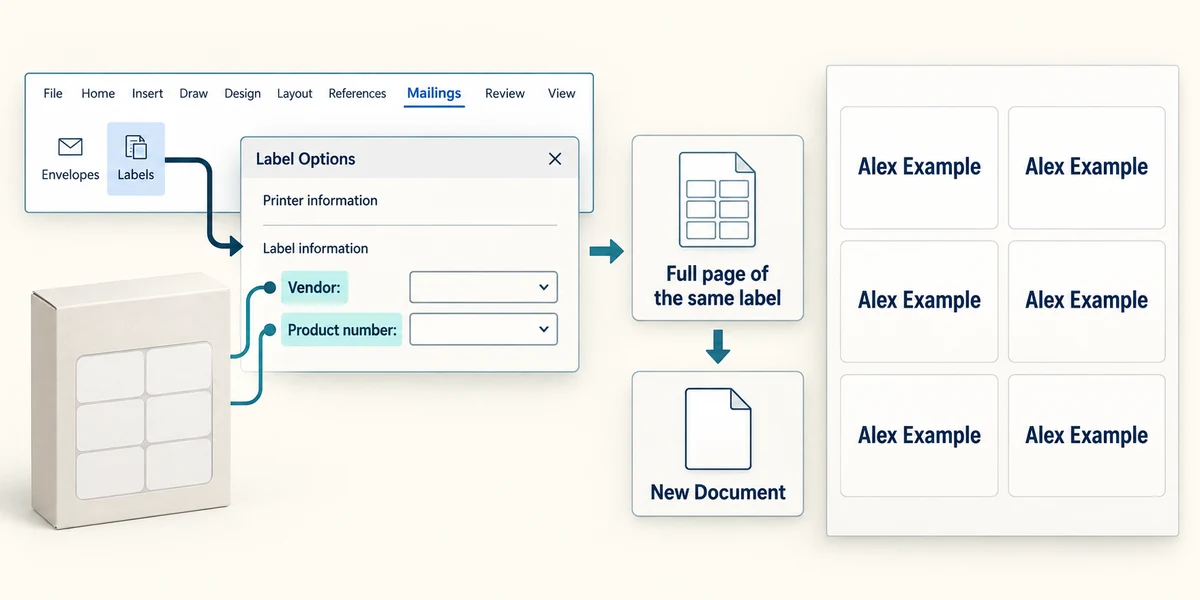
For a sheet of identical labels, click Mailings then Labels. Click Options and choose the label vendor and exact product number from your packaging. Enter the fictional text, choose Full page of the same label and use New Document to inspect and save the layout before printing. Different label products can have different gaps even when the sheet size matches.

For labels, test on plain paper first and compare it with the sheet positions without sticking it down. Check printer scaling and paper size. For envelopes, use a suitable single test envelope following the printer’s supported-media guidance. Do not feed adhesive or damaged sheets your printer does not support.

Use the app’s Cancel button to leave without printing. If you later print for real, check the destination, quantity and material once more. This lesson does not require your real address, a printer or a stationery purchase.
Your A4 label sheet has a different number of labels from the preview. What should you check first?
The exact label product number and layout selected.
Check what you understand
In guided learning, click Start 3 questions to receive a selection from this lesson. Click the circle beside an answer, then click Check answer. Read the feedback and try again if needed. Click Next question after each correct answer. Answer all 3 correctly to continue.
Returning to guided learning keeps the questions and answers in your current attempt.
Read all 3 questions and explanations
The envelope feed diagram differs from a friend’s printer. Which guide should you follow?
Answer: Your printer’s supported feed instructions and matching settings.
Feed methods depend on the actual printer.
You want to check a full label sheet without using its adhesive labels. What is a useful first test?
Answer: Print the layout on plain paper and compare alignment.
A paper test exposes alignment errors before using labels.
You have prepared the layout but do not want a print job yet. Which choice fits?
Answer: Use New Document where offered or Cancel, without clicking Print.
You can inspect or save a layout without sending a job.
Take this to your computer
- 1
If desktop Word is available, inspect Mailings > Labels using fictional text and your product details, then choose New Document or Cancel.
- 2
Only make an optional print test if you have compatible stationery and know your printer’s instructions.
Use fictional practice information. These explanations and decisions do not change your real files. Desktop Microsoft 365 controls are used where named; web editions and other versions can differ. No purchase or account is needed to complete this lesson.
Prefer a more personal, one-to-one lesson? Basic Computing can help. Explore our services.