Manage open windows
Several tasks can stay open
Use the example window controls and return to a minimised app.
Distinguish hiding, resizing and closing a window.
An app usually shows its work in a window. You can have more than one window open and bring a different one to the front. Arranging or hiding windows changes your workspace, not automatically the files saved inside those apps.

Recognise the three corner controls
How this works
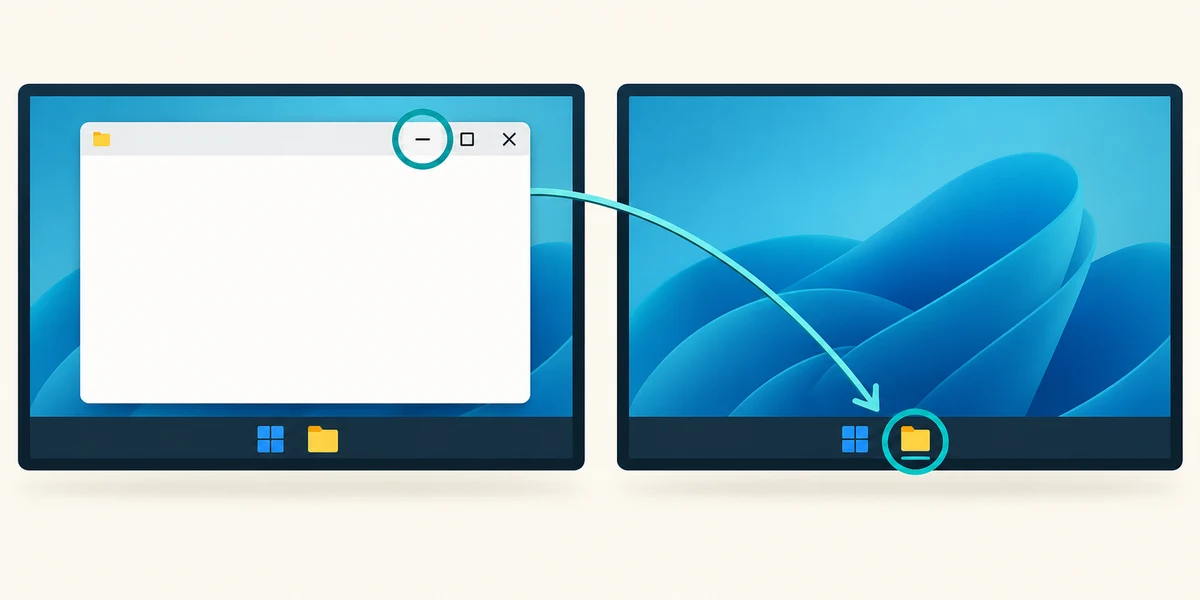
Near the top right of a typical Windows app, the short horizontal line is Minimise. Click it once to hide the window from the desktop while keeping it running. To return, click its app button on the taskbar at the bottom. If that app has several windows, choose the matching preview that appears.

The square beside Minimise usually means Maximise, making the window fill the available desktop. Click it once. It commonly changes to two overlapping squares, Restore Down, which returns the window to a smaller size. In a restored window, point at the title bar along the top, hold the left mouse button, move the window and release. App size limits can vary.

The X at the top right closes that window. Save important changes first and read any save question. A tab's X may close only that tab rather than the entire app window. Closing a saved document's window does not delete its file, while closing an unsaved document may lose changes.

To switch without closing, click the other window if visible or use its taskbar button. You can also hold Alt, press Tab, keep holding Alt while choosing with further Tab presses, then release Alt. The highlighted window comes to the front. Switching does not save work, and an obscured window may still be running behind another.
You want a clear workspace for a moment but plan to return to the same open note. Which control fits?
Click Minimise, then return through the taskbar.
Try the controls here
Work through the instructions above the sample window. These controls affect only the practice window here.
- Click Maximise, the square at the top right of the sample window.
- Click Restore down, the overlapping-square control in the same position.
- Click Minimise, the horizontal line at the top right.
- Click Practice notes in the sample taskbar below to bring the window back.
- Click Close, the X at the top right of the sample window.
Read the current numbered instruction. The square makes the window large; overlapping squares make it smaller again; the line hides it; its taskbar button returns it; the X closes it. A wrong control leaves this sample unchanged so you can try again.
The practice controls need JavaScript. You can read this explanation and the optional real-PC guidance without it. No real computer setting is changed by these examples.
Check what you understand
In guided learning, click Start 3 questions to receive a selection from this lesson. Click the circle beside an answer, then click Check answer. Read the feedback and try again if needed. Click Next question after each correct answer. Answer all 3 correctly to continue.
Returning to guided learning keeps the questions and answers in your current attempt.
Read all 3 questions and explanations
A window fills the desktop and its top-right square now looks doubled. What does that control usually do?
Answer: Return the window to a smaller size.
The overlapping-squares control is normally Restore Down.
You switch to Calculator and cannot see the note behind it. What can you conclude?
Answer: The note may still be open behind Calculator.
Bringing one window forward can cover another without closing it.
An app asks whether to save when you click X. What should you do?
Answer: Read the choices and save if you need the changes.
Save, discard and cancel have different effects.
Take this to your computer
- 1
Open two harmless apps, such as Calculator and a blank Notepad note.
- 2
Click the horizontal Minimise line on one window. Click its taskbar button to return.
- 3
Compare Maximise and Restore Down. Close only disposable work, reading any save prompt.
Trying this on your own computer is optional. Use only disposable practice information. This lesson's choices check your decisions; they do not operate your computer or prove that you have performed the real task.
Prefer a more personal, one-to-one lesson? Basic Computing can help. Explore our services.