Handle junk mail and mistaken filtering
A useful filter can still make mistakes
Choose what to do with a known expected email in Junk.
Use junk controls without assuming the folder proves whether a message is genuine.
Mail services try to separate unwanted messages from your inbox. Spam or Junk is a filtering decision, not a final judgement of every message's safety. Some genuine mail lands there, and some harmful mail reaches the inbox. Your checks and the service's controls work together.

Choose the action that fits the message
How this works

For a suspicious or unwanted message, use your mail service's Report junk or Report phishing control instead of replying to it. Select the message using its checkbox, then read the Report menu in the toolbar if offered. Phishing reports identify attempted deception; junk reports identify unwanted mail. Labels and available choices vary.
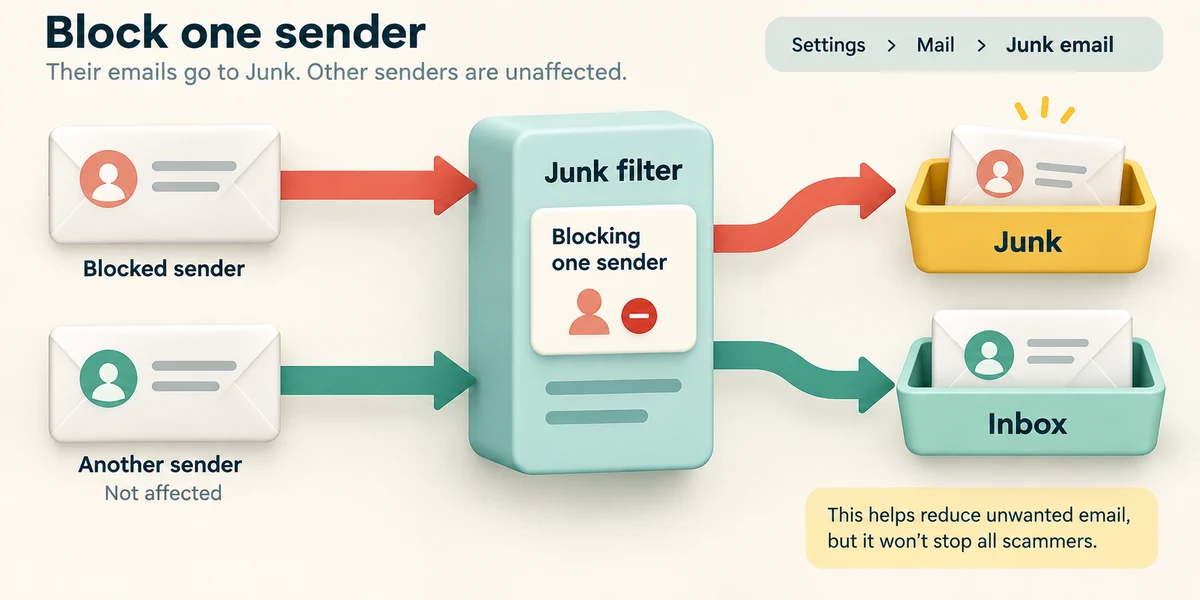
Blocking a sender is different from deleting one message. In supported Outlook accounts, blocking directs later mail from that address or domain towards Junk. It cannot stop a scammer using another address. In new Outlook, account-specific controls are under Settings, Mail, Junk email; third-party accounts may need their own provider's settings.
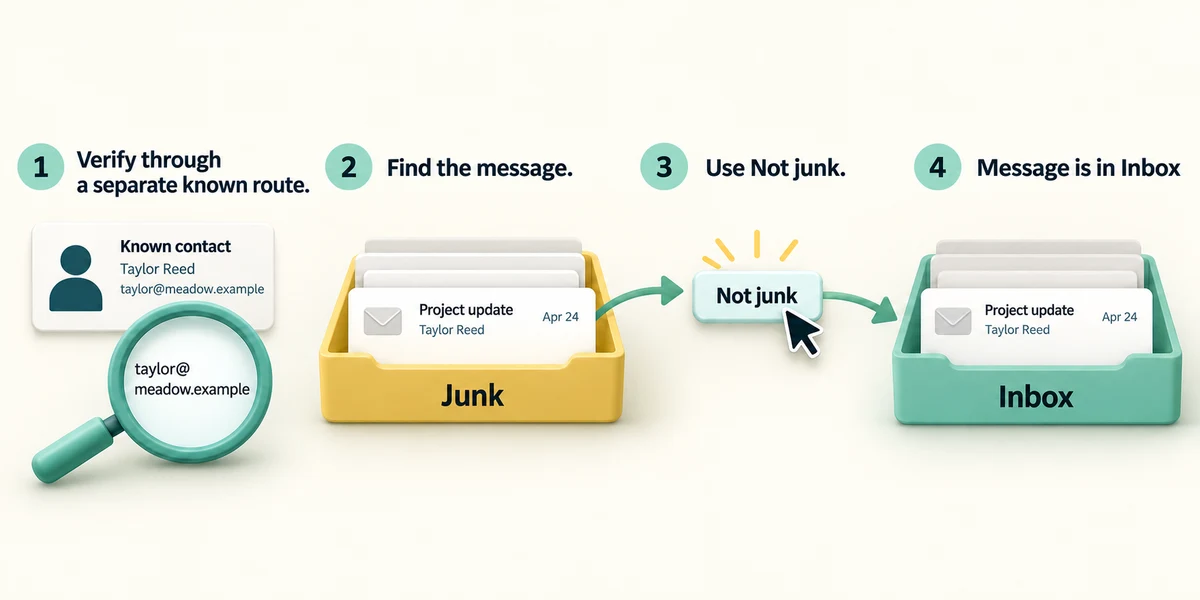
If a message you have independently confirmed is genuine went into Junk, select it there and choose Not junk or the service's equivalent. This is different from trusting every future message with the same display name. Do not add an entire domain to a safe list just to recover one email without considering the wider effect.
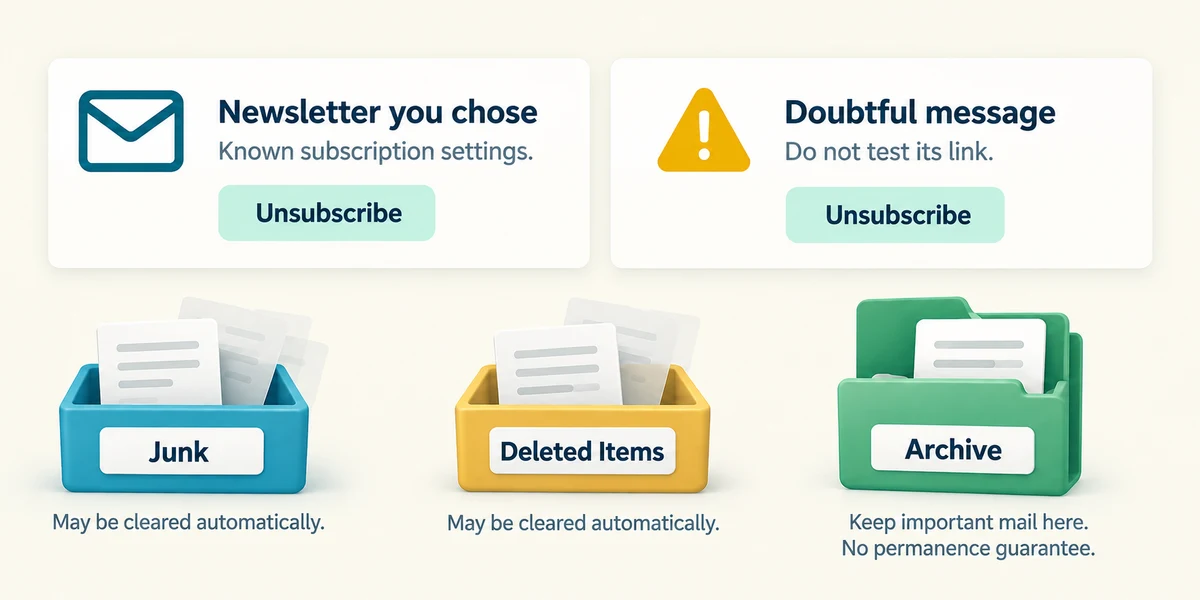
For a genuine newsletter you chose, use its known subscription settings or the mail service's supported unsubscribe control. Do not follow an unsubscribe link inside a doubtful scam merely to test it. Junk and Deleted Items may be cleared automatically, so they are poor places to keep important mail.
A club organiser separately confirms sending the exact joining email you expected. You find it in Junk. Which action best corrects its placement?
Use Not junk for that confirmed message and keep checking future requests.
Check what you understand
In guided learning, click Start 3 questions to receive a selection from this lesson. Click the circle beside an answer, then click Check answer. Read the feedback and try again if needed. Click Next question after each correct answer. Answer all 3 correctly to continue.
Returning to guided learning keeps the questions and answers in your current attempt.
Read all 3 questions and explanations
A message is in Inbox. What does that establish about its safety?
Answer: It passed the current filtering into that folder, not an independent trust check.
Folder placement is not proof of identity or link safety.
How is blocking different from deleting one message?
Answer: Blocking changes how later messages from the specified sender are handled.
Blocking is a mailbox handling rule. It is not a universal ban on the sender or every similar message.
An unfamiliar scam offers an unsubscribe link. What is the useful safer route?
Answer: Use the mail service's reporting controls without following that link.
Reporting through your mail service avoids using the doubtful message's own link or reply route.
Take this to your computer
- 1
Practise with this fictional decision. There is no need to inspect real spam.
- 2
Before using a rule on your own account later, read whether it applies to one sender or a whole domain and use the provider's official instructions.
This lesson neither reads your mailbox nor changes a filter. Report controls differ between services.
Prefer a more personal, one-to-one lesson? Basic Computing can help. Explore our services.