Make the pointer and typing cursor easier to see
Make the pointer and typing cursor easier to see
Compare a pointer with a text insertion cursor and choose an adjustment.
You can change the setting that matches what is hard to locate.
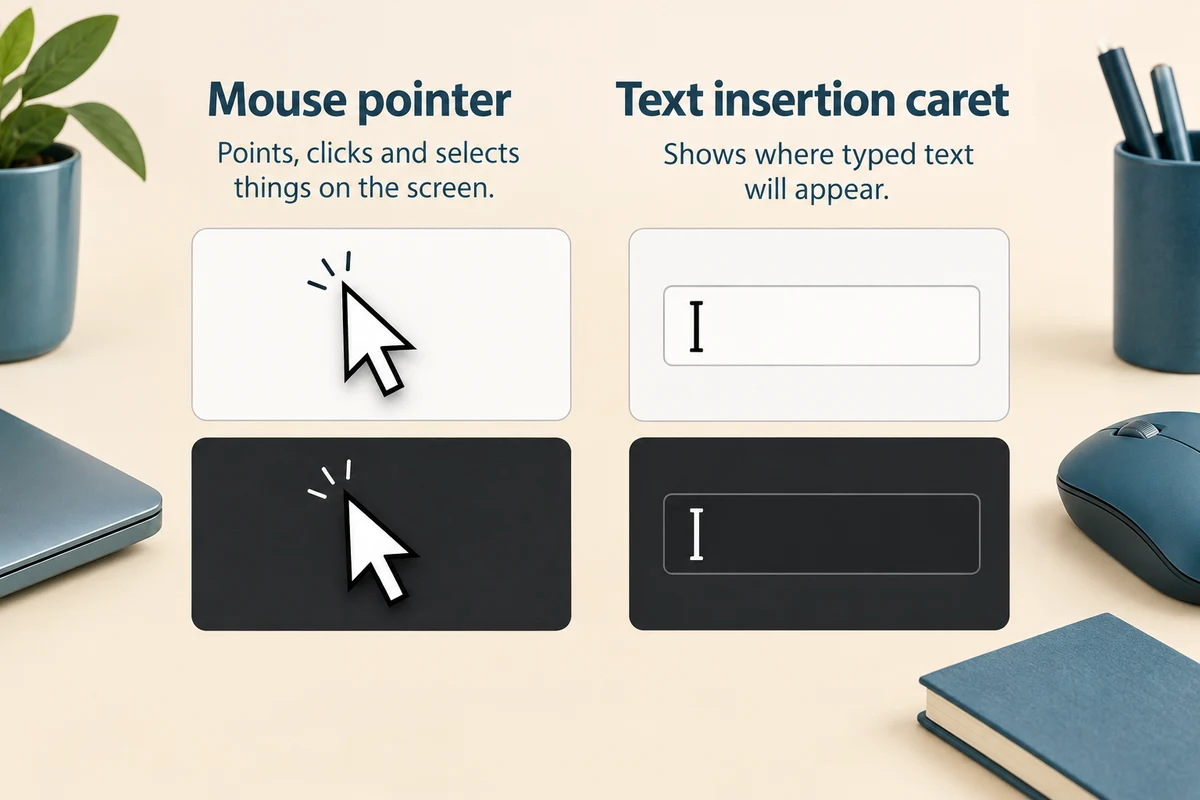
The mouse pointer shows where you are pointing. The typing cursor marks where the next character will appear in a text field. They can need different adjustments. Making one easier to see does not necessarily change the other or make all page text larger.
Work through the useful checks
How this works
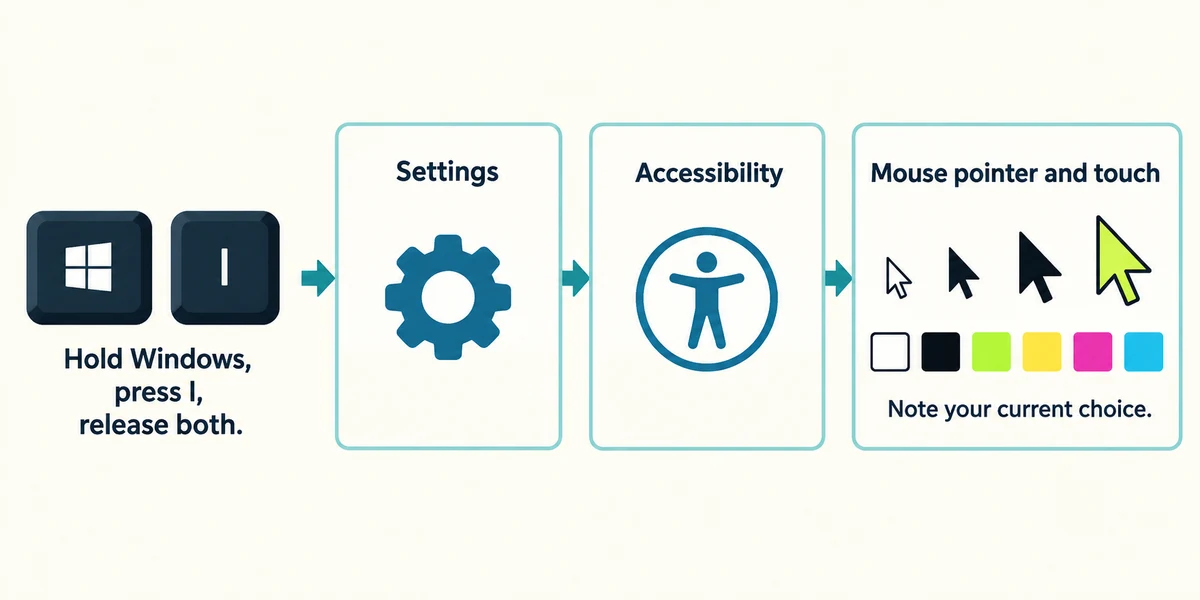
Hold the Windows key, press I once, then release both keys to open Settings. Click Accessibility, then Mouse pointer and touch. Read the size and colour options. Note your current choice before changing it so you can return.
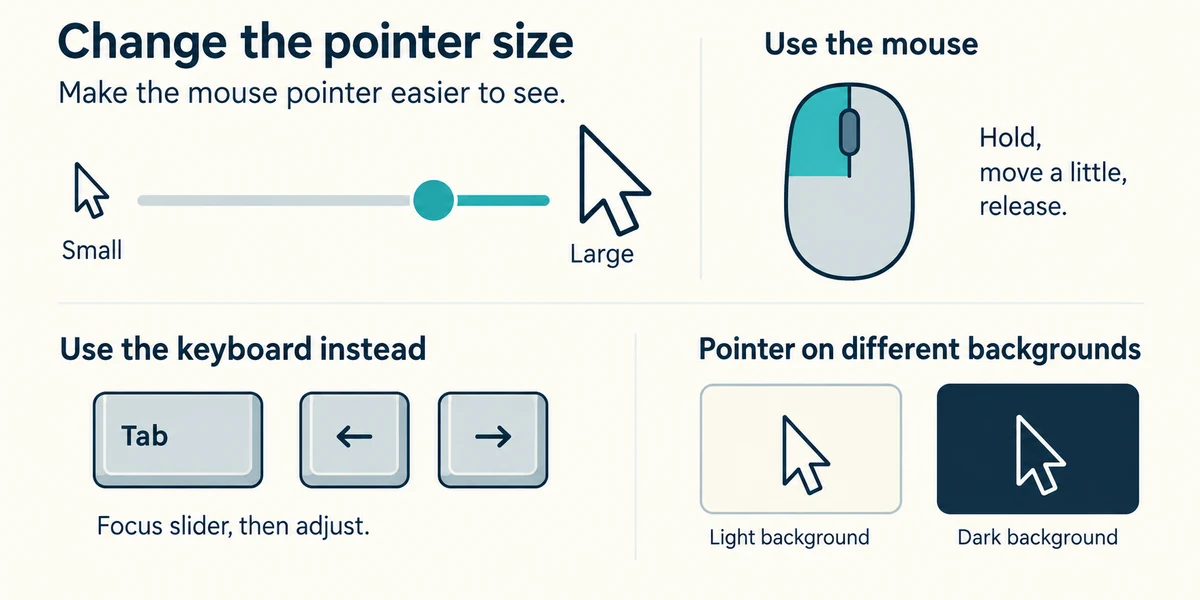
For pointer size, place the pointer on the slider, hold the left mouse button, move a small distance and release. Alternatively, press Tab until the slider is focused and use the arrow keys. Compare visibility over both light and dark areas.
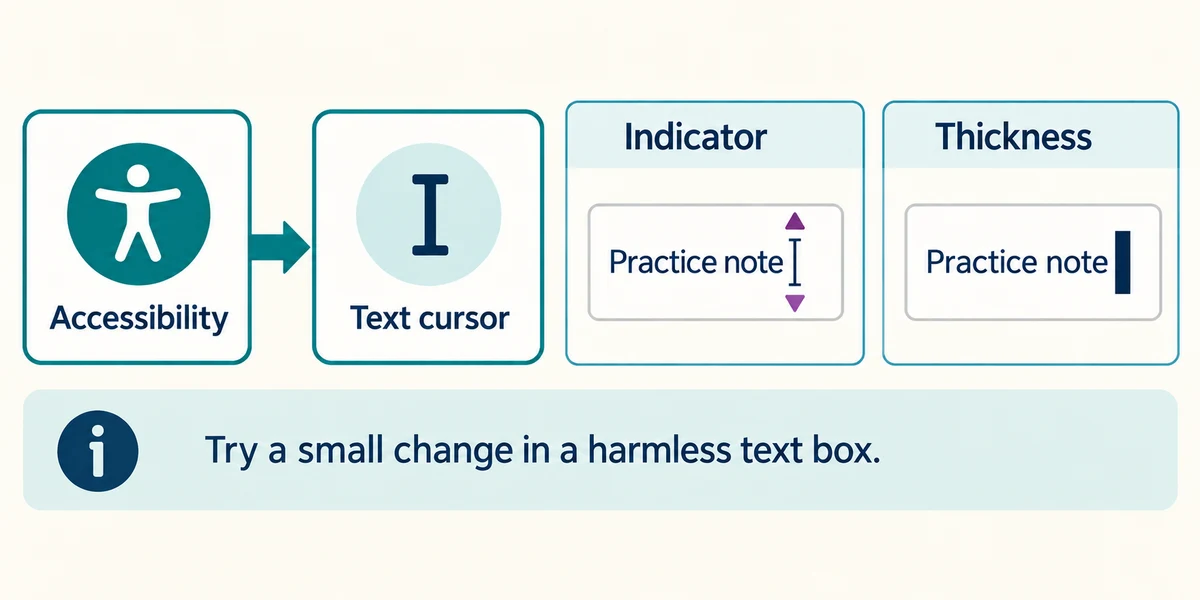
Return to Accessibility and click Text cursor. Its indicator helps locate the insertion point; thickness changes the narrow typing mark. Try a small adjustment in a harmless text box rather than changing a real document by accident.
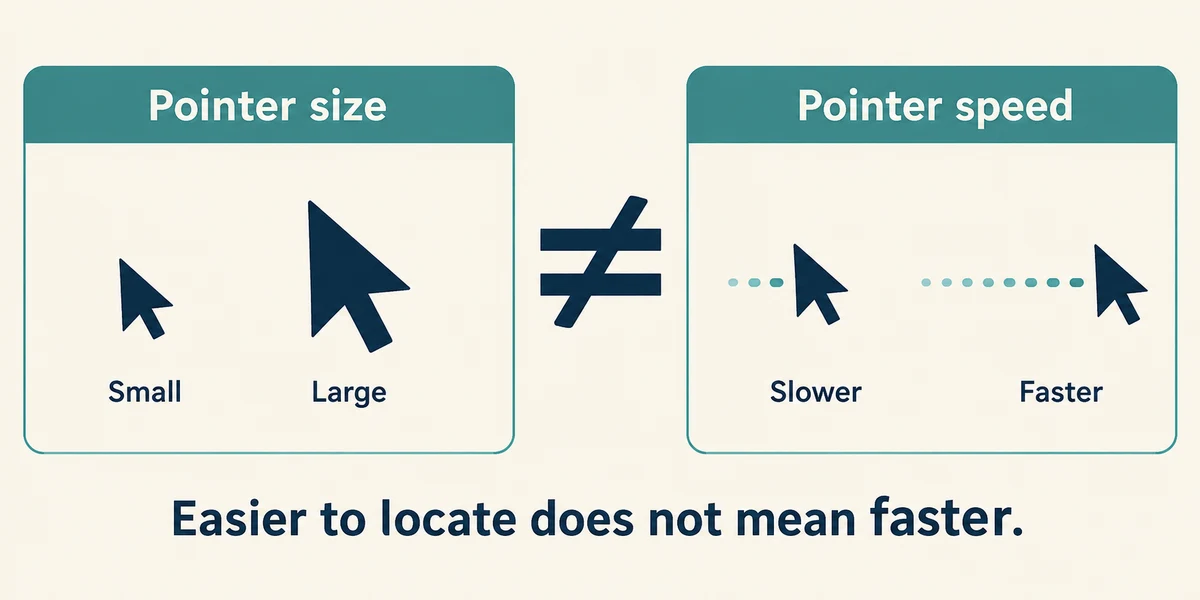
Pointer speed is a different setting from pointer size. If locating the pointer is the problem, increasing speed can make it harder to follow. Choose changes according to the task rather than assuming a larger or faster value suits everyone.
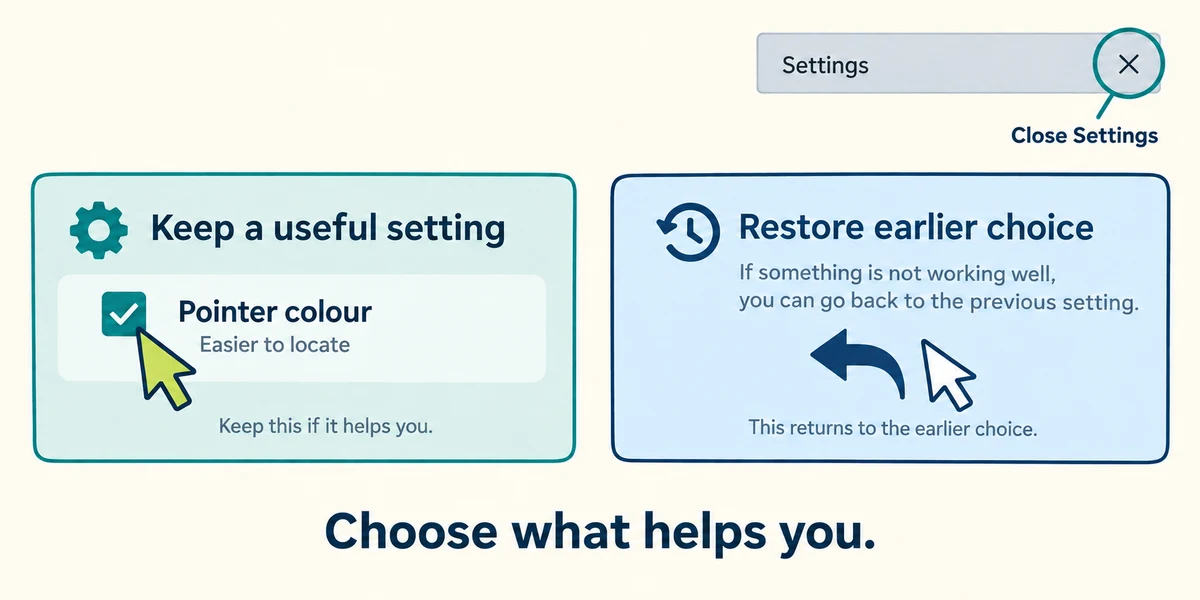
Keep a useful setting or restore the earlier value. Close Settings with the top-right X. Each person may prefer different size, colour or contrast, and observation alone is enough for this lesson.
Compare the examples
The mouse pointer shows where a pointing action will go. A typing cursor marks where text will be inserted. Making one larger does not automatically change the other. Try a size and colour that you can follow comfortably.
You can follow the mouse arrow, but lose the insertion mark while writing. Which setting fits first?
Text cursor thickness or indicator.
Check what you understand
In guided learning, click Start 3 questions to receive a selection from this lesson. Click the circle beside an answer, then click Check answer. Read the feedback and try again if needed. Click Next question after each correct answer. Answer all 3 correctly to continue.
Returning to guided learning keeps the questions and answers in your current attempt.
Read all 3 questions and explanations
You can see the typing mark but lose the arrow over pale backgrounds. What should you compare?
Answer: Mouse pointer colour and size.
The arrow is the mouse pointer. Its colour and size affect visibility across backgrounds. Text cursor thickness changes the typing mark; movement speed changes how quickly the arrow travels.
A larger arrow is easier to see but now moves too quickly. Are size and speed the same control?
Answer: No; they adjust different aspects of pointer use.
Size changes the visible pointer; speed changes how movement maps to the screen. They can be considered separately.
A chosen colour is clear on white but disappears over dark areas. What is a useful next step?
Answer: Compare another available style on both kinds of background.
Compare the pointer on both light and dark backgrounds. A larger size alone may not solve a colour that blends into the background.
Take this to your computer
- 1
Hold the Windows key, press I once, then release both keys to open Settings. Click Accessibility and Mouse pointer and touch. Record the current size, then inspect the available colours without changing them unless desired.
- 2
If you try a change, compare it on light and dark areas, then restore the earlier choice if preferred. Use the separate Text cursor page only for the insertion mark.
The lesson uses fictional examples. Optional checks on your computer can be observational. Settings and available features vary by model and Windows version.
Prefer a more personal, one-to-one lesson? Basic Computing can help. Explore our services.