Keep an original with Save As
Sometimes you need both versions
Choose a saving route for an original and a changed version.
Distinguish updating one file from saving another named version.
An original can be useful even after you make changes. A separate version lets you adapt a letter, list or picture while keeping the starting point. The important decision is whether to update the same file or create another one.
Name the new version before changing it
How this works
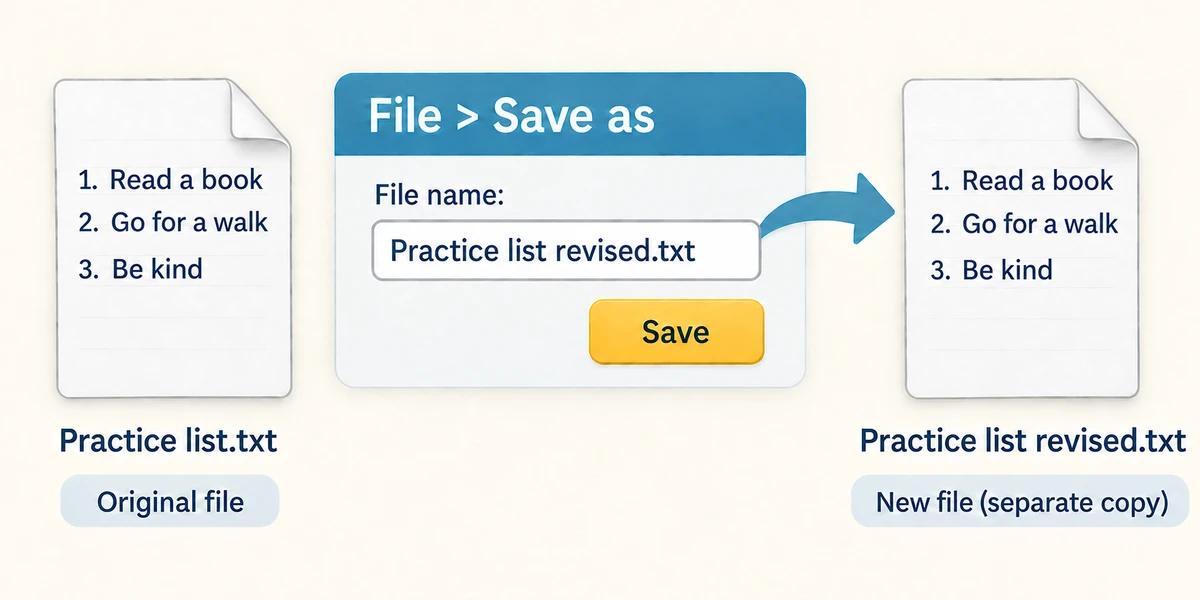
Open a disposable saved note. To keep its original contents, make the separate version before editing: click File near the top left, then Save as. Choose the folder, click File name, hold Ctrl and press A, release both keys, then type a different useful name such as Practice list revised.txt. Check that the original and new names are different, then click Save.

Read the name at the top of the app before making changes. In a typical Save As workflow, the app is now working on the new file. Add a harmless line and save it. The original remains separately available. Save normally updates the file currently open; it does not automatically keep every earlier version.
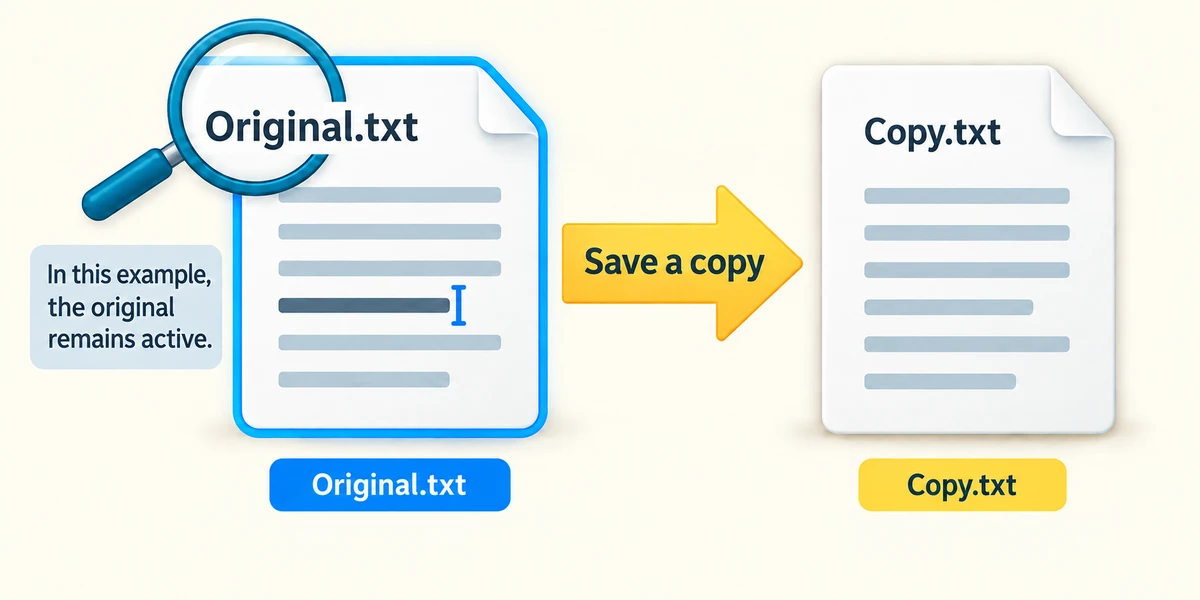
Some apps offer Save a copy instead, especially when automatic saving is active. That may create a copy without switching the file you are editing. Read the current name and saved location after the action. If automatic saving has already changed your original, making a copy afterwards does not undo those earlier changes.
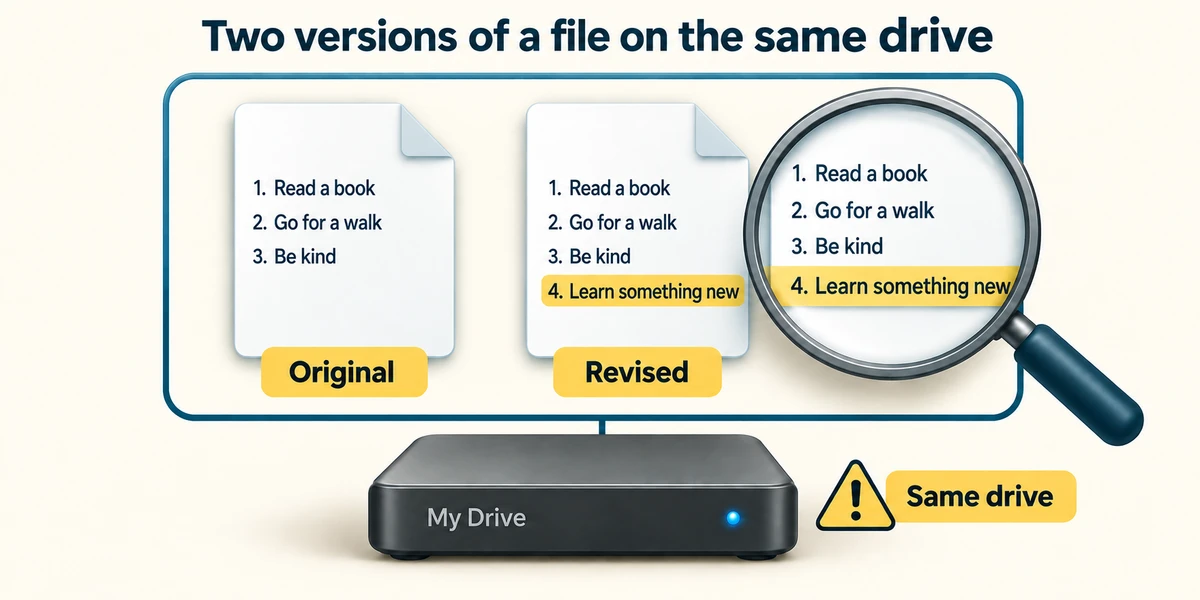
To check the result, open the folder in File Explorer and inspect each file in turn. Confirm that the original still has its original contents and the new version has your change. Two versions in the same drive help with editing, but they are not protection against that drive failing.
You want to adapt a saved invitation while keeping its original wording untouched. What should you do first?
Create a separately named version and check which file is open.
Check what you understand
In guided learning, click Start 3 questions to receive a selection from this lesson. Click the circle beside an answer, then click Check answer. Read the feedback and try again if needed. Click Next question after each correct answer. Answer all 3 correctly to continue.
Returning to guided learning keeps the questions and answers in your current attempt.
Read all 3 questions and explanations
After Save As, the app title shows Practice list revised. What should you check before editing?
Answer: That it is the new file and location you intended.
The name and location help identify the file receiving your edits.
An app's Save a copy command creates a second file. Can you assume it has switched the open document to that copy?
Answer: No. Check the current file name because app behaviour varies.
Save a copy and Save As can behave differently.
Both versions are on the same drive. What risk remains?
Answer: Drive failure could affect both files.
Separate versions on one drive are not an independent backup.
Take this to your computer
- 1
Open a disposable saved note and make a separately named version before editing.
- 2
Check the title and location, add a sample line and save.
- 3
Open both files in turn and compare them.
Trying this on your own computer is optional. Use only disposable practice information. This lesson's choices check your decisions; they do not operate your computer or prove that you have performed the real task.
Prefer a more personal, one-to-one lesson? Basic Computing can help. Explore our services.