Get ready and join a video meeting
Joining happens in stages
Choose what to do when a meeting preview is ready but you are still waiting outside.
Check the invitation, device controls and joining state before taking part.
A meeting invitation is a route to a conversation, not the conversation itself. A preview helps you check how you will appear and sound. You may then wait for the organiser to admit you. Understanding those stages makes joining less confusing and avoids changing settings just because you are not yet in the call.

Check the invitation and preview
How this works
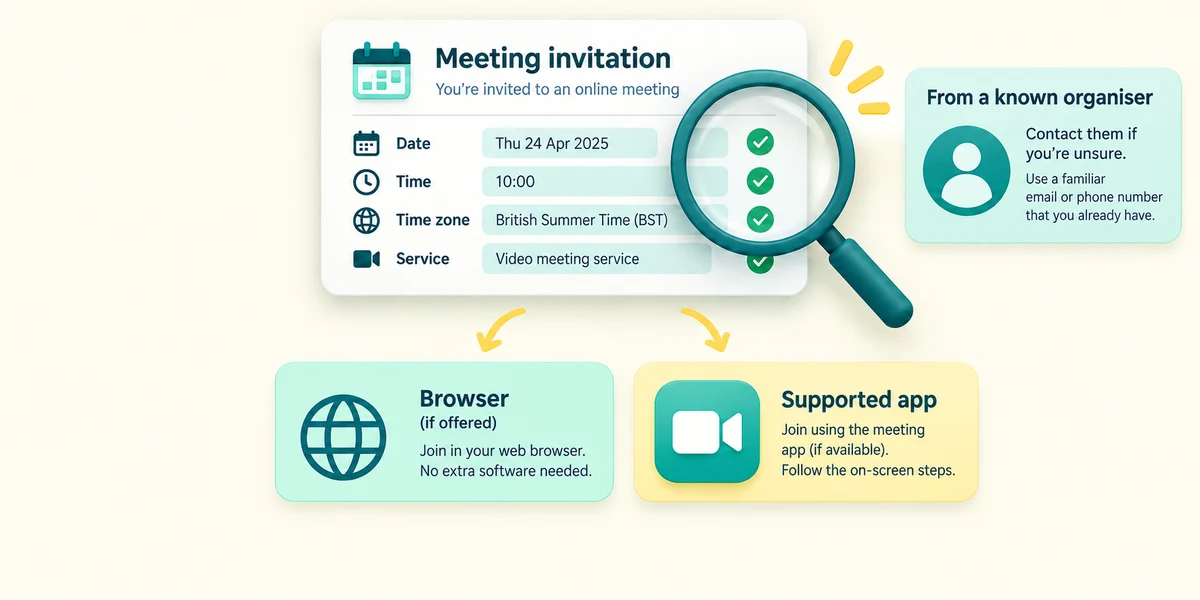
Use an invitation you expected from someone you can verify independently. Read the date, time, time zone and service name. Teams, Zoom and Google Meet have different options; the organiser's settings may require an account or supported app. Browser joining is available for some meetings, not every meeting.
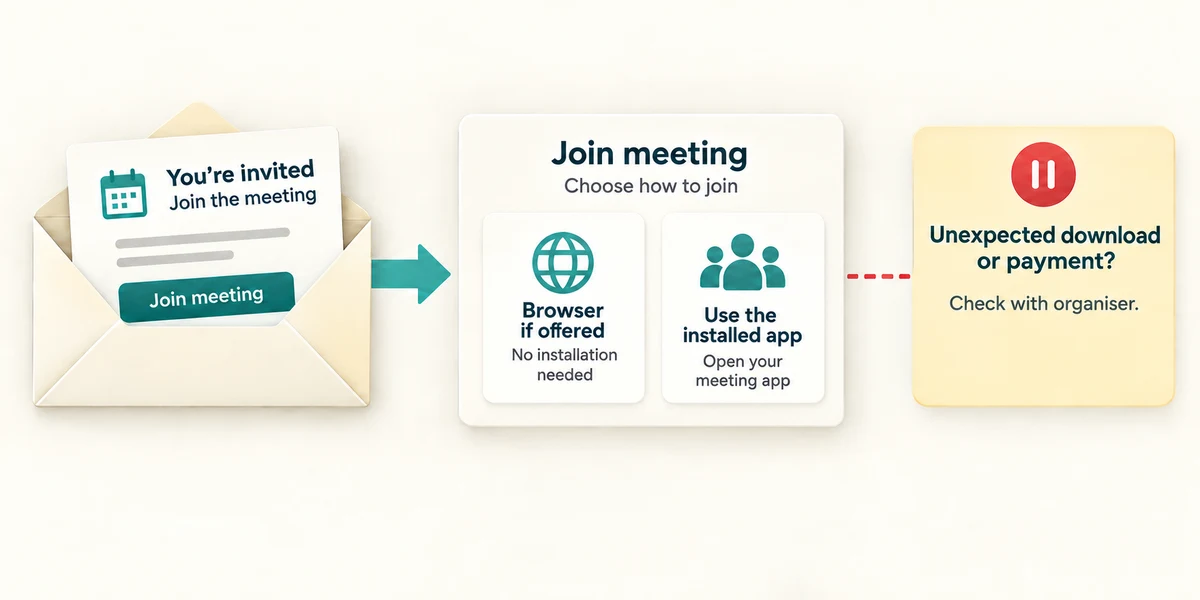
For a Teams invitation, click its meeting link once when you intend to join. On the genuine joining page, choose the browser option if it is offered and suitable, or the installed Teams app you already use. If the page demands an unexpected download or payment, stop and check with the organiser through details you already know.
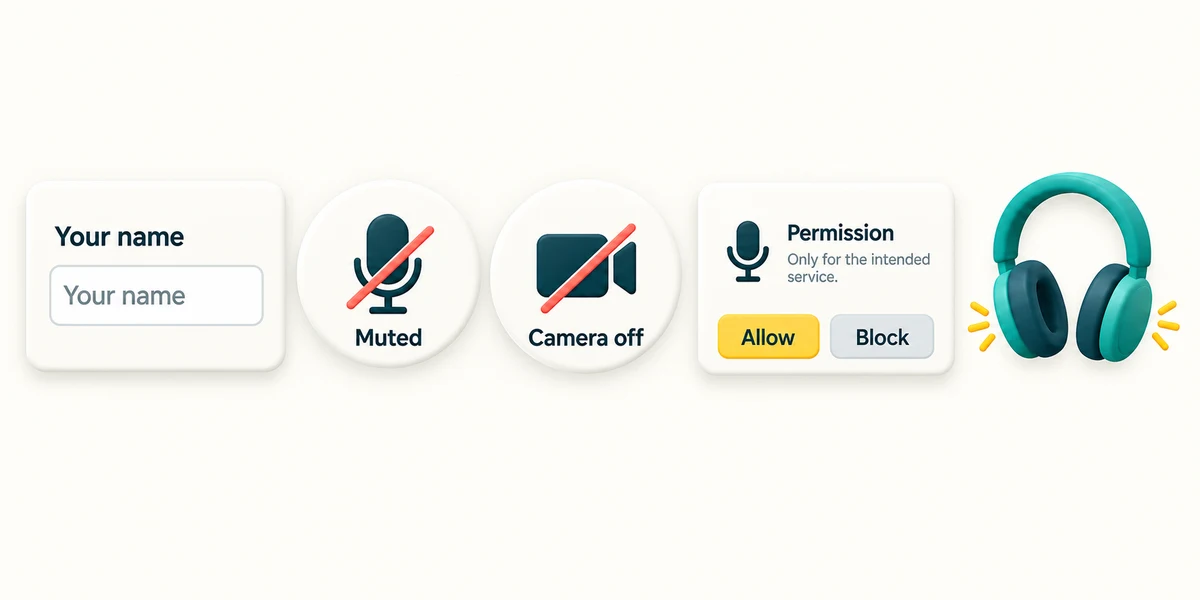
In the preview, read your displayed name and the microphone and camera labels. Click a control once to change its state, then check whether it now says on/off or muted/unmuted. Allow device access only for the service and call you intended. Microphone permission and the meeting's mute button are separate; headphones let you hear without sending your voice.
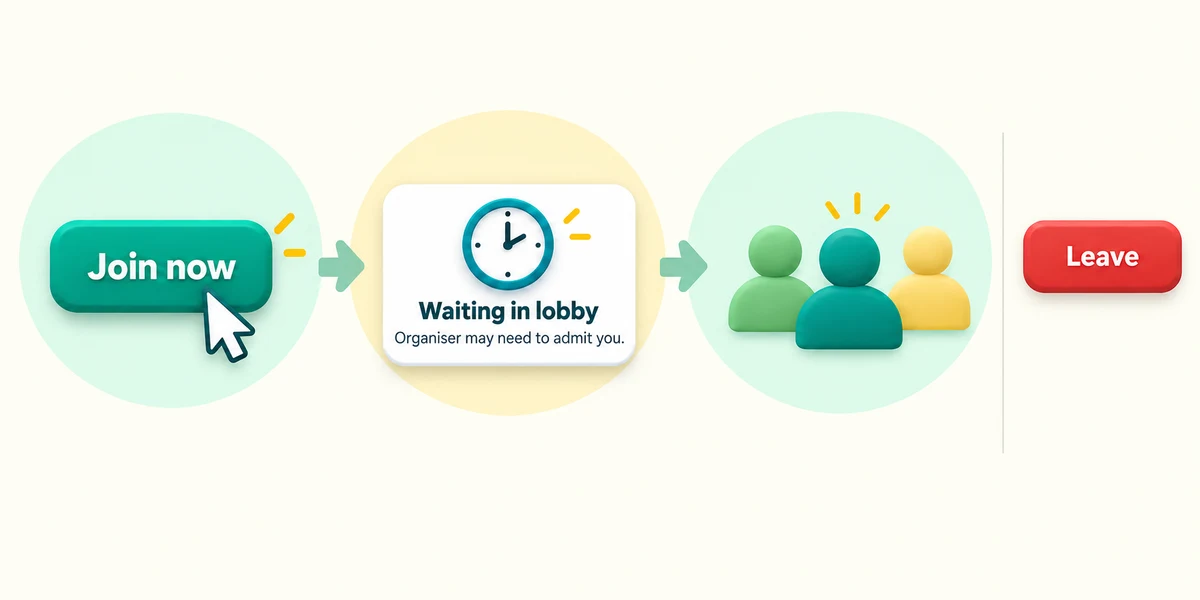
Click Join now or the service's equivalent when ready. If it says you are waiting in a lobby, you have not necessarily failed to join; the organiser may need to admit you. Wait or contact them through the known route. Once admitted, check the meeting name and participants. Click the labelled Leave button in the meeting controls when finished, rather than just closing a chat panel.
You chose the expected meeting, checked the preview and clicked Join. The page says the organiser will let you in. What is a sensible next step?
Wait for admission or contact the organiser through the details you already know.
Check what you understand
In guided learning, click Start 3 questions to receive a selection from this lesson. Click the circle beside an answer, then click Check answer. Read the feedback and try again if needed. Click Next question after each correct answer. Answer all 3 correctly to continue.
Returning to guided learning keeps the questions and answers in your current attempt.
Read all 3 questions and explanations
Your camera is off in the preview. What should you check separately if you do not want to send sound?
Answer: The microphone's muted state.
Camera, microphone and listening devices have separate roles. Camera off does not mean muted.
Can you assume every meeting allows joining without an account in a browser?
Answer: No; the service and organiser's settings determine the available route.
Joining requirements vary. Check the actual expected invitation and official service guidance.
You have finished talking and want to stop participating. Which control fits?
Answer: The meeting's labelled Leave control.
Leave ends your participation. Closing chat or turning off video may leave you in the meeting.
Take this to your computer
- 1
You do not need to join a call. Read a future invitation's service name and time before its date.
- 2
If you need help getting ready, contact the organiser through the known route before the meeting rather than installing an app under pressure.
This lesson requests no camera or microphone access and connects to no meeting.
Prefer a more personal, one-to-one lesson? Basic Computing can help. Explore our services.