Installing and updating apps
Installing and updating apps
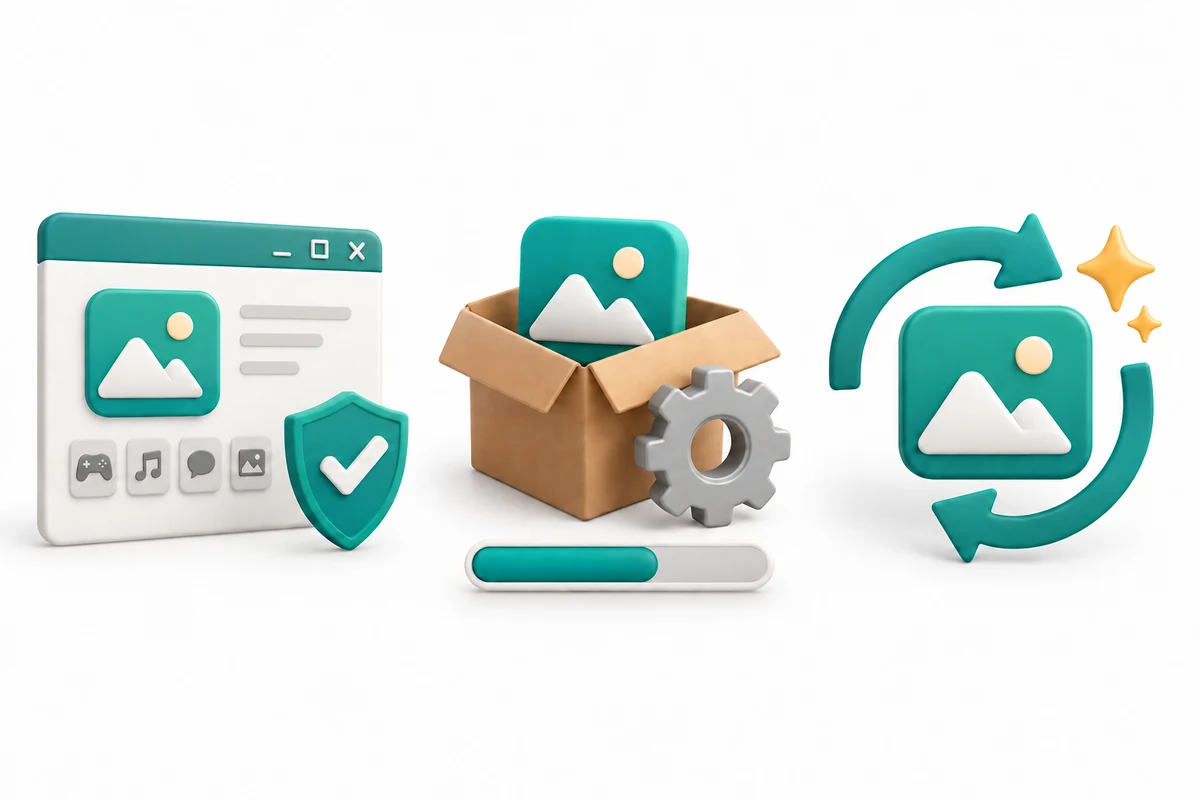
You are going to explore three short illustrated stages, try a practice choice and answer three quick-check questions.
Distinguish installing, updating, closing and uninstalling. Recognise the Store and official publisher as app sources. Understand that an app and its saved work need separate consideration.
Installing sets up an app on the computer so it can run. Downloading only transfers information to the computer; an installer may still need to run afterwards. Some web apps work in the browser without a separate desktop installation. Opening an app you already have is not installing it again.

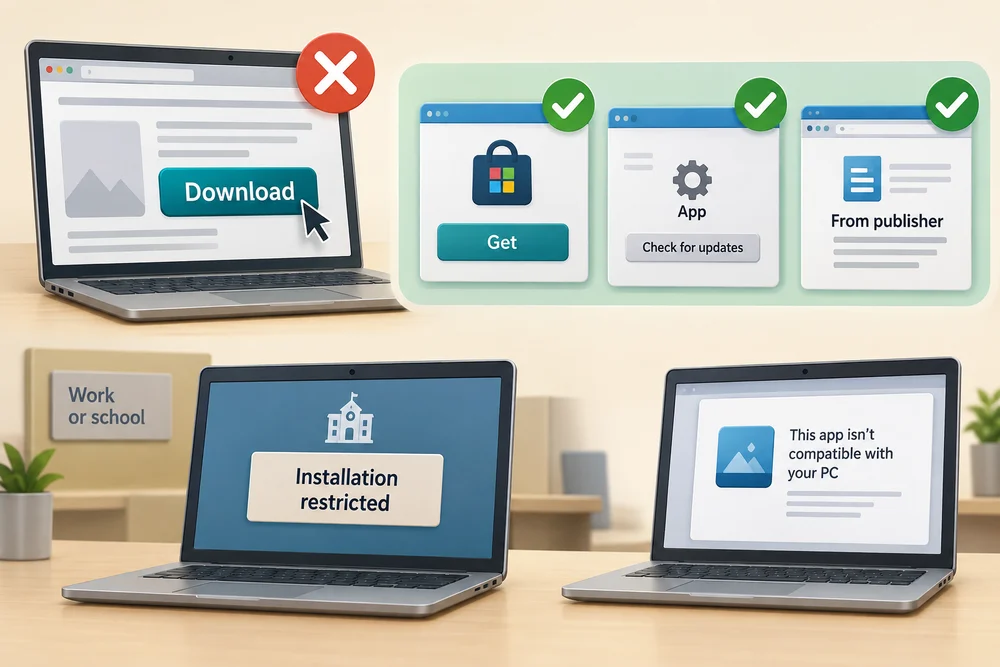
Microsoft Store is one place to get Windows apps. An app’s official publisher may also provide a Windows version on its own website. The publisher is the organisation or person responsible for the app. The app name, publisher, supported device and any costs or account requirements matter before proceeding.

A large Download button or a message on an unrelated page does not prove an app or update is genuine. Use the Store, the app’s own update feature or the publisher’s genuine update instructions. Some work or school computers restrict installations, and not every app supports every Windows computer.
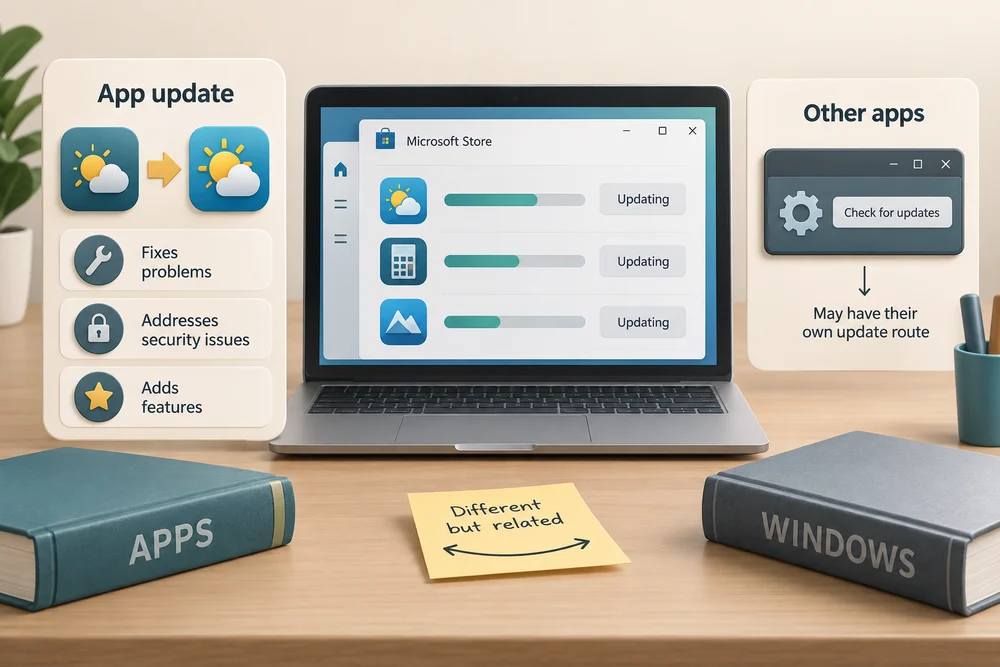
Updating brings a newer version of an app, which may fix problems, address security issues or add features. Microsoft Store manages updates for supported Store apps; other apps may have their own update route. An app update and a Windows operating-system update are related maintenance tasks, but they are not the same thing.
Closing ends a window or session; uninstalling removes an installed app. Uninstalling is different from deleting a document, but an app’s own stored data or settings can be removed too. Important work needs a saved location and appropriate copies before removing the app. Uninstalling also does not necessarily cancel a service subscription.

Explore the example
Compare getting an app with keeping it current, then make the practice choice. The lesson never downloads, installs, removes or purchases anything.
Explore the three stages, then try the practice choice. The guidance beside each control explains what to do. The separate Quick check comes next.
From a trusted source to an updated app
1. Check where the app comes from
Find apps through the official Microsoft Store or the app publisher’s own website. Check the app name and publisher. An unexpected advert claiming that you need a download is not the same as an update offered by the app you use.
2. Install adds the app
Installing sets up the app so the computer can run it. Some apps are already installed; others work inside a browser. This lesson does not download or install anything, and you do not need to install an app to finish it.
3. Update keeps the app current
An update changes an existing app, often adding fixes or improvements. Use its normal update route, the Store or the publisher’s official guidance. Uninstalling removes the app, which is different from closing its window or deleting a shortcut.
Try a small task
You want the latest version of a program you already use. Which approach helps you get it from the source responsible for that program?
- Check its own update feature, Store entry or publisher’s guidance (the suitable choice)
These routes link the update to the app you intended. Check the app and publisher details before proceeding.
- Choose the first download result with a matching logo
A matching logo and search position do not establish who supplies the download. Use the app’s normal route or check its actual publisher.
- Choose a download with a similar name without checking its publisher
A similar name does not establish that this is an update for your app. The publisher and the app’s own update route help identify the intended source.
Your activity stays as you left it when you return to one section at a time.
Check your understanding
Click Start 3 questions to begin. Click the circle beside your answer, then Check answer. After each of the first two correct answers, click Next question. When all three are correct, click Continue below. You can change a wrong answer and check again. With a keyboard, Tab reaches choices, arrow keys choose an answer, and Tab then Enter activates a button.
In guided learning, click Start 3 questions to receive a selection from this lesson. Click the circle beside an answer, then click Check answer. Read the feedback and try again if needed. Click Next question after each correct answer. Answer all 3 correctly to continue.
Returning to guided learning keeps the questions and answers in your current attempt.
Read all 10 questions and explanations
You already downloaded a setup file. What is the job of the installation step?
Answer: Prepare the app to run on this computer.
Yes. Installing prepares an app for use; opening and closing are different actions.
A setup file has arrived in Downloads. What can you conclude?
Answer: The file was transferred, but the app may still need setting up.
Yes. Downloading transfers information; installing may be a separate step.
Where can you browse Windows app listings with a name, publisher and installation option?
Answer: Microsoft Store.
Yes. Microsoft Store provides Windows apps; check the particular app and its requirements.
An app listing names a publisher. What does that identify?
Answer: The person or organisation responsible for providing the app.
Yes. The publisher identifies who provides the app; check its genuine source.
What can a newer app version provide?
Answer: Fixes or features for the existing software.
Yes. Updates can fix problems, address security issues or add features.
You want the current version of a tool you already use. Which route gives you a way to check the source against that tool?
Answer: Its own update feature or the publisher’s update guidance.
Yes. Use the Store or an update route belonging to the actual app and publisher.
One notice concerns an app and another concerns the operating system. How are they related?
Answer: They concern different software that can have separate updates.
Yes. Windows is the operating system; individual apps have their own versions and updates.
You want to stop using a tool for now but open it again later. How does closing differ from uninstalling?
Answer: Closing ends the window or session; removing the installation is a different action.
Yes. A closed app can remain installed and be opened again.
Before removing an app, what should you understand about its data?
Answer: Its own settings or stored data may be removed, so consider saved work separately.
Yes. Removing an app can affect its data and settings and need not cancel a subscription.
You find a genuine app, but will it necessarily work on your PC?
Answer: No. Its requirements and your computer’s rules still matter.
Yes. Check supported devices and requirements; managed computers may restrict installation.
Connect the idea to your computer
These observations are optional. You can finish using the lesson’s examples, without installing an app or changing your computer’s settings.
- 1
For an optional look at Microsoft Store, press the Windows logo key, type Microsoft Store and click the app in the results if it is available. If your computer does not offer it, stay with the lesson example.
- 2
Look at the information for an app already displayed. Notice its name and publisher, where shown. This is an observation: leave Get, Install, Buy and update controls alone.
- 3
Click the X at the top right of the Store window to close it. You have closed the Store, not uninstalled it. No installation or removal is needed to finish this lesson.
App names and layouts can vary. If a suggested app or screen is not available, use the lesson example instead. Nothing needs to be bought, downloaded, sent or deleted.
Prefer a more personal, one-to-one lesson? Basic Computing can help. Explore our services.