Improve Wi-Fi around your home
Improve Wi-Fi around your home
Compare a room layout and choose a useful Wi-Fi improvement.
You can distinguish local coverage problems from the outside connection.
Wi-Fi signals share space with walls, furniture and other radio activity. A strong connection near the router can become unreliable farther away. Better placement or coverage can help that local link, but cannot make an unavailable outside service work.
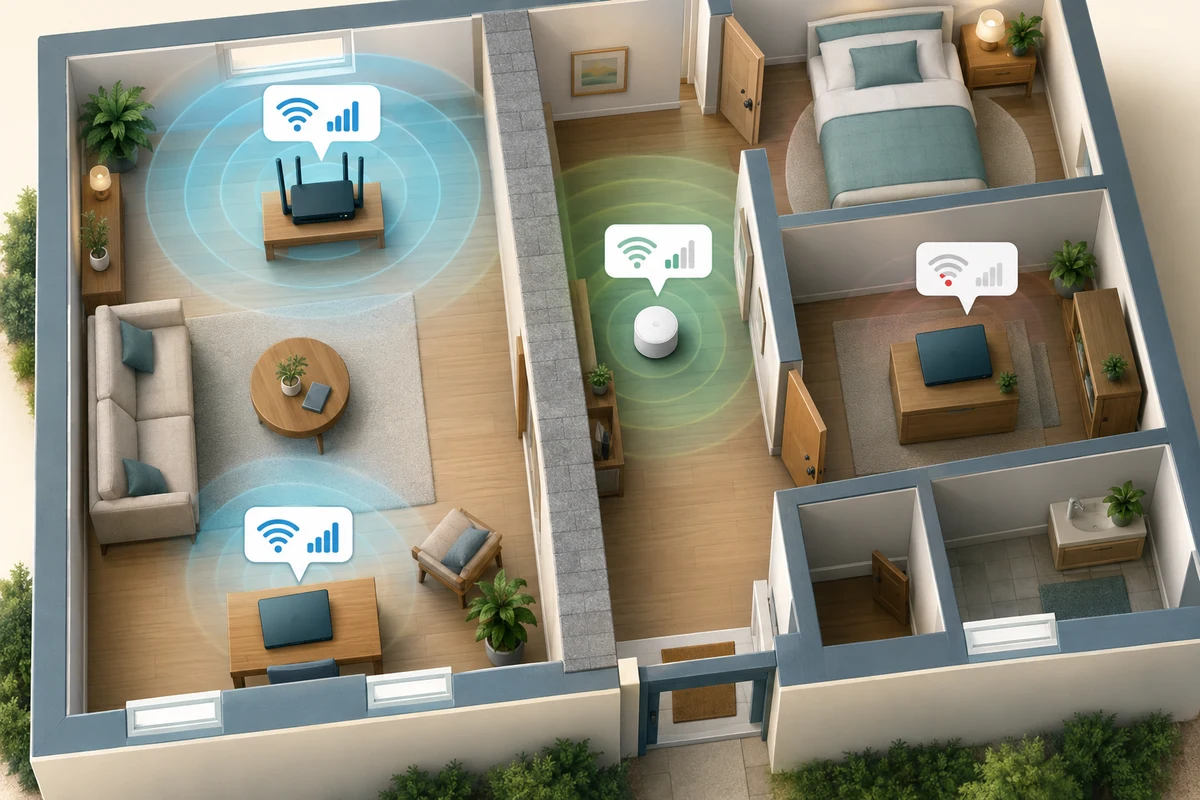
Work through the useful checks
How this works
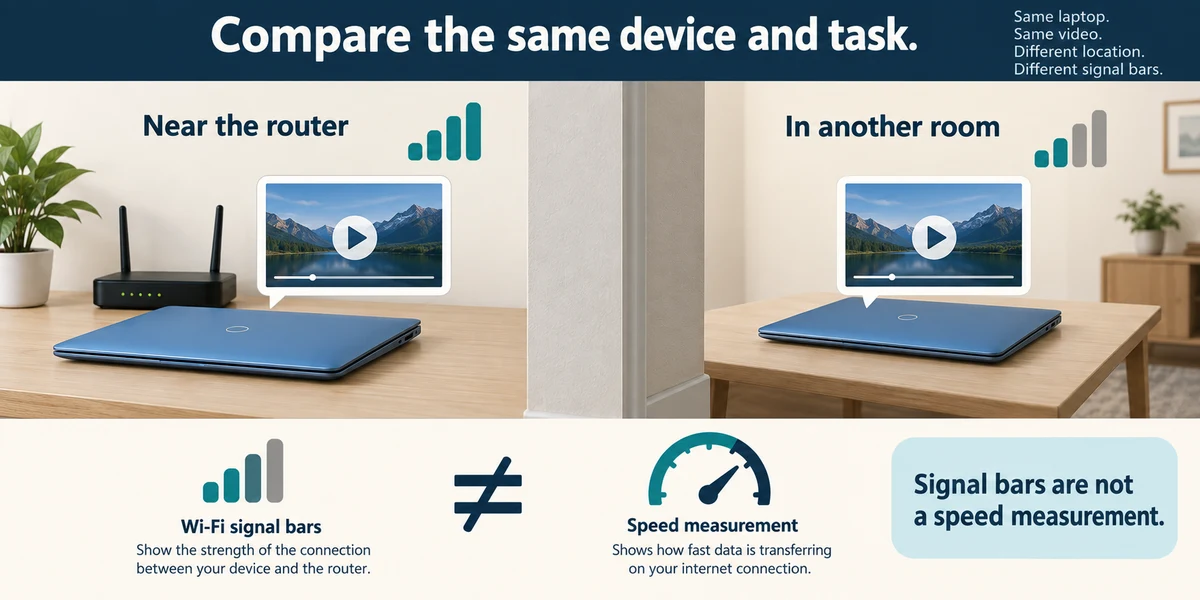
Compare the same device and task near the router and in the troublesome room. Signal bars are a rough connection clue, not a measured internet speed. Keep other conditions similar before blaming the broadband package.
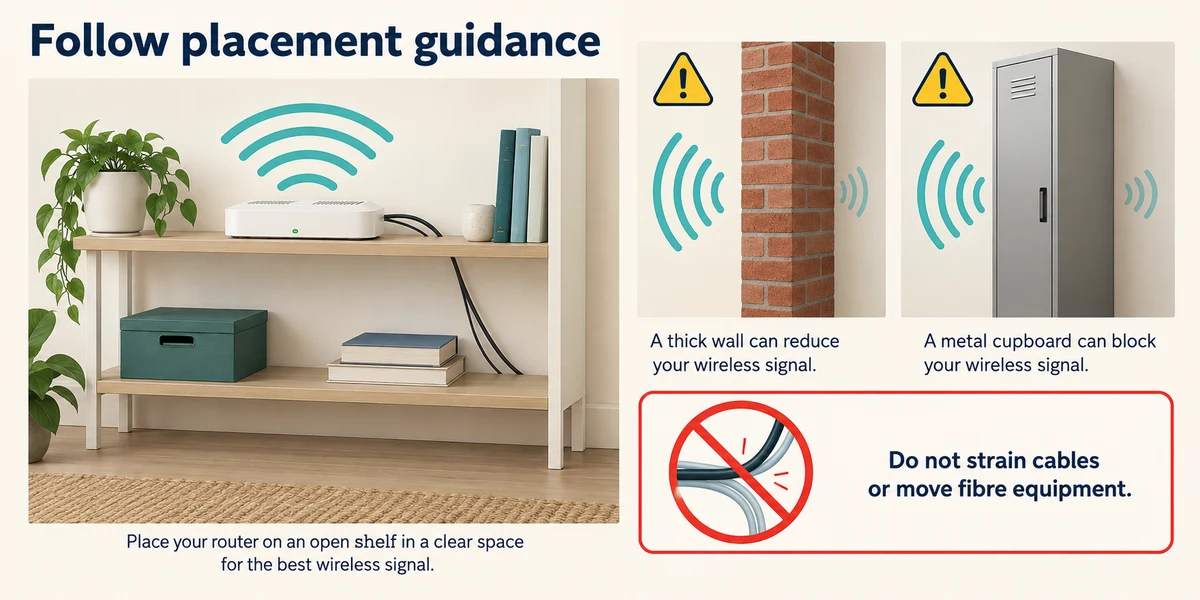
Position equipment in an open, sensible location following its guide. Thick walls, metal cupboards and some household equipment can weaken or interfere with signals. Do not move fibre equipment or strain cables just to centre a router.
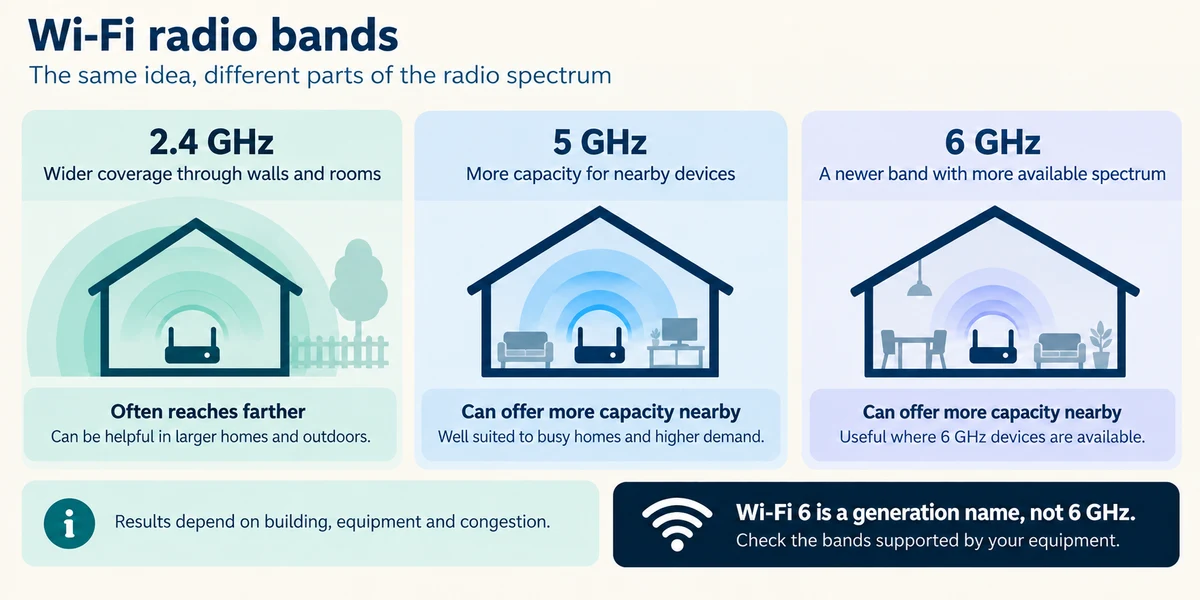
2.4 GHz, 5 GHz and 6 GHz are radio bands. Lower-frequency 2.4 GHz often reaches farther but is busy; higher bands can offer more capacity nearby with compatible devices. Actual results depend on the building, equipment and congestion. Wi-Fi 6 is a generation name, not a promise of a 6 GHz connection.
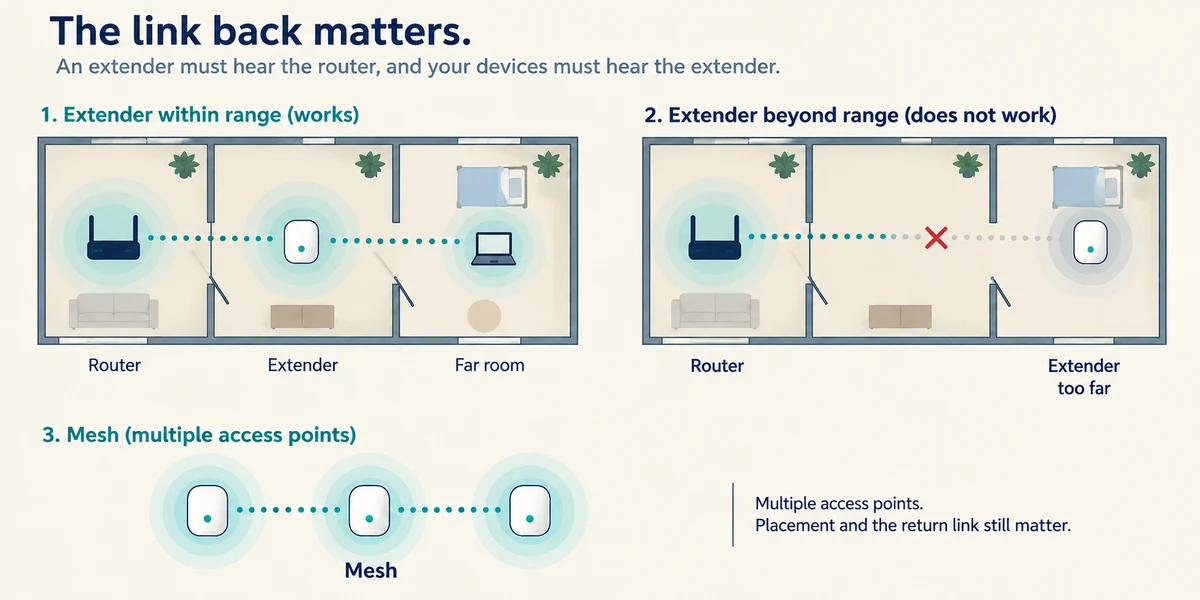
Mesh systems use several coordinated access points; extenders can repeat a connection. Their link back to the router matters. Placing a wireless extender where it already receives no usable signal cannot create a strong return link. Follow placement instructions and test before buying more equipment.
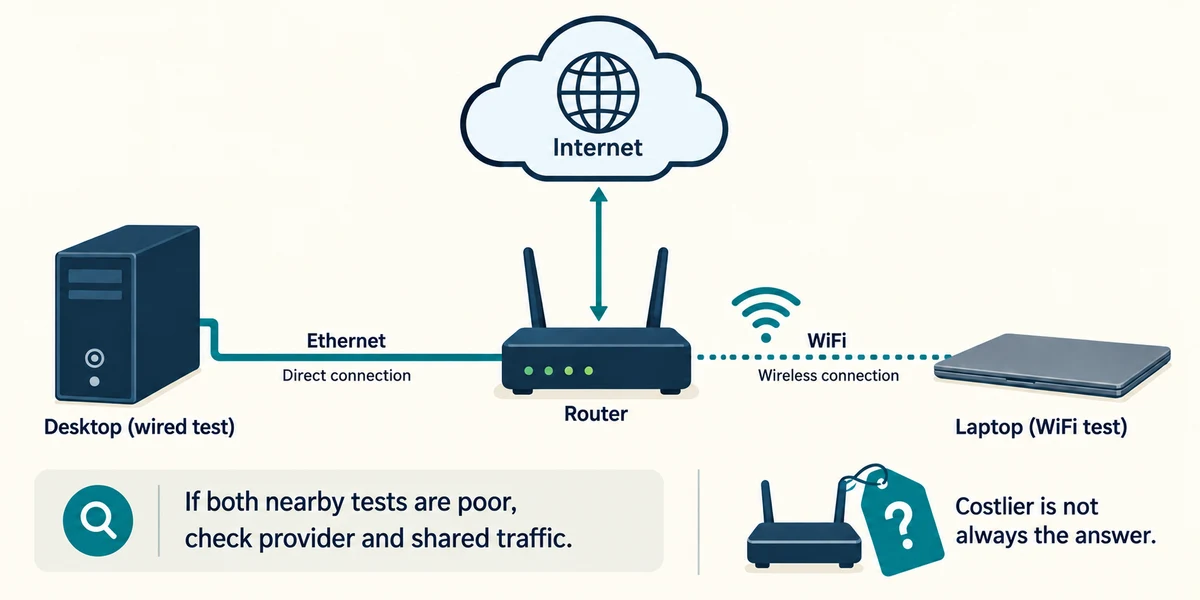
For a fixed computer, a suitable Ethernet connection can avoid the Wi-Fi part of the route. If both nearby wired and wireless tests are poor, investigate the provider or shared traffic too. A more expensive router is not always the answer.
A laptop works well beside the router but badly behind thick walls. Which improvement deserves investigation first?
The local Wi-Fi coverage and placement.
Check what you understand
In guided learning, click Start 3 questions to receive a selection from this lesson. Click the circle beside an answer, then click Check answer. Read the feedback and try again if needed. Click Next question after each correct answer. Answer all 3 correctly to continue.
Returning to guided learning keeps the questions and answers in your current attempt.
Read all 3 questions and explanations
A box advertises Wi-Fi 6. What does that alone prove about 6 GHz?
Answer: Nothing definite; generation and supported frequency bands need checking.
Wi-Fi 6 names a generation. Check the supported bands and device compatibility separately.
A wireless extender is placed where it cannot hear the router. What is the issue?
Answer: It needs a usable return connection to extend the network.
An extender still needs a working link back. It cannot replace the provider service or invent a missing wireless connection.
Both a wired PC and a nearby Wi-Fi laptop are slow at the same time. What should you investigate next?
Answer: Shared traffic or the provider route as well as the local equipment.
Two different local routes showing the problem suggest a shared cause deserves checking.
Take this to your computer
- 1
Compare the same harmless webpage in two places with the same device, if moving safely is practical. Note the place and result rather than changing settings.
- 2
Look at the router’s current position and its official placement guidance. Record a possible improvement without disconnecting fibre or moving unfamiliar provider equipment.
The lesson uses fictional examples. Optional checks on your computer can be observational. Settings and available features vary by model and Windows version.
Prefer a more personal, one-to-one lesson? Basic Computing can help. Explore our services.