Handle a frightening computer warning
A webpage can imitate a warning
Choose how to respond to a webpage demanding a support call.
Avoid granting money or remote access because of an alarming webpage.
A frightening page can claim your computer is infected even when it has not examined it. Support scams use urgency, familiar branding and phone numbers to push you into calling, paying or installing remote-access software. Pausing and using your own route to help breaks that pressure.

Separate the page from real support
How this works
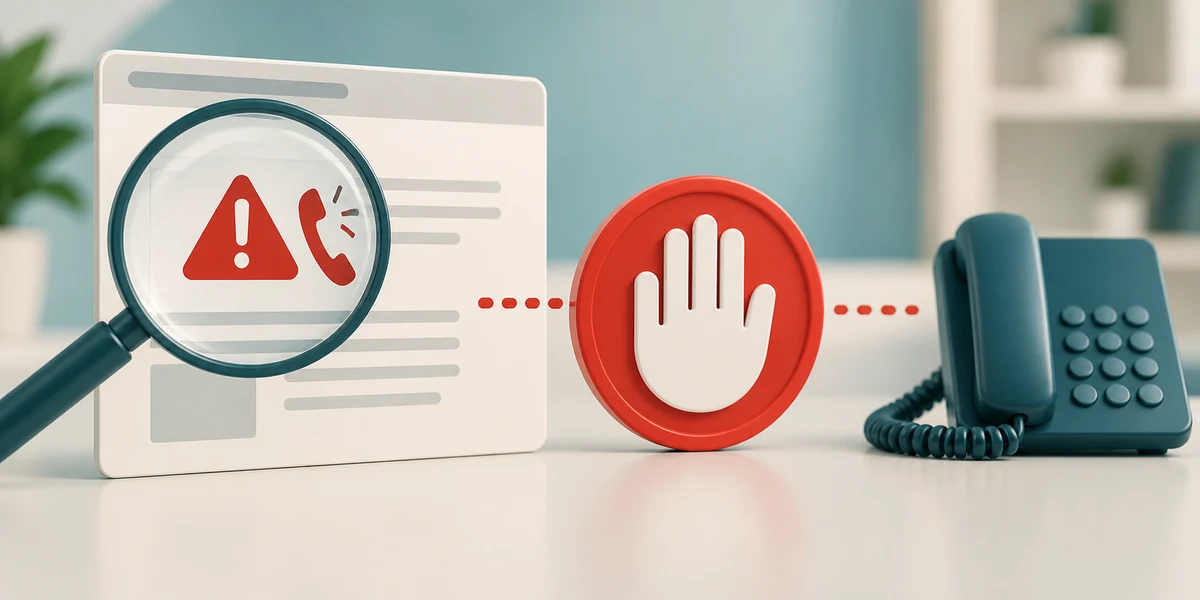
A Microsoft-looking page with an alarm is not automatically a Windows Security result. Microsoft's genuine error and warning messages do not provide a telephone number asking you to call for a repair. Microsoft also does not make unsolicited calls offering to fix your computer. Do not call the number or download the offered cleaner.
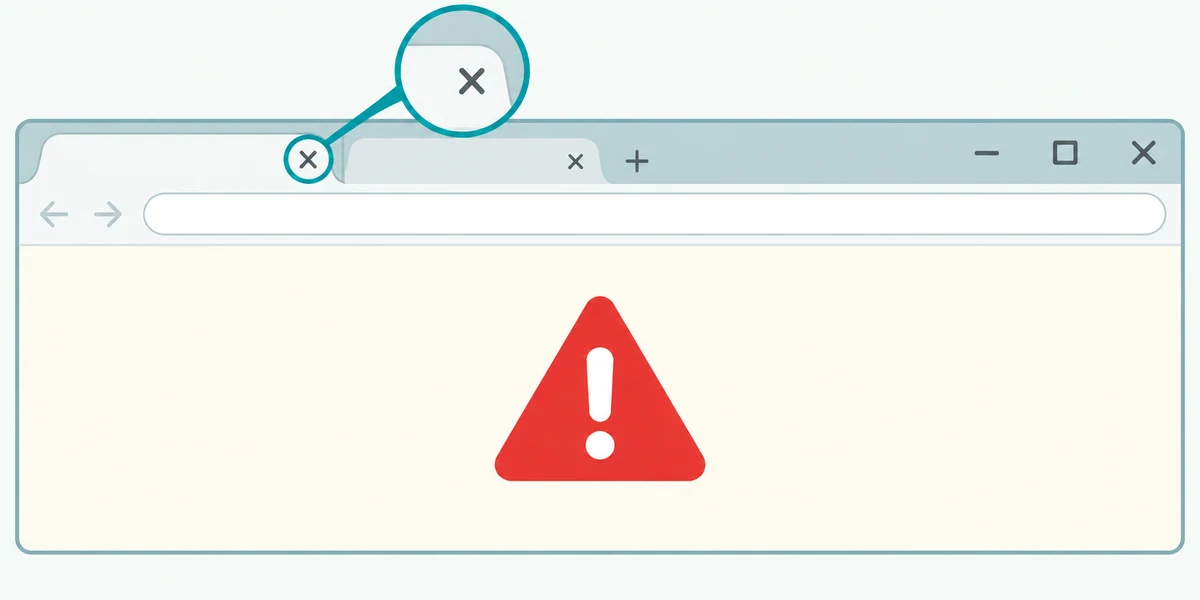
Try closing the browser's current tab with its small X beside the tab title. If the page prevents normal interaction, hold Alt and press F4, then release both, to close the active browser window. This can close other tabs too, so it is different from closing a single tab. Do not use a close button drawn inside the alarming page as proof it is a real window control.
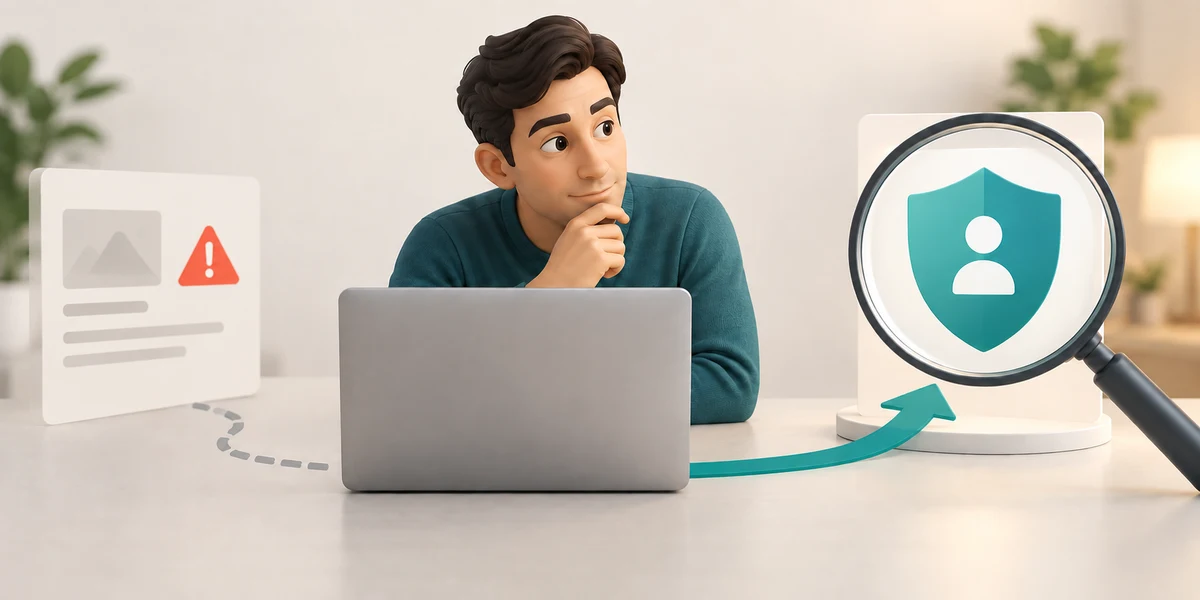
If you cannot close the browser, stop interacting and use trusted help for the computer's normal restart process. When reopening the browser, avoid restoring the alarming session. If you are worried about the device, press the Windows logo key, type Windows Security and click that app in Start results to inspect the real protection app independently.
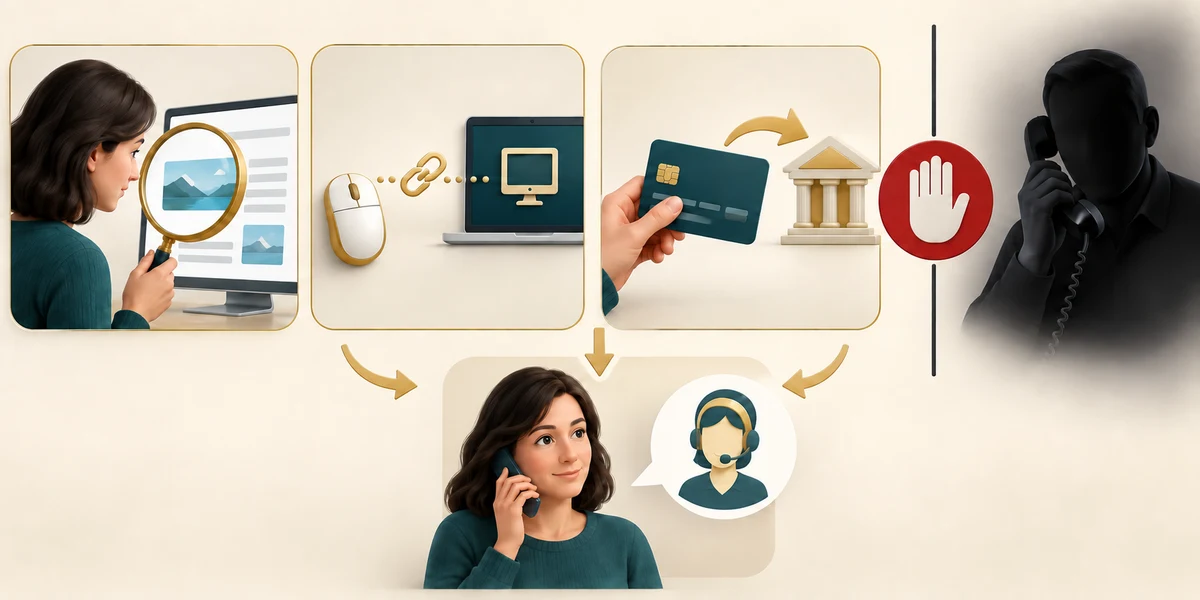
Looking at a page is different from installing software, giving remote control or sending money. If you did one of those things, get independent help promptly and follow the suspicious-action recovery lesson. Do not let the same caller supervise the checks. A supposed support worker does not need gift cards, your sign-in codes or your banking login to prove the computer is safe.
A browser page sounds an alarm and says to call its support number before touching anything. Which response avoids following the page's instructions?
Close the browser using its own controls and reach help independently if needed.
Check what you understand
In guided learning, click Start 3 questions to receive a selection from this lesson. Click the circle beside an answer, then click Check answer. Read the feedback and try again if needed. Click Next question after each correct answer. Answer all 3 correctly to continue.
Returning to guided learning keeps the questions and answers in your current attempt.
Read all 3 questions and explanations
What does familiar Microsoft artwork inside a webpage establish?
Answer: Only that the page displays that artwork.
Artwork can be copied. It does not identify a genuine security result or support number.
What can Alt + F4 close when the browser is active?
Answer: The current browser window, potentially including its other tabs.
Alt + F4 closes the active window. It is not just a tab-close control and does not close every other running app.
You already allowed a caller remote access. What is the useful next step?
Answer: Seek help independently and explain what access was granted.
Granted access can have consequences beyond the page. Independent recovery help needs to know what actually happened.
Take this to your computer
- 1
Do not visit a warning page to practise. Identify how you would reach a trusted helper without using a popup's number.
- 2
You may open Windows Security through Start to recognise the genuine app, then close it with its top-right X without changing protection.
This lesson shows no real malware and initiates no support call or remote access.
Prefer a more personal, one-to-one lesson? Basic Computing can help. Explore our services.