Find where an internet problem starts
Find where an internet problem starts
Use a small diagnostic sequence to narrow a connection problem.
You can restart or investigate the relevant part instead of changing everything.
An unavailable page can be a problem with that service, one app, one device, Wi-Fi or the provider connection. Comparing what still works narrows the search. The useful question is not just whether the internet is broken, but which requests fail and where.
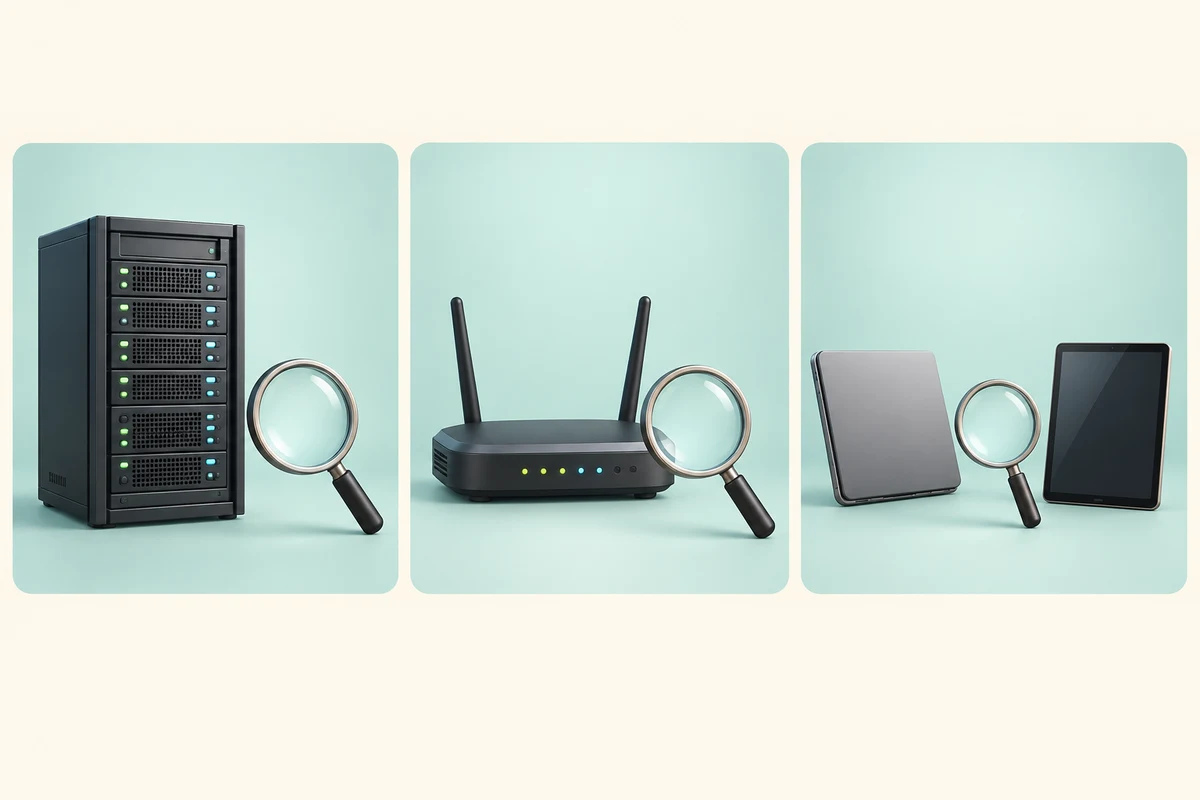
Work through the useful checks
How this works
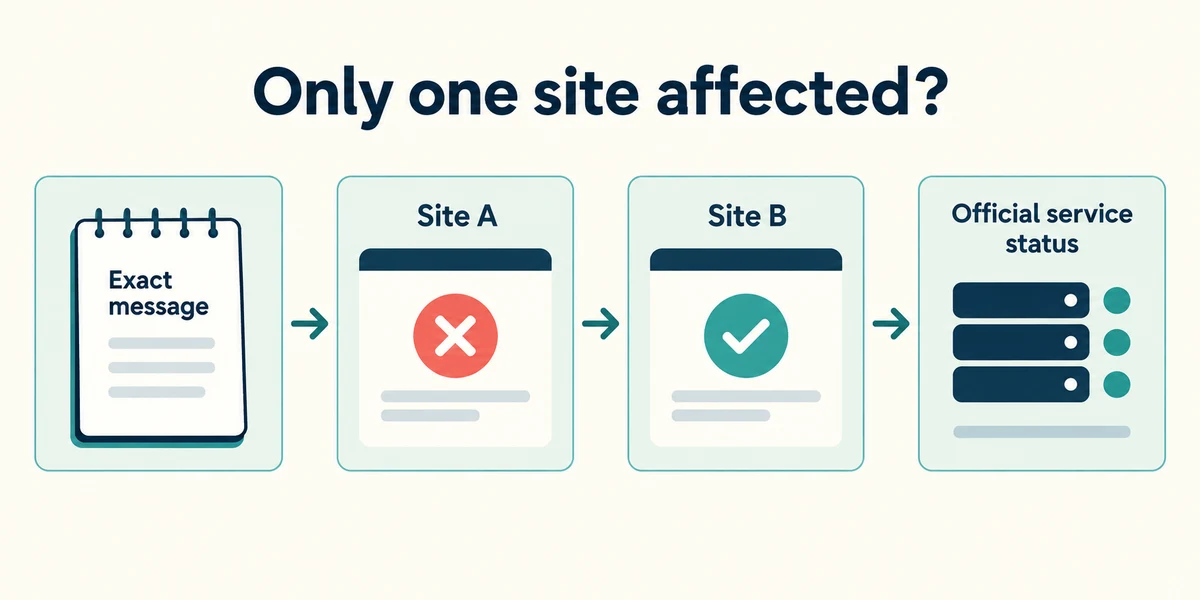
Pause and record the exact message. Try another known website in the same browser, avoiding repeated purchases or form submissions. If only one service fails, inspect that service’s official status or support route before changing your whole network.
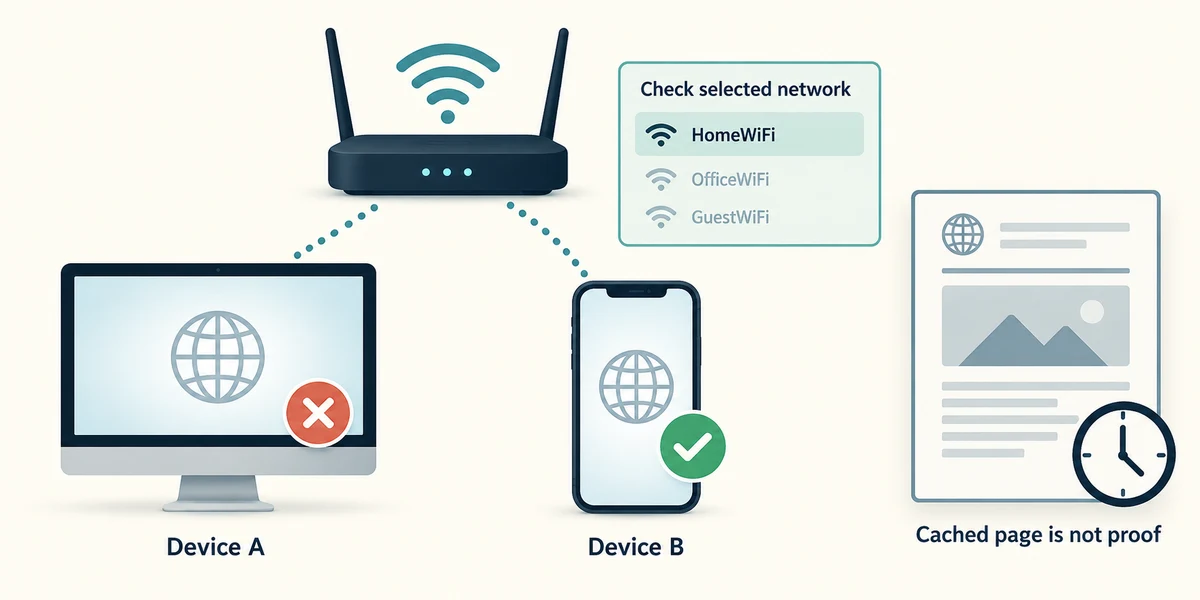
Compare another trusted app or device on the same network. Do not assume an old cached page proves live access. If one device alone fails, check its network status and the selected network name before restarting shared equipment.
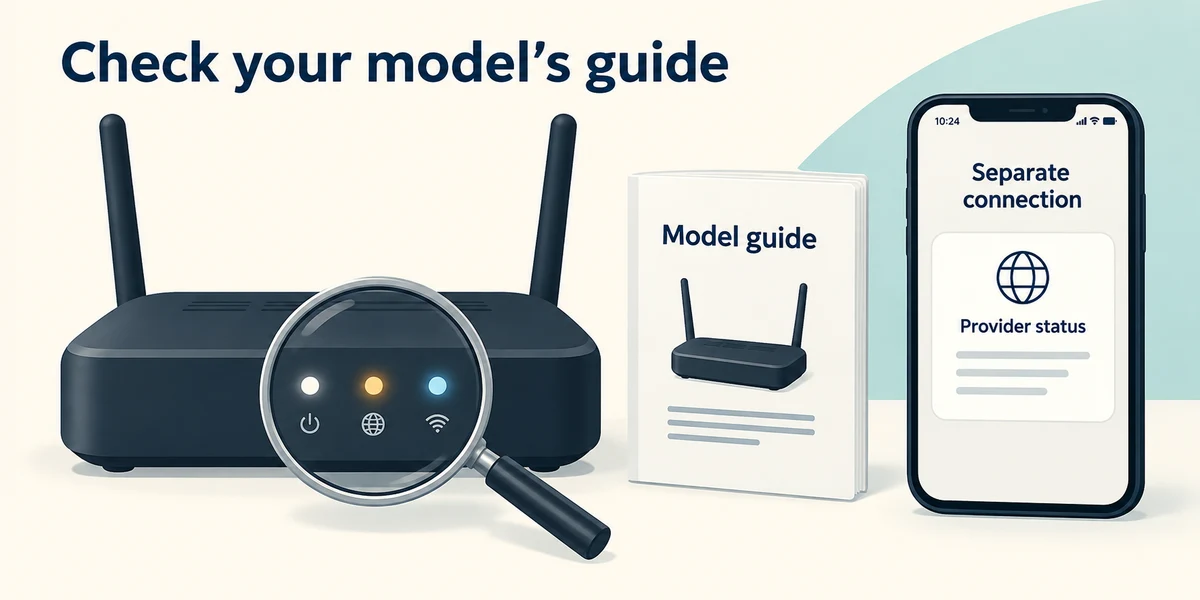
If multiple devices fail, read the provider equipment’s status lights using its own guide and check the provider’s status information through an available separate connection. Do not assume every red or blinking light has the same meaning on every model.
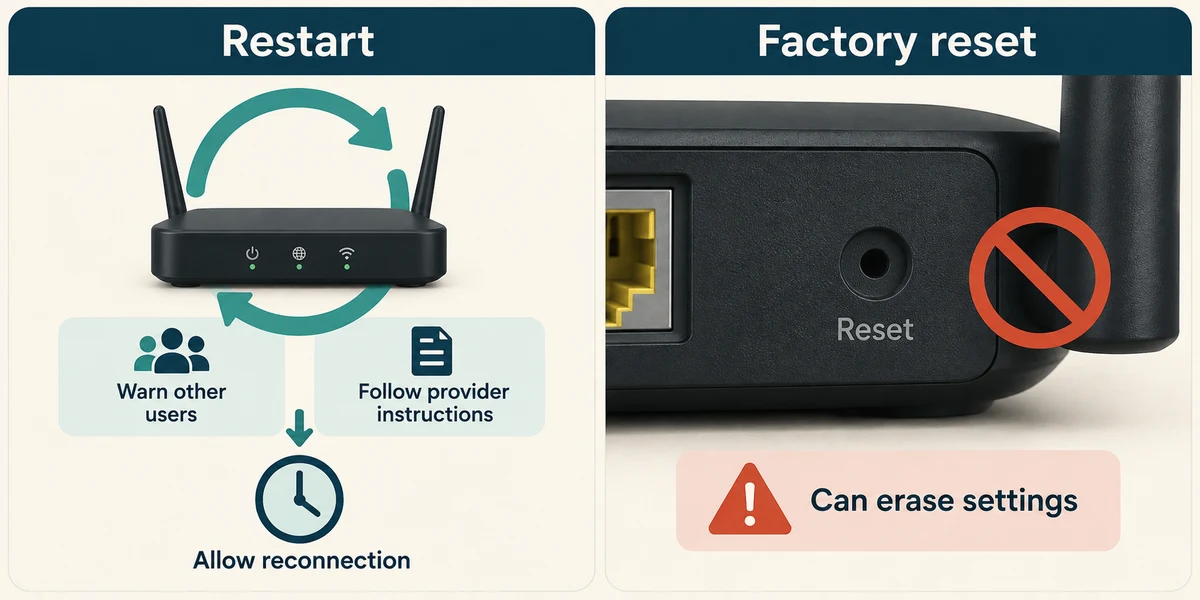
A restart and a factory reset are different. Follow the provider’s restart procedure only when appropriate, warn other users and allow the equipment to reconnect. Do not press a recessed Reset button: it can remove network configuration.
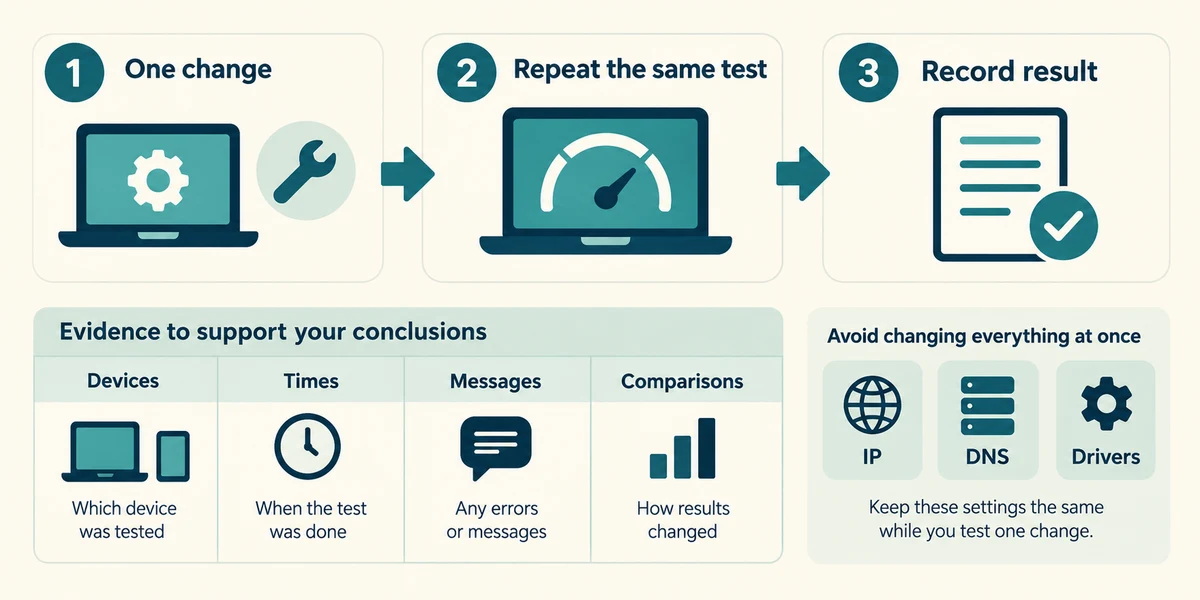
After one change, repeat the same test and note the result. If it persists, provide the affected devices, times, status messages and comparisons to the provider or a trusted helper. Avoid changing IP addresses, DNS and drivers together without an identified reason.
Explore the idea
A device connects to a router over Wi-Fi. The router connects onwards to the internet. A poor local signal can interrupt the first connection; an internet outage can interrupt the second while Wi-Fi remains connected. Ethernet can replace the local wireless link, but cannot repair an outage beyond the router.
One website fails while two unrelated known sites load. Where should the first investigation focus?
That service or its route, before changing the entire home network.
Check what you understand
In guided learning, click Start 3 questions to receive a selection from this lesson. Click the circle beside an answer, then click Check answer. Read the feedback and try again if needed. Click Next question after each correct answer. Answer all 3 correctly to continue.
Returning to guided learning keeps the questions and answers in your current attempt.
Read all 3 questions and explanations
Only your laptop fails while a phone uses the same Wi-Fi successfully. Which check fits first?
Answer: The laptop’s connection and selected network.
A working second device is useful evidence. Start with what differs on the failing laptop.
The provider advises a restart. Is the recessed Reset button equivalent?
Answer: No; a factory reset can remove configuration.
Restarting and resetting are different. Follow the provider’s specific restart method and avoid the factory-reset control.
You changed three settings together and the problem disappeared. Which conclusion is justified?
Answer: You cannot yet tell which change helped or whether another introduced a problem.
One change followed by a retest makes cause and effect easier to understand and reverse.
Take this to your computer
- 1
For a fictional failure of one website, write two comparisons that would separate that service from the home connection.
- 2
Locate your provider’s genuine status and restart guidance. Record the route for later without restarting a working shared connection.
The lesson uses fictional examples. Optional checks on your computer can be observational. Settings and available features vary by model and Windows version.
Prefer a more personal, one-to-one lesson? Basic Computing can help. Explore our services.