Find a file by name or date
Use clues instead of guessing
Choose a search scope and inspect likely matches.
Use location, name and date clues without treating a missing result as deletion.
You do not always remember exactly where you saved something. A remembered word, likely folder or approximate date can help narrow the search. Finding a promising result is the start; its location and contents help confirm it is the right file.
Start nearby, then widen the search
How this works
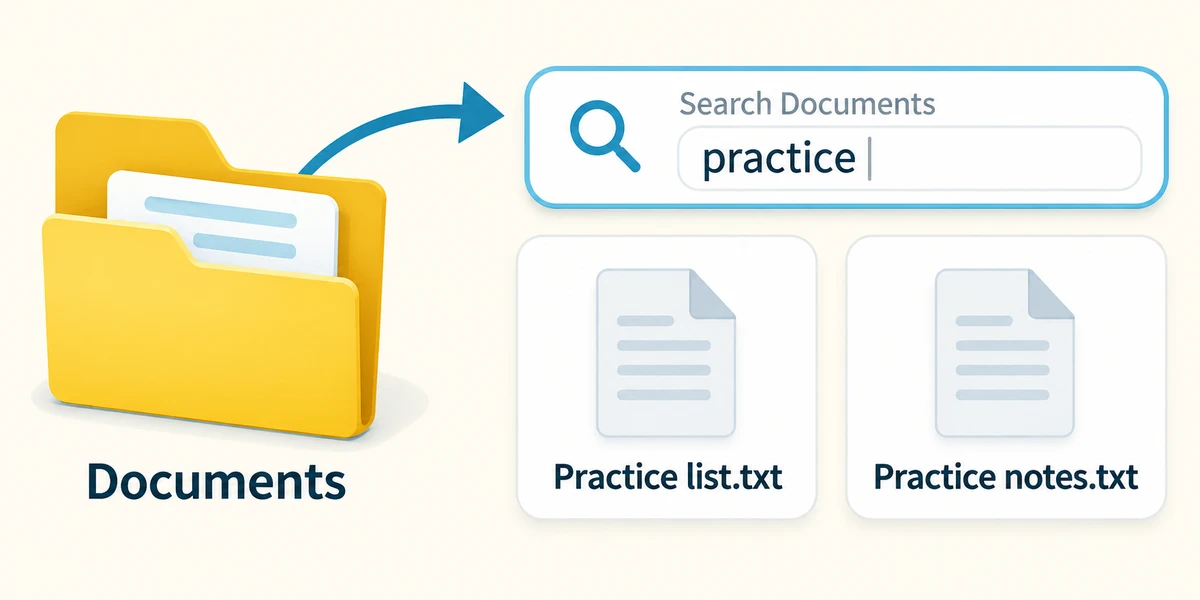
Open File Explorer by holding Windows, pressing E and releasing both. Choose a likely location, such as Documents, from the left list. Click the search box near the top right, type part of the file name and press Enter. Let the results finish. Searching a chosen folder is different from searching the web or finding words within an already open document.
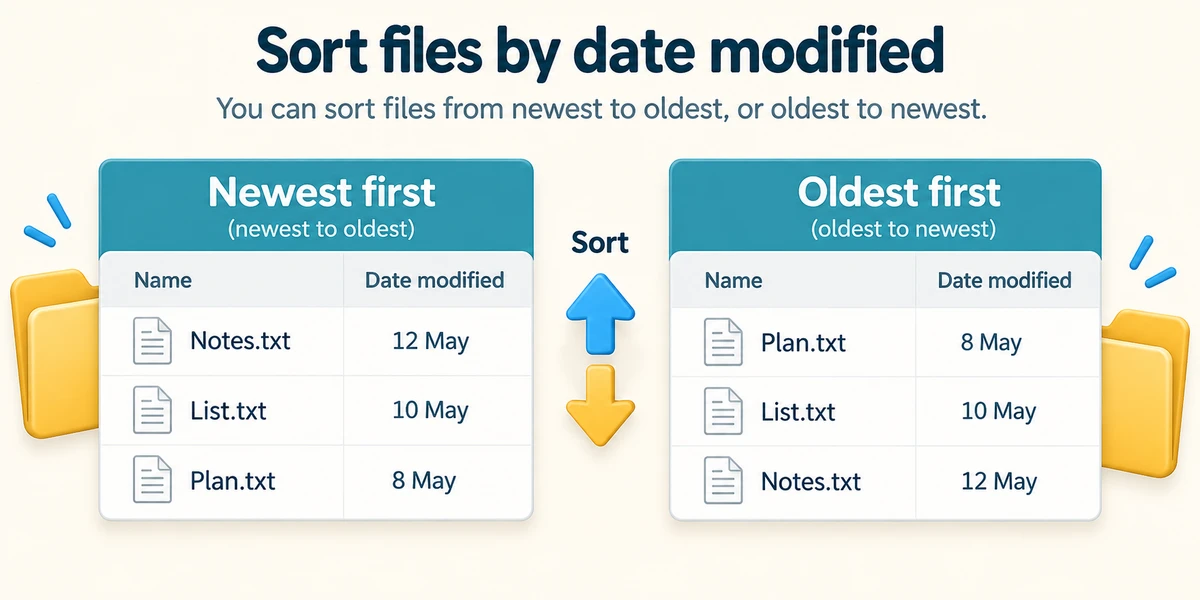
If the folder has many files, click Sort in the command bar and choose a useful detail such as Name or Date modified. In Details view, column headings can also control sorting. Read whether the newest or oldest dates are first. Date modified usually describes the last change to the file, not necessarily when its subject happened or a photograph was taken.
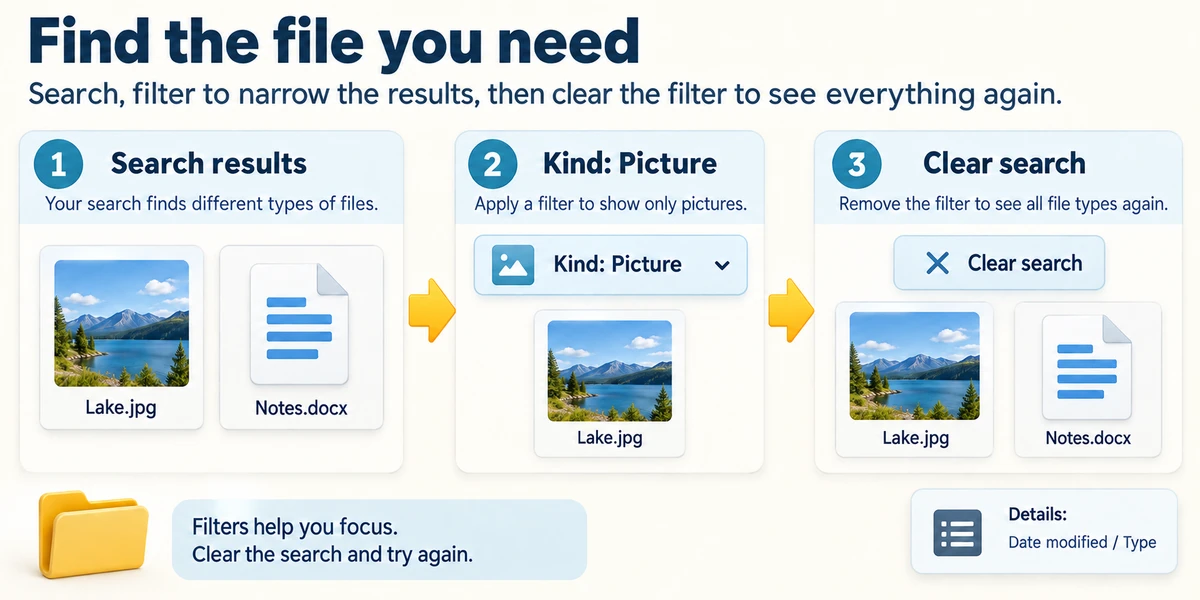
After a search has run, click Search options on File Explorer’s top toolbar if it appears. Choose Date modified to narrow when files changed, or Kind to choose a category such as Picture or Document. Start with one filter and inspect the results. Controls vary by Windows version; if unavailable, click View, then Details and use the Date modified or Type column headings to organise results instead. If a filter hides the file you need, clear the search box and run the simpler search again.
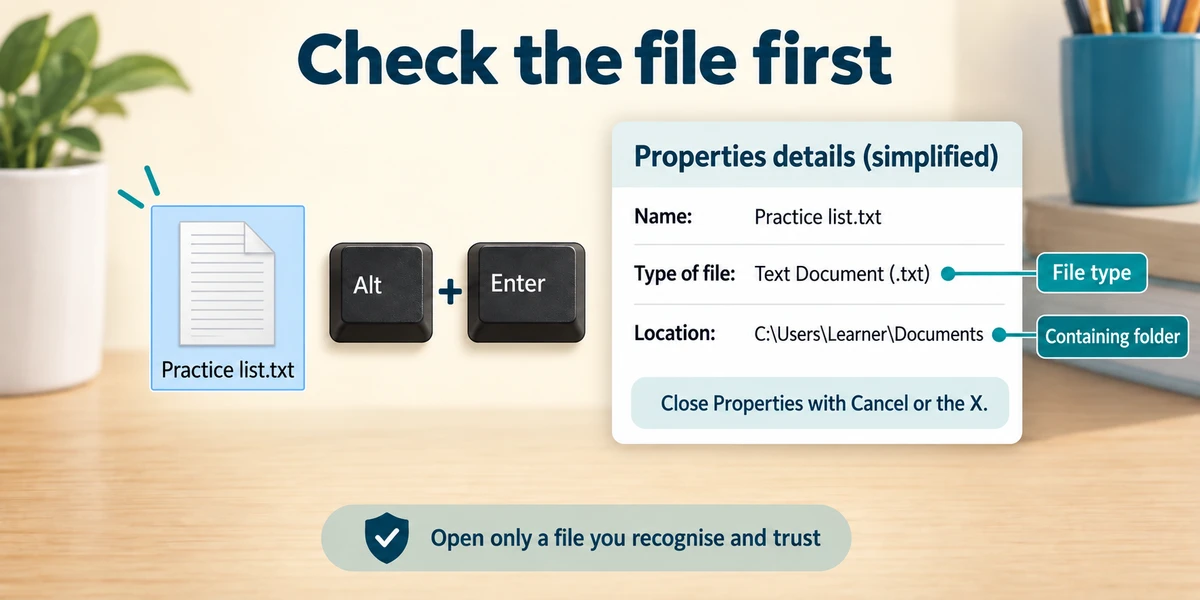
Inspect a likely file before changing anything. Click it once, hold Alt, press Enter and release both to open Properties and read its location and type. Close Properties using Cancel or its top-right X. Open only a file you recognise and trust, using two quick left clicks, and compare its contents with what you expected.
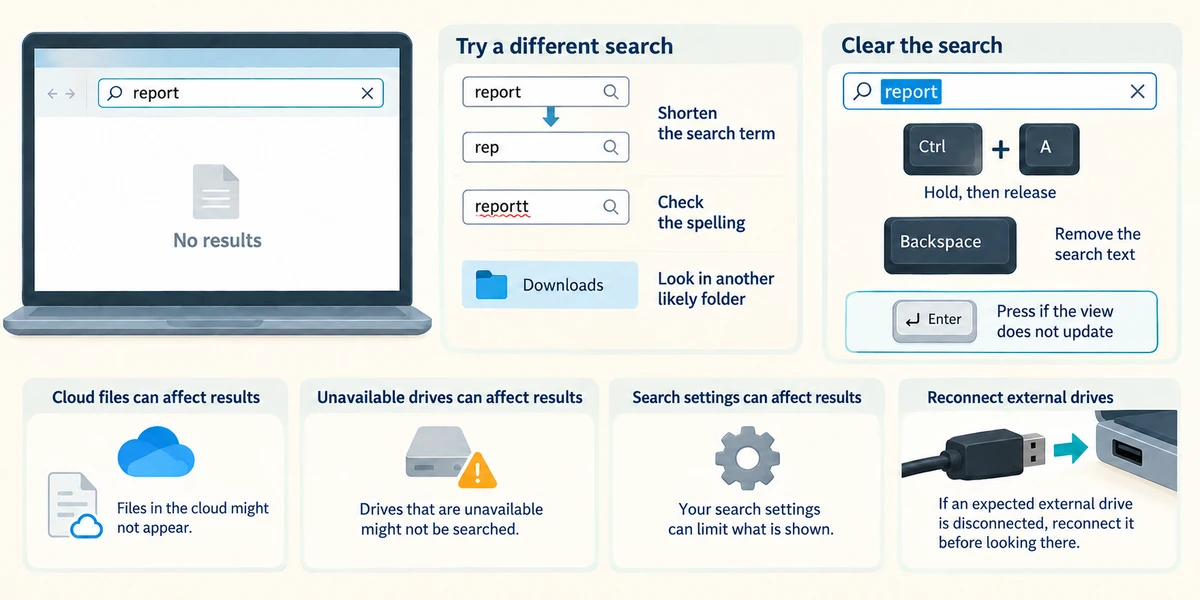
No result does not prove the file is deleted. Check the spelling, shorten the search term or look in another likely folder such as Downloads. To clear the search, click its box, hold Ctrl and press A, release both keys, then press Backspace to remove the search text. Press Enter if the view does not update. Cloud files, unavailable drives and search settings can affect results. If an expected external drive is disconnected, reconnect it before looking there.
You search only Documents for a receipt downloaded yesterday and get no result. What is a useful next step?
Check Downloads and use a short part of the likely name.
Check what you understand
In guided learning, click Start 3 questions to receive a selection from this lesson. Click the circle beside an answer, then click Check answer. Read the feedback and try again if needed. Click Next question after each correct answer. Answer all 3 correctly to continue.
Returning to guided learning keeps the questions and answers in your current attempt.
Read all 3 questions and explanations
You sort photographs by Date modified. Does the first date necessarily tell you when that photo was taken?
Answer: No. It can reflect a later file change.
File-change and capture dates can be different.
Several matching names appear. What helps choose the correct file?
Answer: Compare location, type and contents.
These details distinguish files that happen to have similar names.
The file you need is on an unplugged external drive. What matters before searching that drive?
Answer: Connect the correct drive and make sure Windows can see it.
The storage needs to be available before its files can be opened.
Take this to your computer
- 1
Choose a folder containing a harmless file you know. Search for part of its name.
- 2
Clear the search, then compare sorting by name and date.
- 3
Inspect one result's location without renaming or deleting it.
Trying this on your own computer is optional. Use only disposable practice information. This lesson's choices check your decisions; they do not operate your computer or prove that you have performed the real task.
Prefer a more personal, one-to-one lesson? Basic Computing can help. Explore our services.