Email and calendar apps
Email and calendar apps
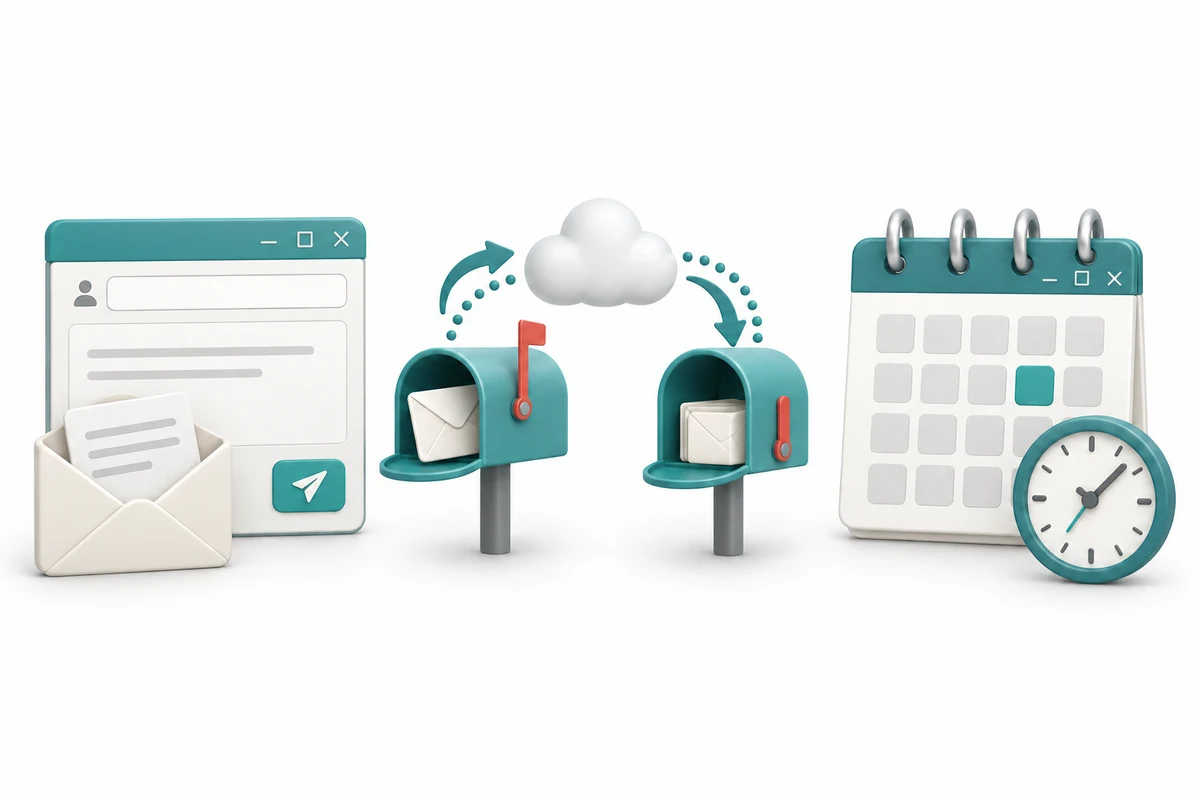
You are going to explore three short illustrated stages, try a practice choice and answer three quick-check questions.
Distinguish a message from a calendar event. Recognise recipient, subject and draft. Understand the difference between an account and the app used to reach it.
Email apps help you read and send messages. Outlook is an email and calendar example; Gmail is another email service that can be used in a browser. The account holds your mailbox, while the app or website gives you a way to use it.

The To field identifies the recipient: the person or address the message is going to. The Subject is a short description of the message. The main message area holds what you want to say. These parts have different jobs, even if their positions vary between apps.
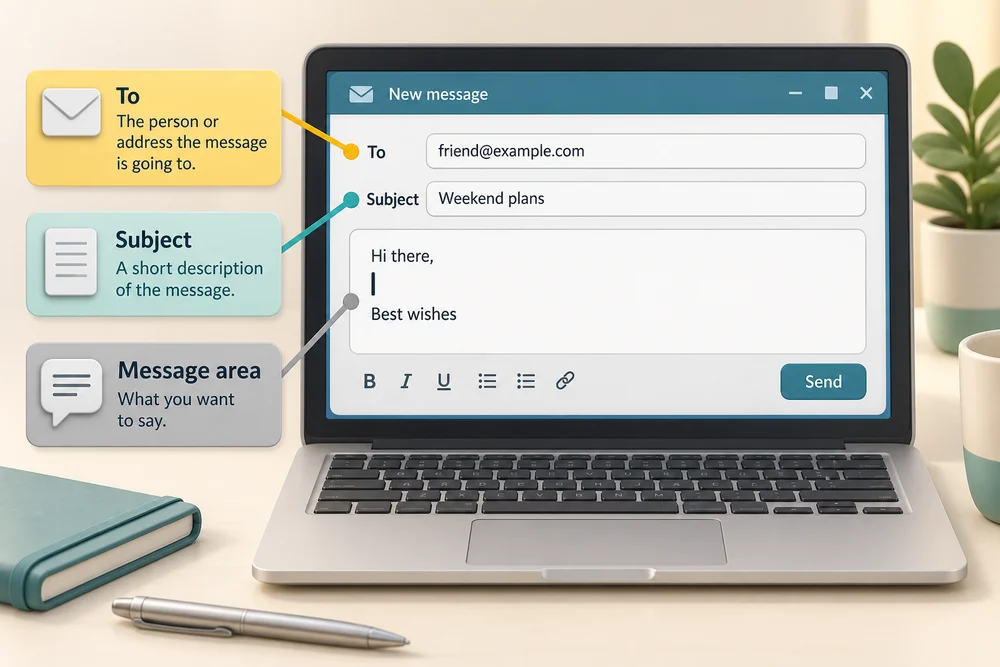
A draft is a message still being prepared. It has not been sent just because you typed it. Send submits the message to its recipients. An attachment adds a file to a message, such as a document or photo. Checking the recipient and attached file matters before sending.

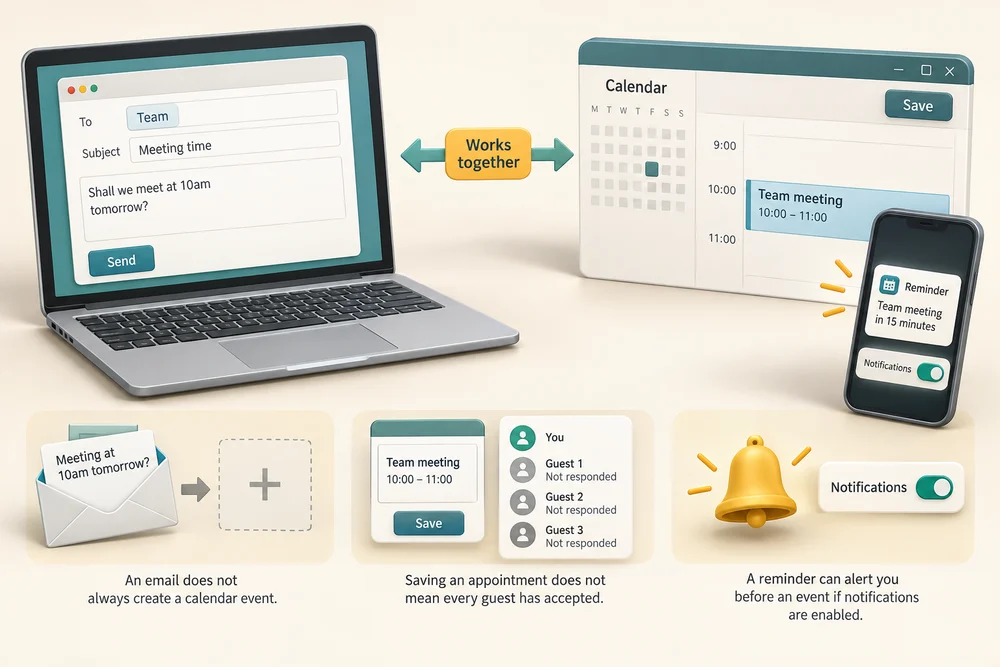
A calendar records events and appointments with a date and time. It can help remember when something will happen. Outlook and Google Calendar are examples. An appointment for yourself and an invitation sent to other people are different: adding guests can send them an invitation.

A reminder can alert you before an event if notifications are enabled. Saving an appointment does not mean every guest has accepted, and writing an email about a time does not always create a calendar event. An email account and a calendar can work together while doing different jobs.
Explore the example
Compare the message and planning examples, then make the practice choice. Nothing is sent and no account is connected.
Explore the three stages, then try the practice choice. The guidance beside each control explains what to do. The separate Quick check comes next.
Messages and plans have different jobs
1. Prepare an email
An email app helps you write a message to an email address. You can add a subject and sometimes attach a file. Writing a draft is different from sending it.
2. Send to the intended person
Sending passes the message through email services to the recipient’s mailbox. Check the address and any attachment before you send. This illustration does not send anything.
3. Keep track of a time
A calendar records events with dates and times and can provide reminders. A personal event is different from an invitation sent to other people. Some apps include both email and calendar features.
Try a small task
A visit is agreed for next Tuesday at 2 pm. You want it placed at that time and an alert beforehand. Which approach fits?
- Create a dated event with a reminder (the suitable choice)
An event records the agreed date and time. Its reminder can alert you beforehand when notifications are enabled.
- Keep the details in a draft message without creating an event
The draft holds unfinished correspondence. By itself it does not place the visit in your schedule with a reminder. A dated event can do that.
- Add the details as an attachment to an unsent message
The attachment adds a file to that message. It does not create a scheduled event or its alert. Use a dated event with a reminder.
Your activity stays as you left it when you return to one section at a time.
Check your understanding
Click Start 3 questions to begin. Click the circle beside your answer, then Check answer. After each of the first two correct answers, click Next question. When all three are correct, click Continue below. You can change a wrong answer and check again. With a keyboard, Tab reaches choices, arrow keys choose an answer, and Tab then Enter activates a button.
In guided learning, click Start 3 questions to receive a selection from this lesson. Click the circle beside an answer, then click Check answer. Read the feedback and try again if needed. Click Next question after each correct answer. Answer all 3 correctly to continue.
Returning to guided learning keeps the questions and answers in your current attempt.
Read all 10 questions and explanations
What job is shared by Gmail and the email part of Outlook?
Answer: Accessing a mailbox to read and send messages.
Yes. An email app gives access to messages in a mailbox.
A prepared message is ready. Which field tells you who will receive it?
Answer: To, containing the destination address.
Yes. To holds the recipient’s address; check it before sending.
What belongs in an email’s Subject field?
Answer: A short description of what the message is about.
Yes. The subject helps describe what the email is about.
A message is in Drafts after you have written some text. What does that mean?
Answer: It is still being prepared and has not been sent.
Yes. Typing a draft is different from sending it.
Your message is checked and you intend its recipients to receive it. Which action submits it?
Answer: Send.
Yes. Send is the action that submits the prepared message.
You want to include the actual saved letter with an email. What would an attachment add?
Answer: The document file alongside the message.
Yes. Attachments can include documents and photos; check the file before sending.
You want a visit shown at its agreed date and time. Which feature fits that purpose?
Answer: An event in your calendar.
Yes. A calendar records events and appointments at particular times.
You add other people as guests to a planned event. What can that do?
Answer: Send them a request to attend.
Yes. Inviting someone is different from that person accepting the invitation.
An appointment is saved with a reminder enabled. What can the reminder help with?
Answer: Drawing your attention to the event before it starts.
Yes. Reminders help draw attention to scheduled events; their notifications depend on settings.
You open the same mailbox through a browser and through a suitable desktop tool. What is shared?
Answer: The account’s messages, accessed in two ways.
Yes. The same mailbox may be accessed through a suitable app or website.
Connect the idea to your computer
These observations are optional. You can finish using the lesson’s examples, without installing an app or changing your computer’s settings.
- 1
If your email is already open, look for Inbox and Drafts without opening private messages. These labels distinguish received messages from work still being prepared.
- 2
If your calendar is already open, notice how it shows dates and times. You do not need to create an appointment or invite anyone.
- 3
If you do not use these apps yet, return to the lesson examples by clicking Learn in the section navigation at the top. This observation does not require signing in or sending anything.
App names and layouts can vary. If a suggested app or screen is not available, use the lesson example instead. Nothing needs to be bought, downloaded, sent or deleted.
Prefer a more personal, one-to-one lesson? Basic Computing can help. Explore our services.