Download a file and find it again
Bring a copy to your computer
Choose the next step when a download has finished but the document is not open.
Distinguish a download, its progress and the saved file it creates.
Downloading transfers information from an online service to your device. A downloaded document is a saved item you can find again, rather than just a page currently visible in a browser. Knowing the source, filename and destination makes that copy much easier to use.
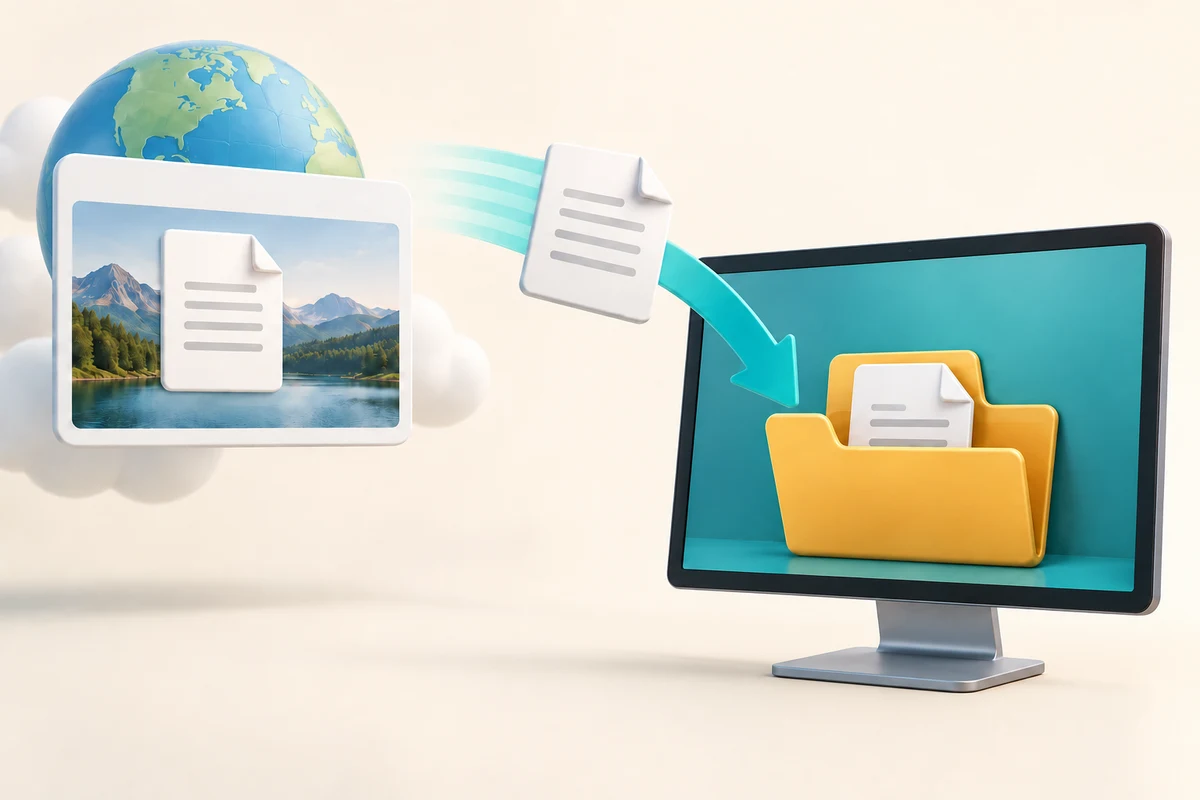
Check the transfer and its destination
How this works
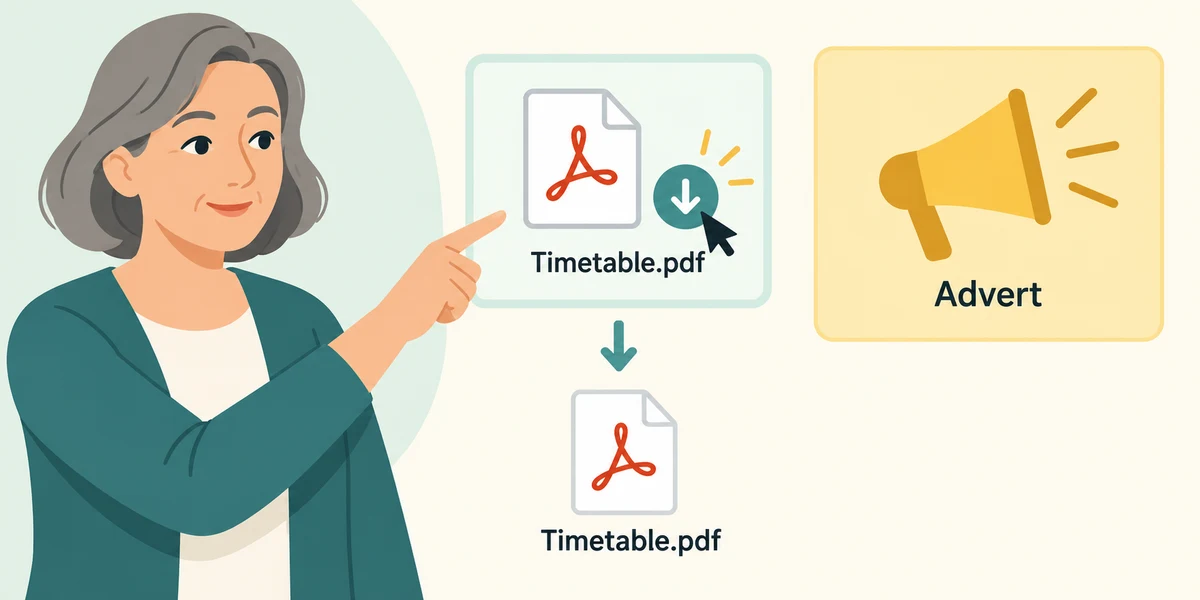
First establish that the website and document are the ones you intended. Read the document's name and type beside its download control. Click that labelled control once. A large advert saying Download is not necessarily the document's own link. A PDF may open in a preview first; its Download control saves a copy, while simply viewing it may not.
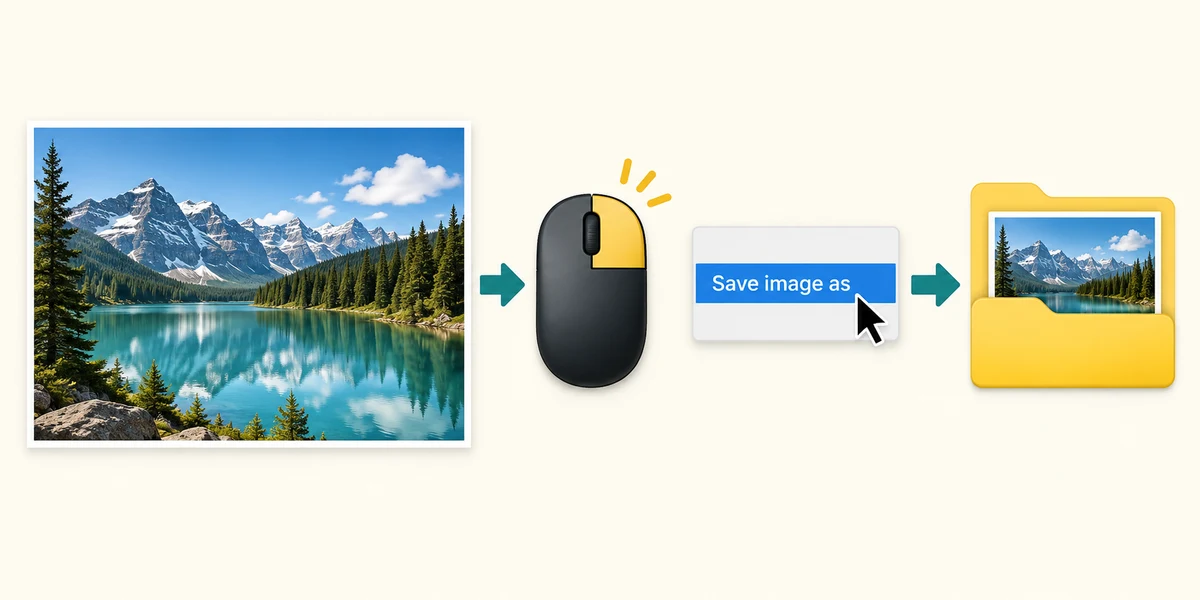
To save a website picture you are allowed to keep, view the intended image rather than an advert or a small search preview. In Chrome, point at the image, press the right mouse button once and click Save image as. In the save window, choose a known folder and click Save. Other browsers and sites may differ; if the option is unavailable, use the site’s own permitted download route rather than installing a downloader from an advert. Saving a picture does not automatically give permission to republish it.
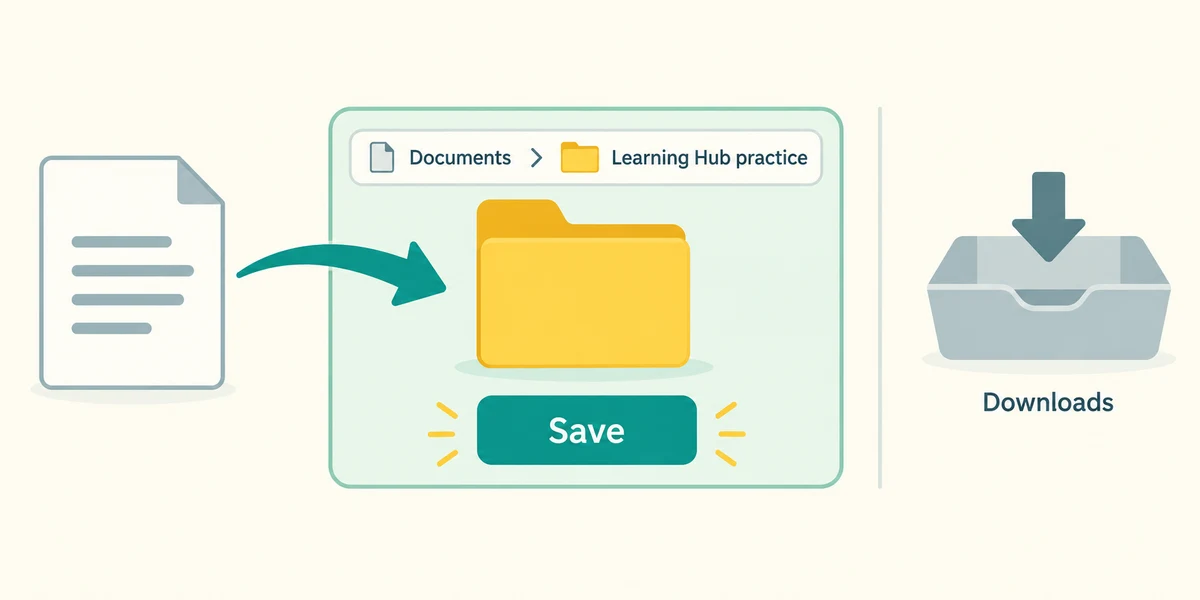
A browser may save immediately to its chosen downloads location or ask where to save. If a save window appears, choose a folder you recognise by double-clicking folders to open them, then click Save once. Remember the location shown. Downloads is a common default, but settings can change it.
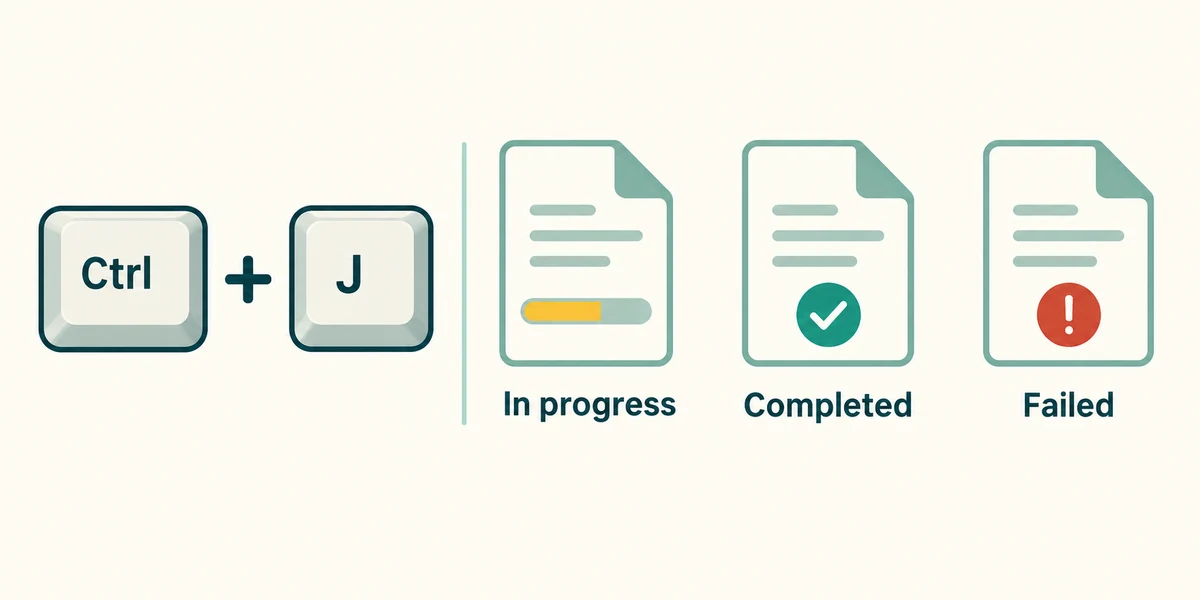
In Edge or Chrome, hold Ctrl and press J, then release both keys to open the browser's Downloads list. Read the filename and whether it is still transferring, completed or failed. A partial transfer is not a complete usable document. Wait for completion; if it fails, read the reason before trying again.
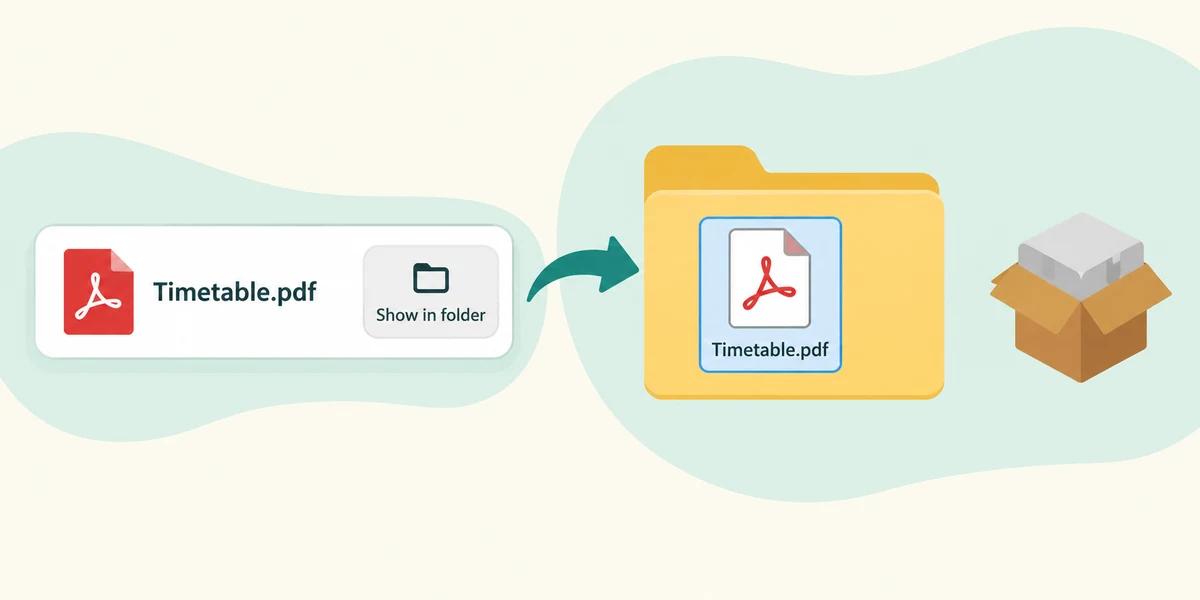
For a recognised, completed file, click Show in folder if that control is offered. File Explorer reveals its saved location. Double-click the file, with two quick left clicks, only when its source and type are as expected. A list entry can remain after a file is moved or deleted. Downloading an installer is different from installing an app; do not run one when you expected a document.
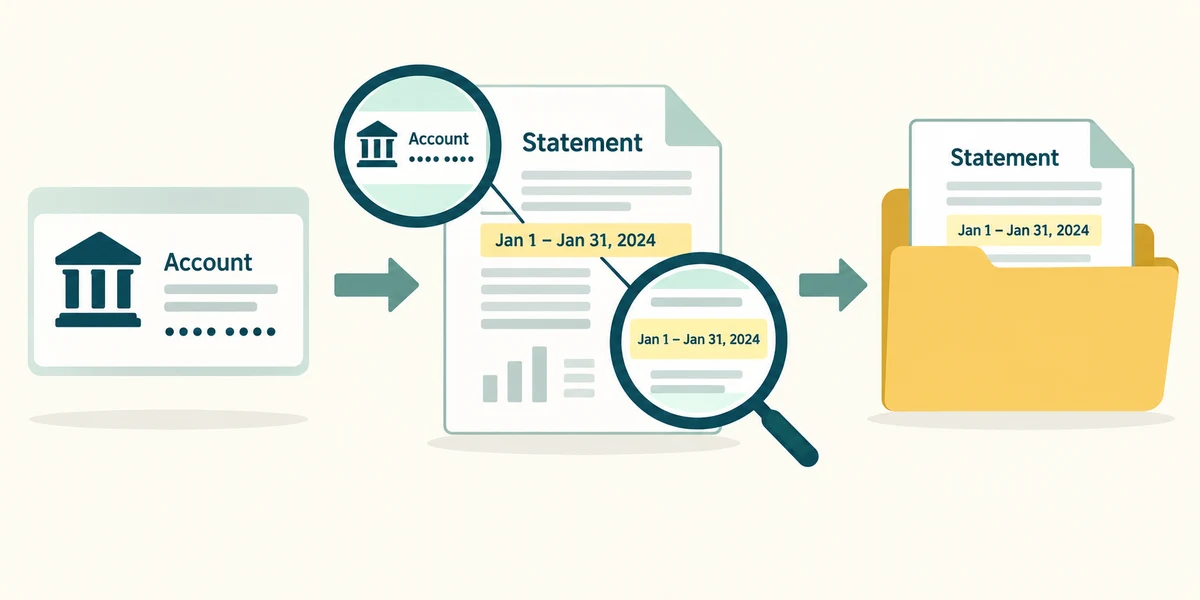
For a bill or statement, enter the provider’s genuine account through its known app or saved address and open its Bills, Statements or Documents area. Check the account and the exact date or period before choosing the document’s own download control. After saving, inspect the actual copy and keep it in an appropriate private folder. Do not download account documents on a shared public computer merely to practise.
A library timetable PDF has finished downloading. You want to know where the saved copy is. Which action fits?
Use Show in folder beside the completed download.
Check what you understand
In guided learning, click Start 3 questions to receive a selection from this lesson. Click the circle beside an answer, then click Check answer. Read the feedback and try again if needed. Click Next question after each correct answer. Answer all 3 correctly to continue.
Returning to guided learning keeps the questions and answers in your current attempt.
Read all 3 questions and explanations
A transfer is marked Failed. What should you assume about that attempt?
Answer: It did not provide a confirmed complete file.
The name identifies an attempted transfer, not successful completion or a different destination. Read the failure before retrying.
Why note the folder in a Save window?
Answer: It tells you where this copy will be stored.
The folder is the destination for this save, not the website source or a record of earlier downloads.
A downloaded item is a setup program, but you expected a timetable. What next?
Answer: Leave it unopened and recheck the intended source and file.
An unexpected installer does not become a document by changing its name. Recheck before opening anything.
Take this to your computer
- 1
No download is needed. If a browser already contains your own known completed downloads, hold Ctrl and press J, release both keys and read one entry's status.
- 2
Use Show in folder for that known item if offered. Observe the location without moving or deleting it.
A completed download is not a safety guarantee. Leave unfamiliar files and browser security warnings alone.
Prefer a more personal, one-to-one lesson? Basic Computing can help. Explore our services.