Build a clear three-slide presentation
Give each slide one job
Choose layouts and a sequence that support a simple explanation.
Create and order a small slide deck without crowding the audience’s view.
A presentation guides an audience through an idea a little at a time. Slides support the speaker rather than replace every spoken word. A clear sequence and a few well-chosen details are usually easier to follow than a screen packed with text.

Build a beginning, explanation and next step
How this works
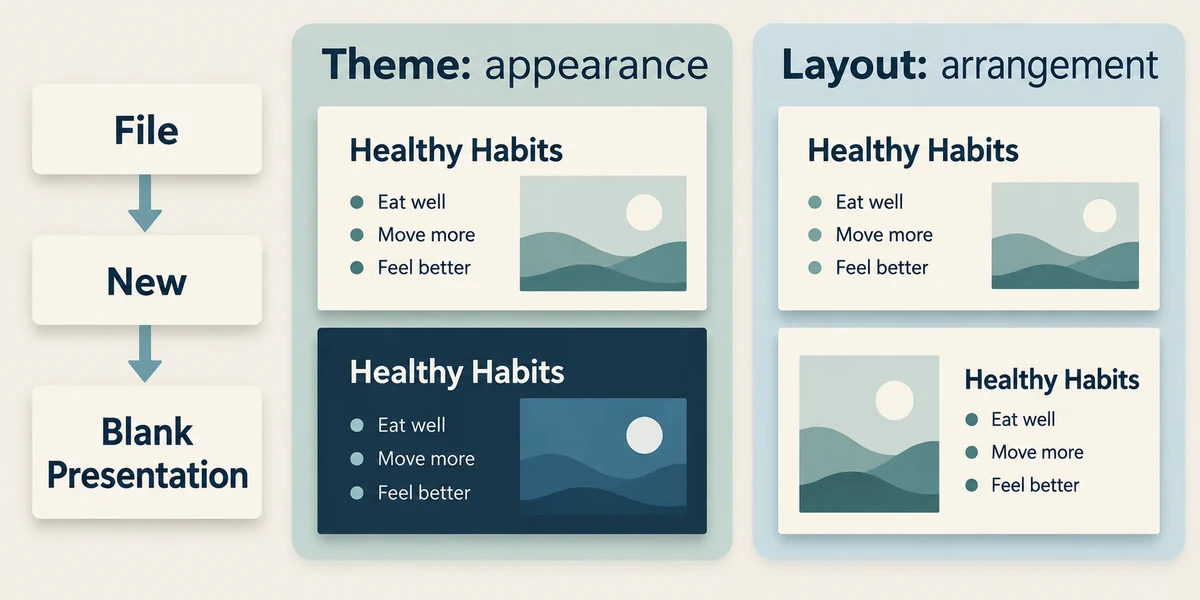
In desktop PowerPoint, click File, then New and Blank Presentation. Choose a simple theme in Design if wanted. A theme coordinates appearance; a layout determines where a slide’s title and content areas sit. Web versions and other presentation apps may place these controls differently.
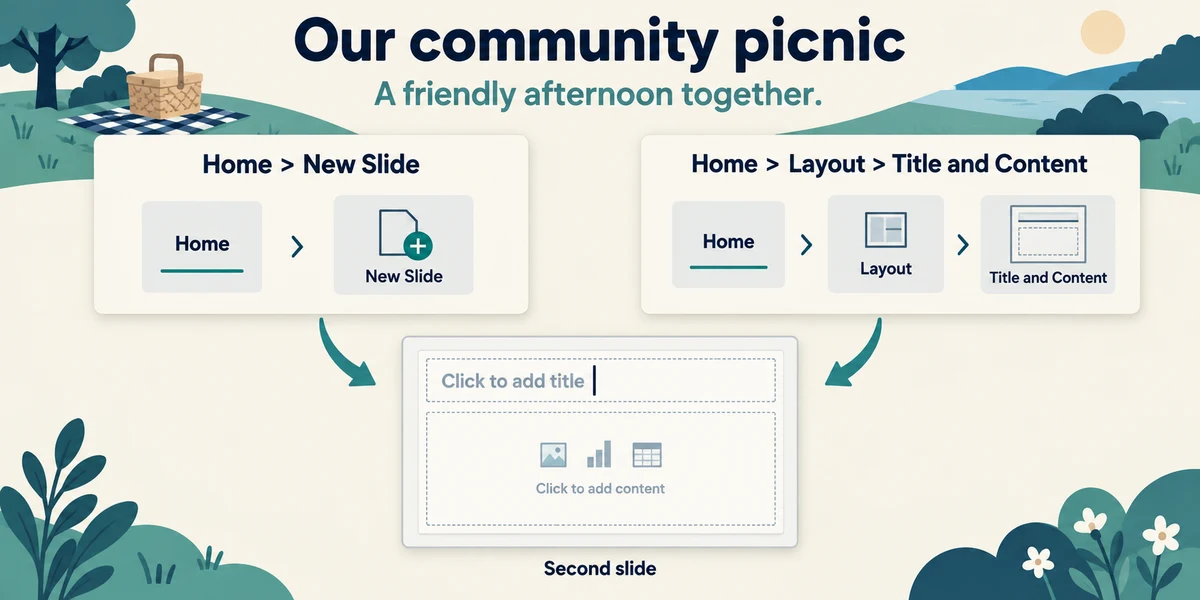
Click the title placeholder once and type a short fictional topic, such as Our community picnic. Click its subtitle area and add a brief purpose. Use Home then New Slide to add a slide. Click Home then Layout to choose Title and Content or another layout that fits the information instead of squeezing everything into the title box.
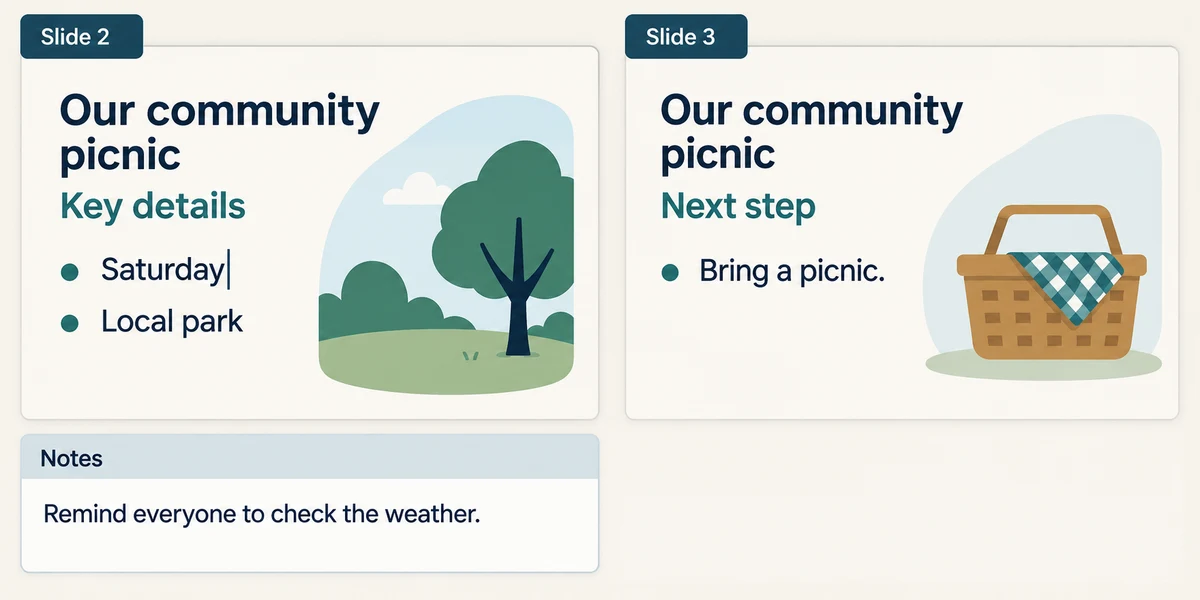
Give the second slide the key details and the third the next step. Click in a placeholder and type concise points. Keep text large enough to read from a distance and use strong contrast. Put longer reminders in the Notes area below the slide, opened with Notes near the bottom if hidden, rather than crowding the audience slide.
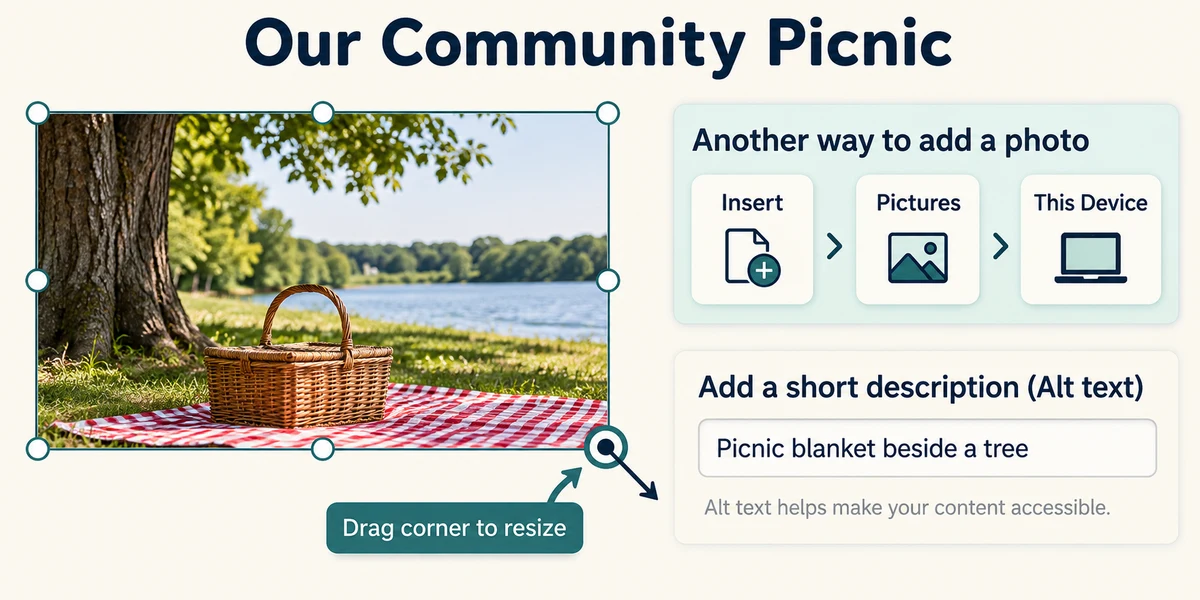
To add an owned picture, click Insert, then Pictures and This Device if offered. Select the intended file and click Insert. Resize using a corner while preserving its proportions. Add relevant alternative text through the picture’s context menu when available, and check that the picture does not hide words.
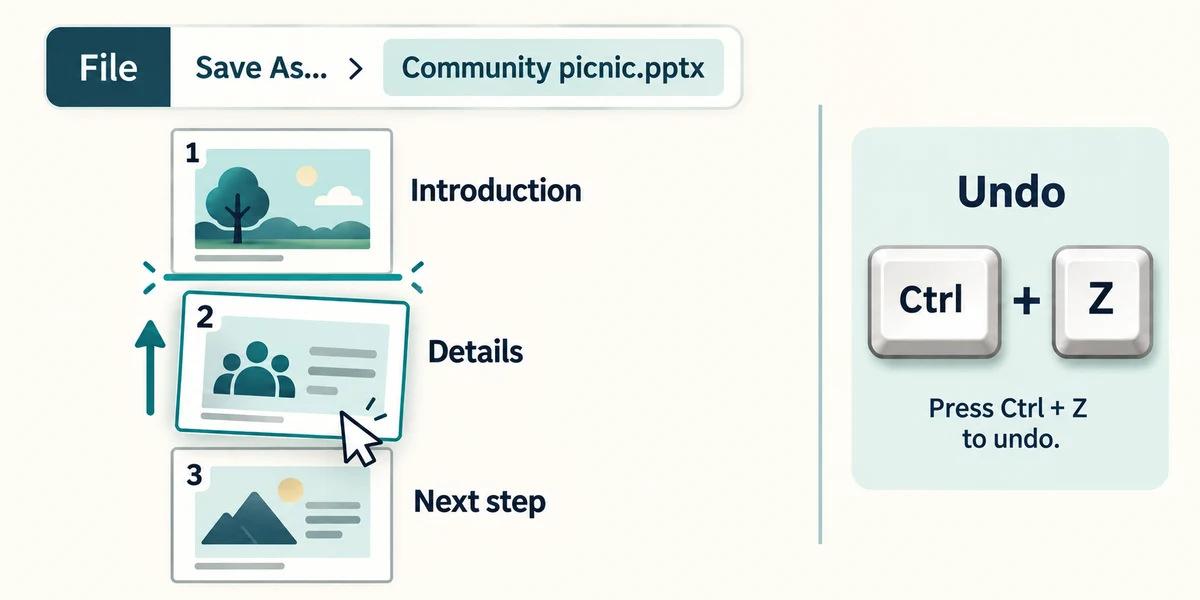
The small slide thumbnails appear on the left. Drag a thumbnail to a new position while holding the left mouse button, then release at the insertion marker. Check the order again. Hold Ctrl, press Z, then release both keys to undo a mistake. Save through File and Save As with a useful name and the normal presentation format.
Try a short slide sequence
The example has an opening purpose, a plan and a closing checklist. Each slide has one job. Speaker notes guide the presenter and are separate from the audience slide. Reordering a slide moves its title, body and notes together. End the presentation before returning to other private work.
Your slide contains every sentence you plan to say. What is a useful improvement?
Keep the key points on the slide and move longer reminders into speaker notes.
Check what you understand
In guided learning, click Start 3 questions to receive a selection from this lesson. Click the circle beside an answer, then click Check answer. Read the feedback and try again if needed. Click Next question after each correct answer. Answer all 3 correctly to continue.
Returning to guided learning keeps the questions and answers in your current attempt.
Read all 3 questions and explanations
You need a title and two groups of content on a slide. What should you choose first?
Answer: A layout with suitable content placeholders.
The layout provides a structure for the slide’s content.
The final instruction slide appears before the explanation. What should you change?
Answer: Reorder the slide thumbnails and check the sequence.
Thumbnail order determines the normal presentation sequence.
A photo covers important words on a slide. What is the best response?
Answer: Adjust its size or placement and check the whole slide.
Both picture and words should remain understandable.
Take this to your computer
- 1
If PowerPoint is available, create three fictional slides with a purpose, key details and a next step.
- 2
Inspect the order and readability, then save a practice deck without sharing it.
Use fictional practice information. These explanations and decisions do not change your real files. Desktop Microsoft 365 controls are used where named; web editions and other versions can differ. No purchase or account is needed to complete this lesson.
Prefer a more personal, one-to-one lesson? Basic Computing can help. Explore our services.