Control Windows with your voice
Control Windows with your voice
Choose whether a spoken phrase should act as a command or become text.
You can explain Voice Access, microphone states and the need to check recognition.
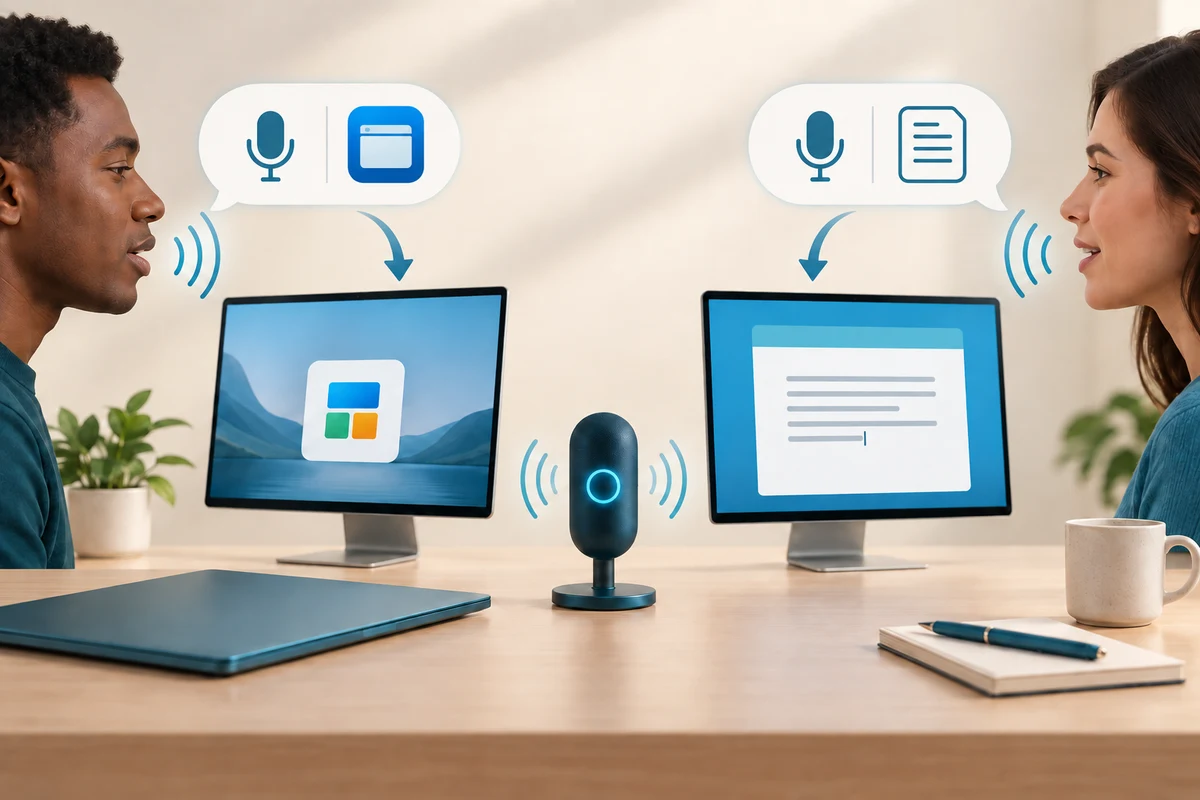
Voice Access can control Windows and enter text using speech. A command acts on the computer; dictated words become part of your work. Knowing which result you want helps you choose a mode and check what happened. Voice typing is useful for drafts but is not the same as learning the wider control commands.
Work through the useful checks
How this works
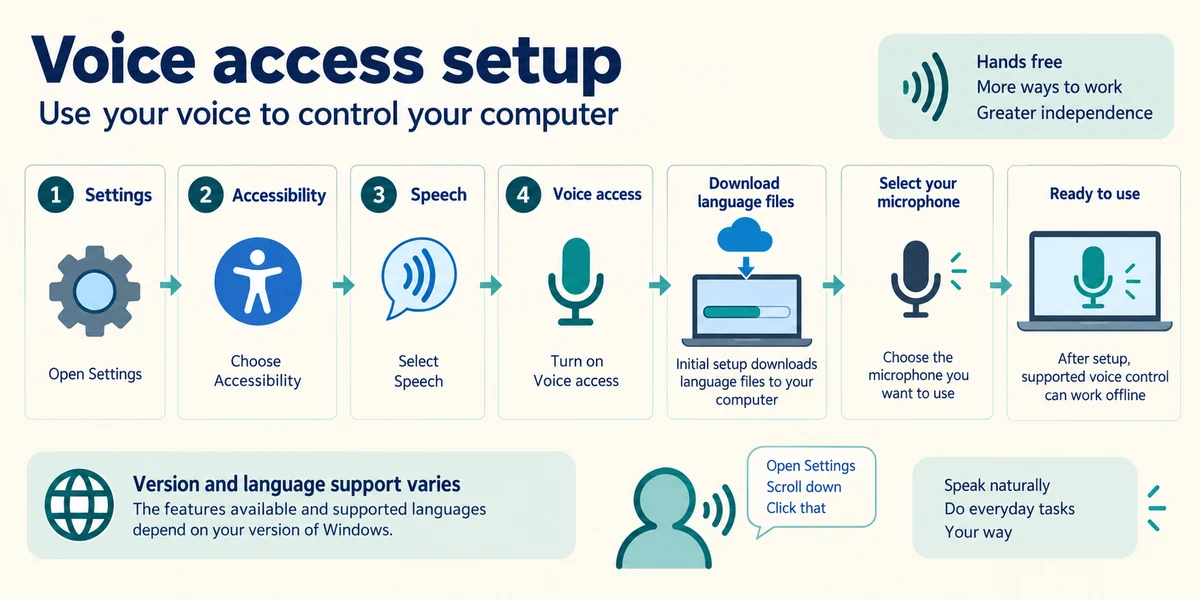
Hold the Windows key, press I once, then release both keys to open Settings. Click Accessibility, then Speech and read Voice access availability. Supported Windows versions and languages vary. Initial setup downloads the required language files and helps you choose a microphone; after setup, supported voice control can operate without a continuous internet connection.
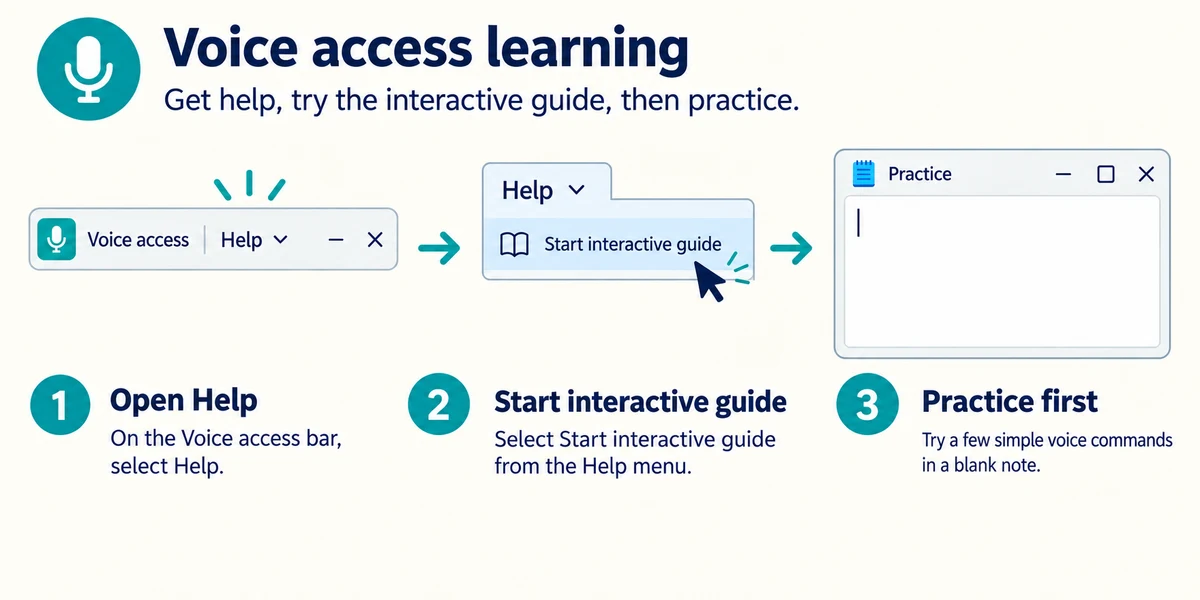
Use a quiet practice task and the built-in interactive guide. On the Voice Access bar, choose Help, then Start interactive guide. Follow its on-screen examples before using commands in important apps.
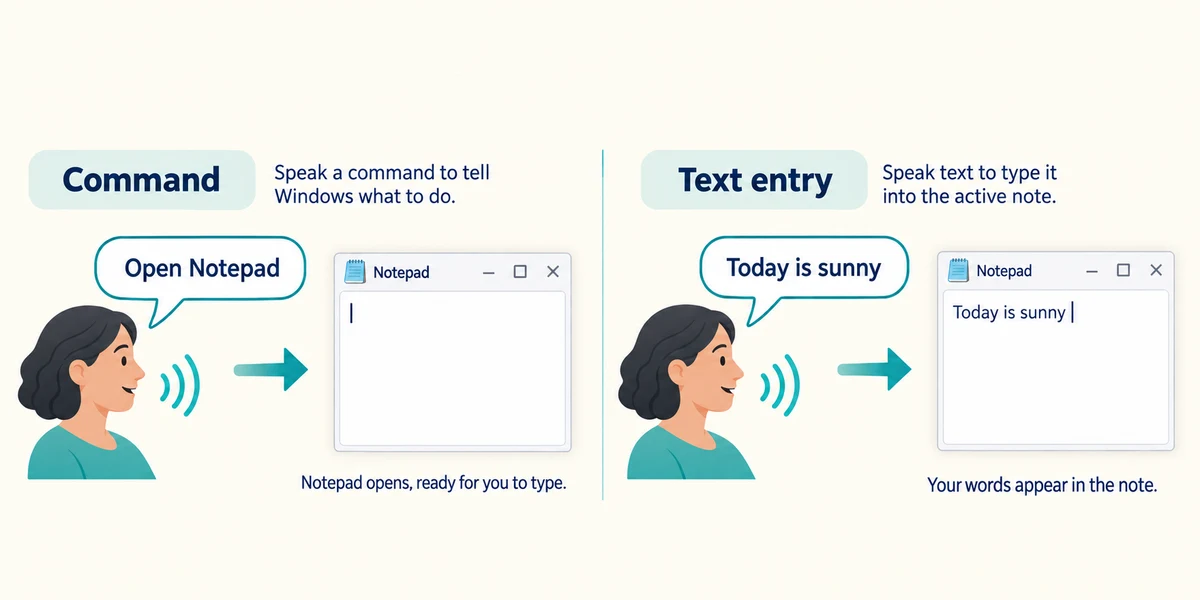
Watch the recognised words and action feedback. In supported English commands, Open Notepad asks for an app action; ordinary dictated words belong in a focused text box. The guide explains commands, text entry and how to dictate a phrase that might otherwise be interpreted as a command.
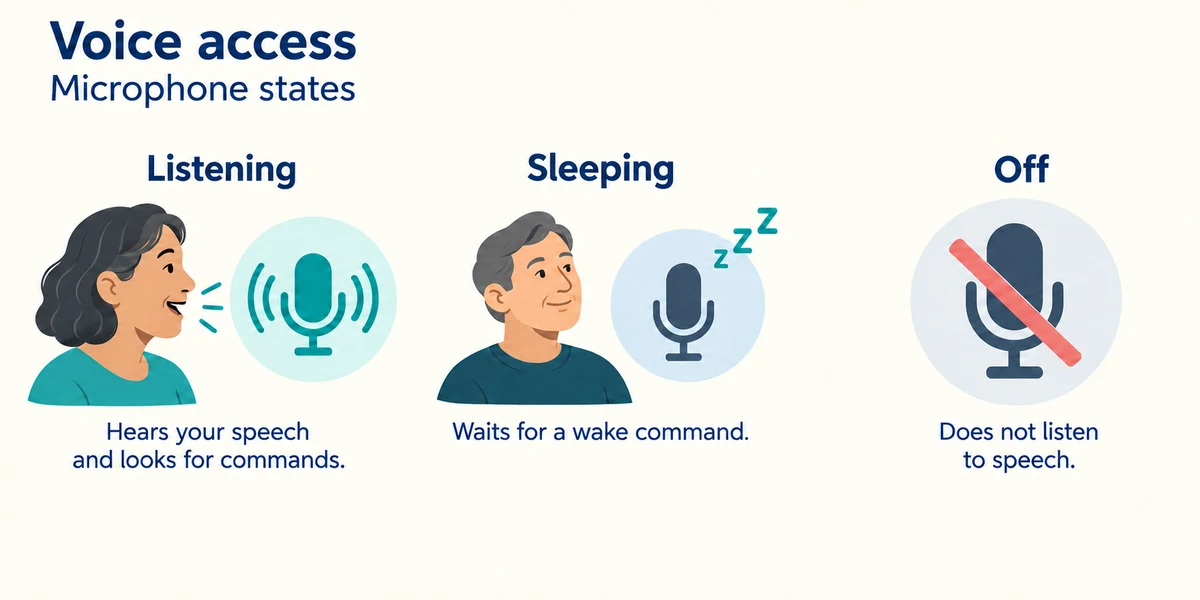
Know whether the microphone is listening, sleeping or off. A sleep state is not necessarily the same as turning the microphone off. Read the bar’s state and use its microphone control or supported command to stop listening when finished.
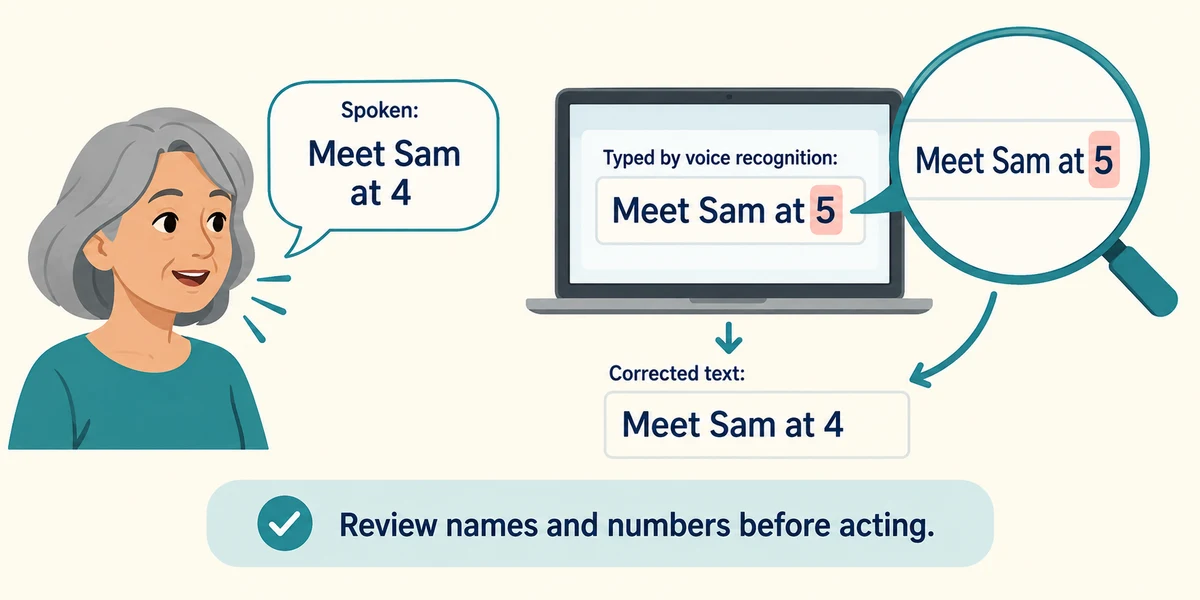
Check dictated text and resulting actions, especially names, numbers and destinations. Background speech or recognition errors can produce unintended results. This lesson’s examples take no microphone input; real setup belongs in Windows with your consent.
You want to open an app rather than write its name in a note. What distinction matters?
Using a supported command rather than ordinary dictation.
Check what you understand
In guided learning, click Start 3 questions to receive a selection from this lesson. Click the circle beside an answer, then click Check answer. Read the feedback and try again if needed. Click Next question after each correct answer. Answer all 3 correctly to continue.
Returning to guided learning keeps the questions and answers in your current attempt.
Read all 3 questions and explanations
Voice Access heard a different number from the one you said. What should happen before using the result?
Answer: Check and correct the recognised text or action.
Speech recognition can be wrong. Review names, numbers and actions before relying on them.
Initial setup asks to download a language file. What does that mean for later supported voice control?
Answer: Setup needs the file; supported control can then work without a continuous internet connection.
Required files and supported languages have specific scope. An initial download does not imply every later command needs a continuous connection.
You are finished practising. Which check best confirms you are no longer providing input?
Answer: Read the microphone state and turn it off through the control.
The input microphone and output speaker are separate. Confirm the microphone state rather than merely hiding a window or silencing playback.
Take this to your computer
- 1
Hold the Windows key, press I once, then release both keys to open Settings. Click Accessibility and Speech. Read Voice access availability and setup information without enabling it unless you want to.
- 2
If you set it up later, use its interactive guide with a harmless app, verify recognised words and finish by turning its microphone off through the bar’s control. Do not practise sending real messages.
The lesson uses fictional examples. Optional checks on your computer can be observational. Settings and available features vary by model and Windows version.
Prefer a more personal, one-to-one lesson? Basic Computing can help. Explore our services.