Connect to the right Wi-Fi network
Connect to the right Wi-Fi network
Choose a known network and work through a connection decision.
Join a known network and recognise when internet access still needs checking.
Wi-Fi connects your computer to a nearby network, often through a router. That network may then provide internet access. A strong wireless signal tells you about the nearby connection, not whether the internet service is working or the network can be trusted.
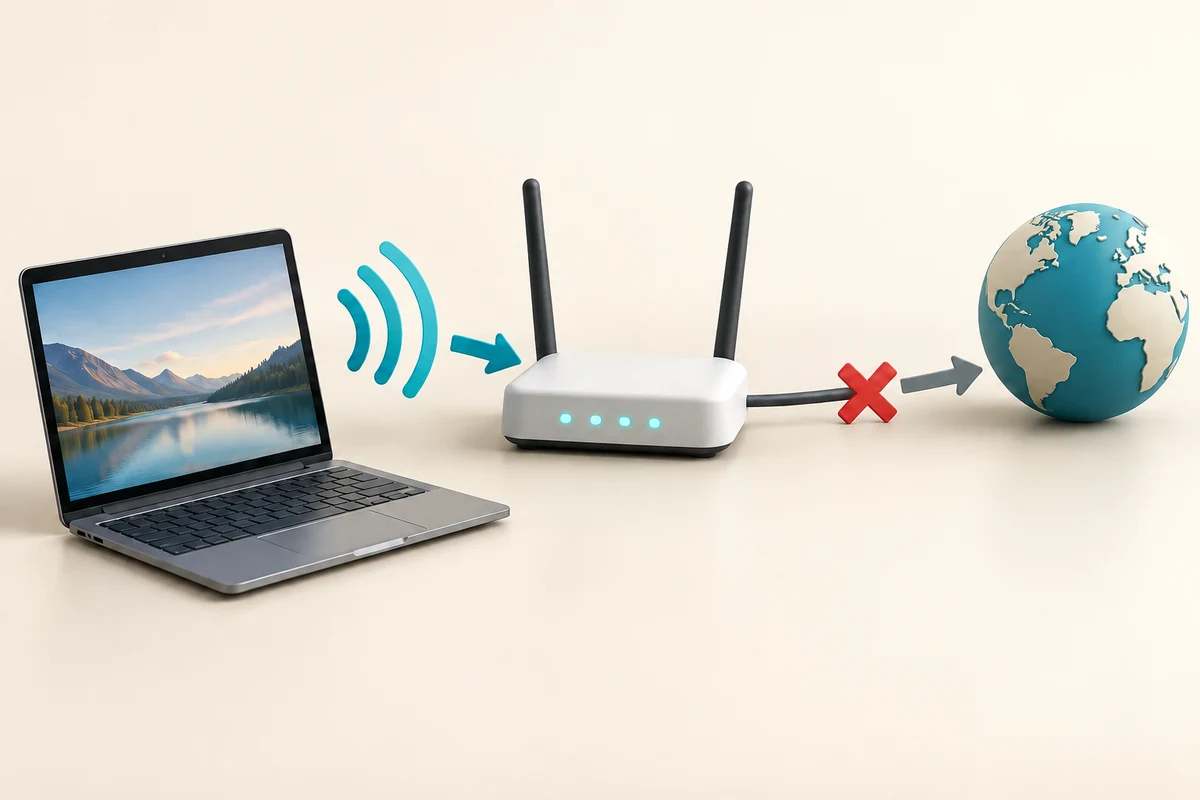
Make the choice that fits your task
How this works
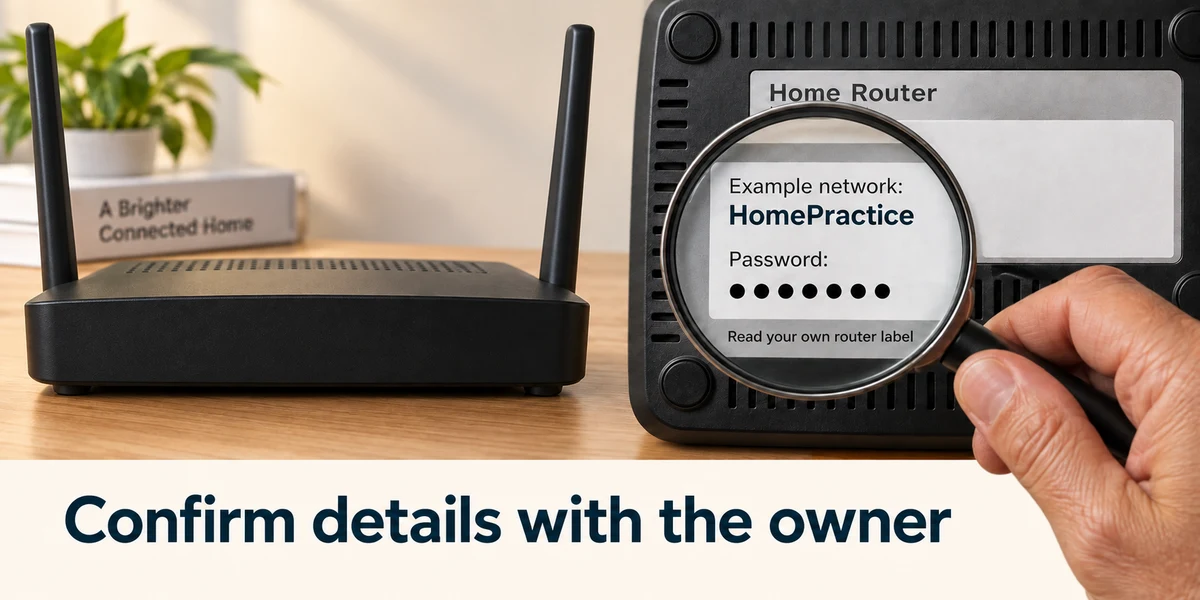
Ask the network owner for its exact name and password. At home, check the router label unless the details have been changed. A familiar-looking network name alone is not proof of ownership.

Click the network, speaker or battery area beside the taskbar clock. Click the small arrow next to Wi-Fi to see networks. If Wi-Fi is off, click its switch to turn it on.

Click the confirmed network name, then Connect. Click the password box and type the network password exactly, including capitals. Click Next. Only choose automatic connection for a network you expect to trust and use again.

To change networks, return to the same list, click the other confirmed name and Connect. This may interrupt a video call or download, so finish those first.
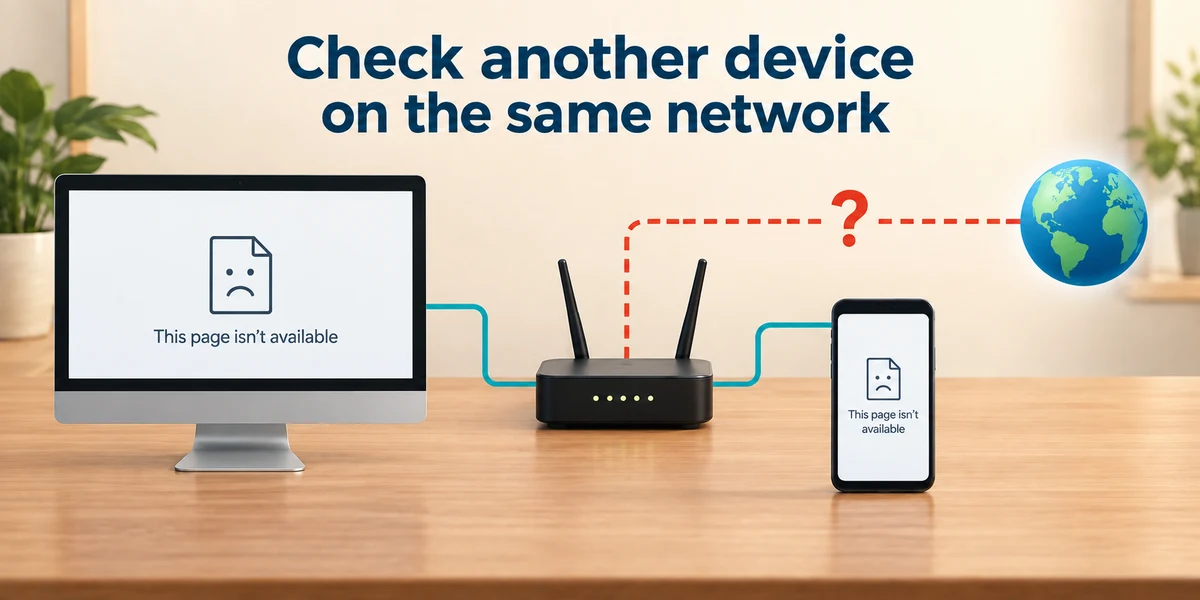
If Windows says connected but pages fail, try another known website and check whether another device on the same network works. If all fail, the router or internet service may be the issue. Use the provider’s guidance or Windows Get Help; avoid changing several settings at once.
A café shows two very similar Wi-Fi names. Which is the best first action?
Ask staff which exact name belongs to the café
Check what you understand
In guided learning, click Start 3 questions to receive a selection from this lesson. Click the circle beside an answer, then click Check answer. Read the feedback and try again if needed. Click Next question after each correct answer. Answer all 3 correctly to continue.
Returning to guided learning keeps the questions and answers in your current attempt.
Read all 3 questions and explanations
Windows shows Wi-Fi connected, but every website fails on both your laptop and phone. Where might the problem be?
Answer: The shared router or internet connection
Several devices failing on the same network points beyond one app.
You need to change networks during a file download. What should you expect?
Answer: The download may be interrupted
Changing the network can break its current connection.
A network password is refused. What should you check before trying again?
Answer: The exact network name and password, including capitals
A wrong network or mistyped password can cause rejection.
Take this to your computer
- 1
Ask your network owner for the exact network name. Click the network area beside the taskbar clock, then the arrow beside Wi-Fi to inspect the list.
- 2
Compare the shown name with the confirmed name. If you are already connected, leave it unchanged. If you need to join, click that name, Connect, then the password field; type the supplied password and click Next. Avoid changing networks during a call or download.
The lesson examples do not change your computer. On your PC, read each confirmation before continuing; available controls can vary.
Prefer a more personal, one-to-one lesson? Basic Computing can help. Explore our services.