Complete and check an online form
A structured way to provide information
Fill a fictional form and correct any missing or mistaken fields.
Review the requested information and recognise a submission result.
An online form gathers information in separate fields so a service can use it. Labels tell you what belongs in each field. Completing the boxes prepares a response; the final submit action confirms the request. Some websites process or save entries before that final action, so check the service before typing, not only before submitting.

Read the labels before filling the boxes
How this works

Before entering information, check the website and why the service needs it. Some sites autosave or process entries as you type; waiting to press Submit does not guarantee the information has stayed only on your device. Read the form's instructions. Required fields may have an asterisk or the word Required, with a nearby explanation. Optional fields can usually be left empty. Only provide information appropriate to the task.
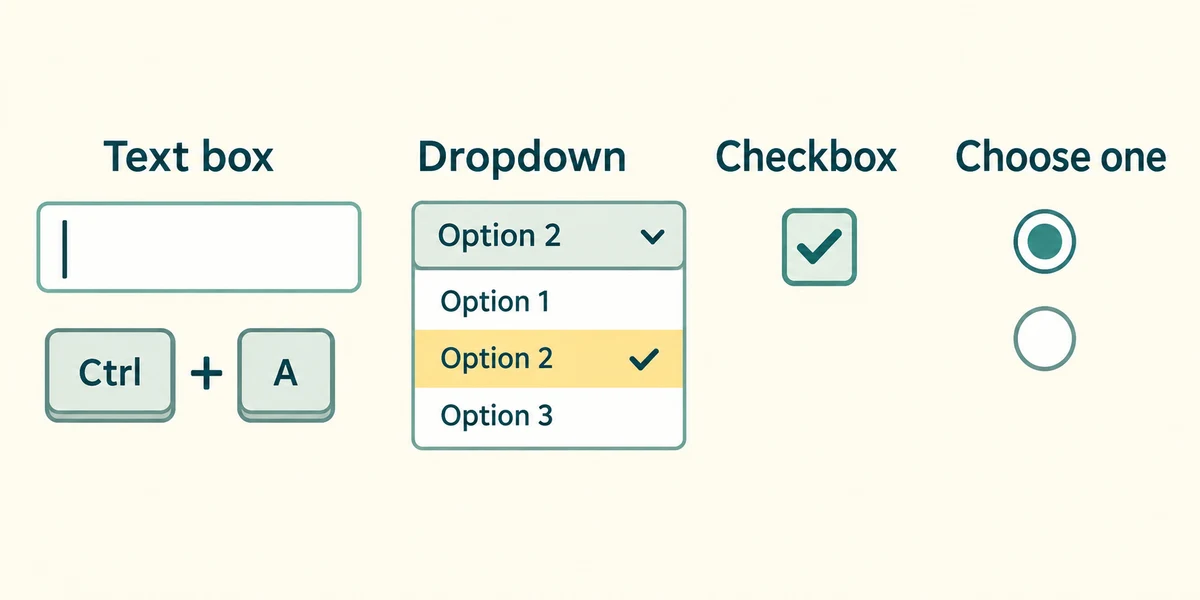
Click a labelled text box once before typing. To replace its existing text, hold Ctrl and press A, release both, then type the replacement. A dropdown opens a set of choices when clicked; click the choice you need. A checkbox is a separate yes/no choice, while a group of round radio buttons usually allows one answer within that group.
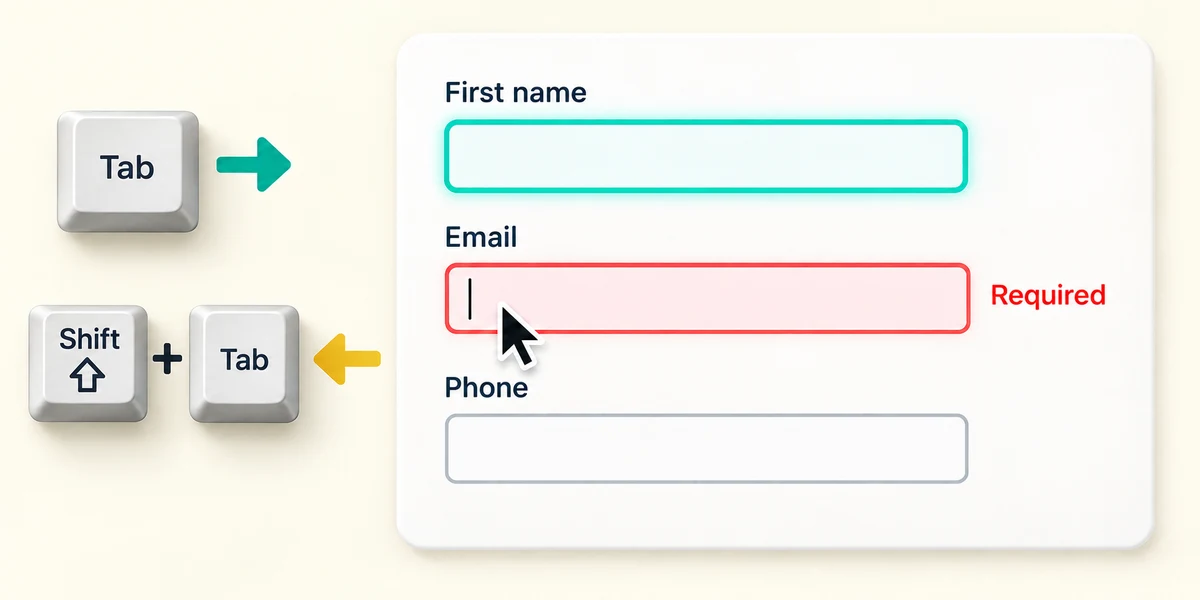
Press and release Tab to move through controls, or hold Shift while pressing Tab, then release both, to move back. Read errors beside the affected field. Validation can check a format or missing value; it cannot prove the facts you typed are true. Correct the identified field instead of repeatedly pressing Submit.
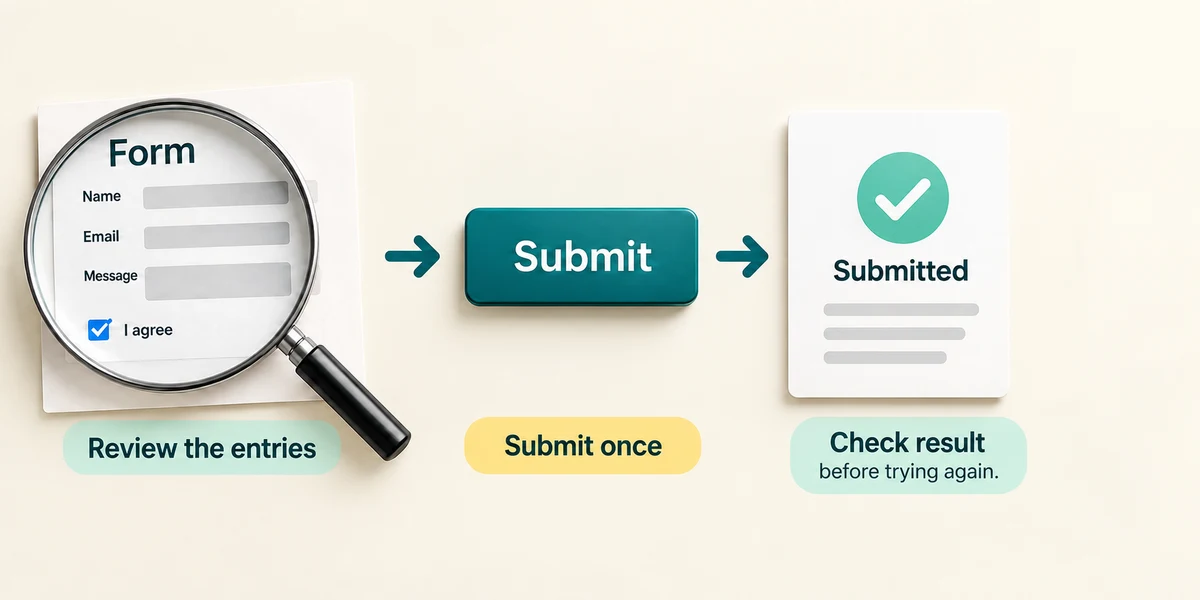
Review your entries and any consent choices, then click the final button only when you intend to send the form. Its label may be Submit, Send or another task-specific phrase. Look for a confirmation or clear next step. If a submission seems to stall, check the result before sending again, especially for bookings or payments. Some forms save drafts or process entries before final submission; do not assume all do, or that closing the form retracts information already provided.
A practice registration form says the required contact-address field is incomplete. The other fields are still filled in. What should happen next?
Correct that field, review the entries, then try the submission again.
Try a fictional example
Book the Tuesday practice session for Jamie using jamie@practice.example. All details are fictional. Complete the required fields, review your choice and submit the practice form. The interactive example uses only sample data and sends nothing. Read the Learn guidance for the same decisions.
Check what you understand
In guided learning, click Start 3 questions to receive a selection from this lesson. Click the circle beside an answer, then click Check answer. Read the feedback and try again if needed. Click Next question after each correct answer. Answer all 3 correctly to continue.
Returning to guided learning keeps the questions and answers in your current attempt.
Read all 3 questions and explanations
A form accepts an address because its format looks valid. What has it established?
Answer: The entry passed that format check.
Format validation cannot confirm ownership or truth. You still review what you entered.
An optional checkbox says Send me marketing messages. You do not want those messages. How should you leave it?
Answer: Read it and leave it unselected if you do not want them.
An optional consent choice has its own purpose. You can decline it now rather than assuming it is required or relying on later cancellation.
You filled every field but have not used the final send control. What should you check?
Answer: Look for the form’s submission status or confirmation before treating the request as complete.
Typing and final submission are different. A site may process entries earlier, but check its explicit confirmation rather than assuming the intended request is complete.
Take this to your computer
- 1
Use this lesson's decision example without entering personal information anywhere.
- 2
On a form you already intended to use, read its labels and required-field explanation first. You can observe these without submitting it.
This lesson sends no form and does not collect your details. Real forms have different layouts and privacy terms.
Prefer a more personal, one-to-one lesson? Basic Computing can help. Explore our services.