Choose colours and contrast that help
Choose colours and contrast that help
Compare the same content under different visual settings.
You can choose and reverse a visual adjustment based on its actual usefulness.
Two people may find different colour combinations comfortable. Contrast themes change interface colours to make elements more distinct. Colour filters change the colour palette to help distinguish information. Neither is simply a larger-text control, and a setting should be judged by the content you need to read.
Work through the useful checks
How this works
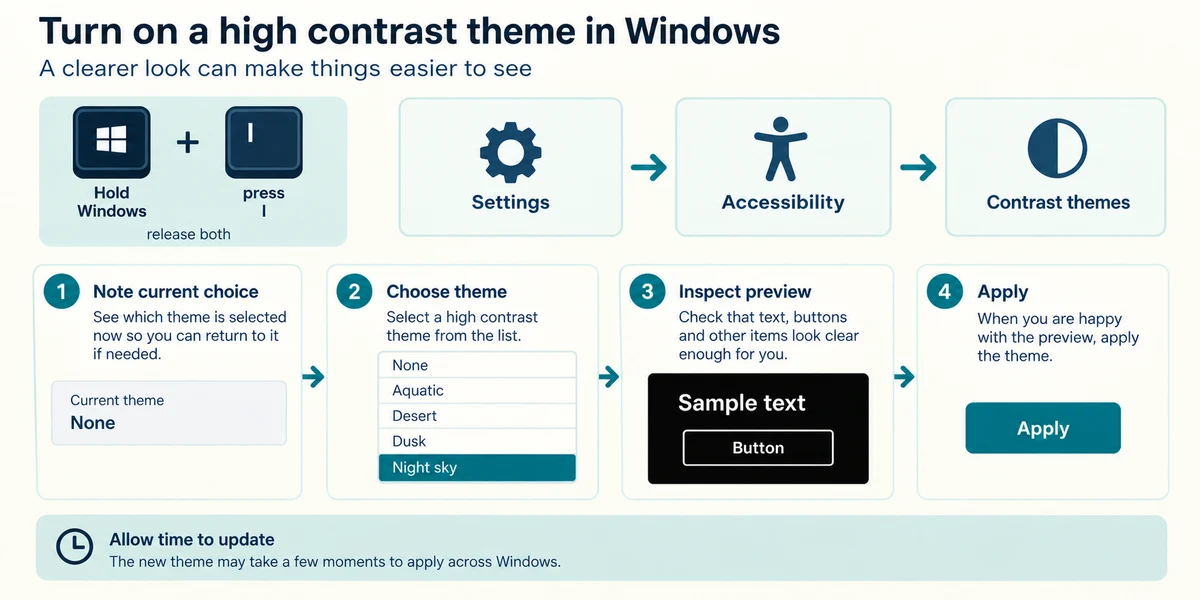
Hold the Windows key, press I once, then release both keys to open Settings. Click Accessibility, then Contrast themes. Note the current choice. Open the theme list, choose an option and inspect the preview before clicking Apply. Give Windows time to update the display.
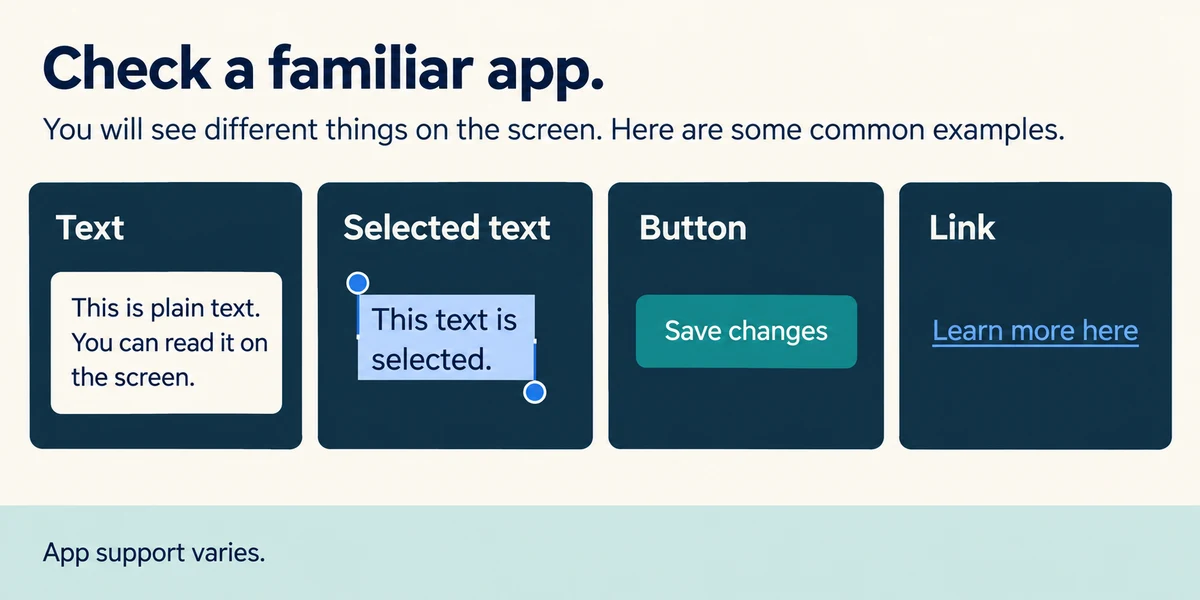
Check ordinary text, selected text, buttons and links in a familiar app. A theme can change many colours, but app support varies. Do not judge readability by one attractive preview tile alone.
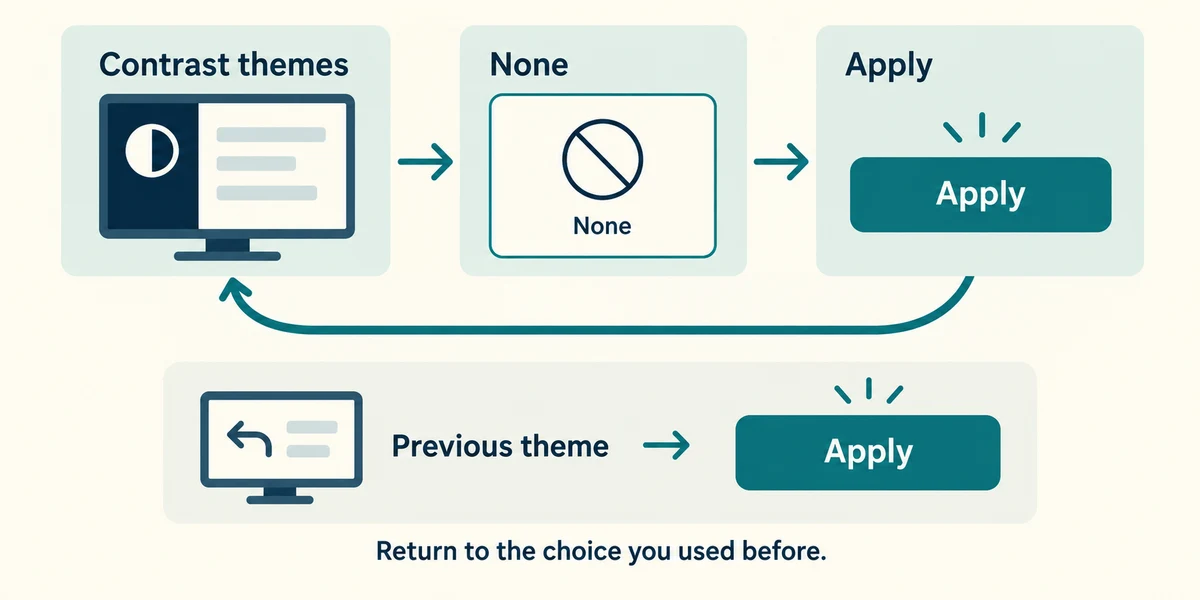
To undo a contrast theme, return to the same list, choose None and click Apply. If you previously used a theme, choose that earlier theme instead. Knowing the return route makes trying a setting less daunting.
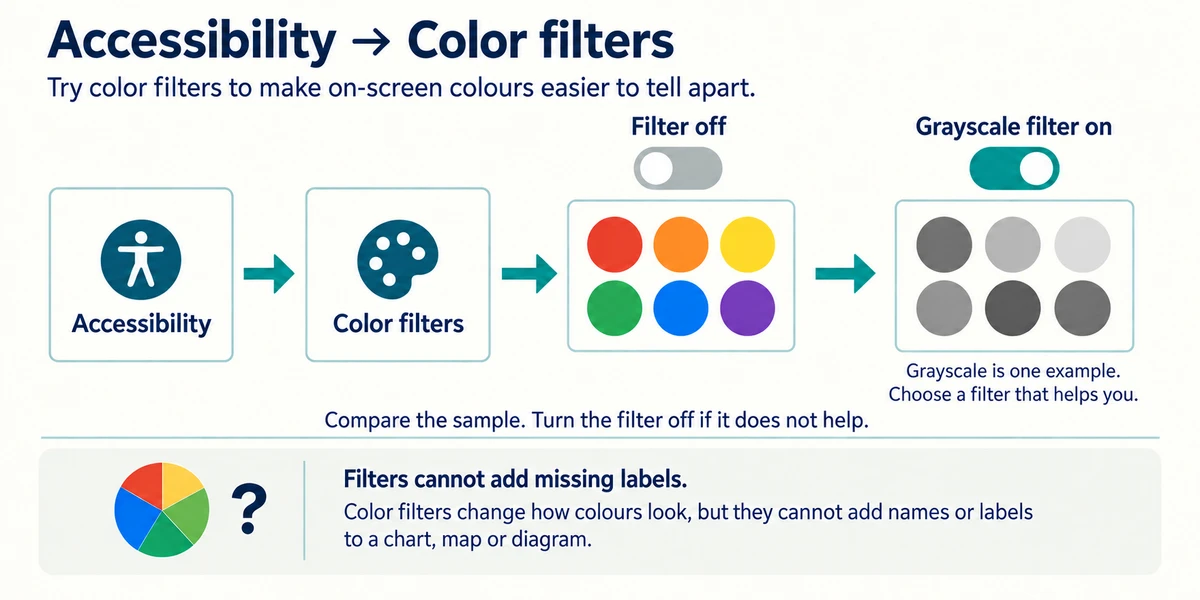
For colour distinctions, return to Accessibility and click Color filters. Turn the switch on only if you want to test it, then choose a filter and compare the sample. Turn it off again if it does not help. A filter cannot add missing labels to a chart that relies only on colour.
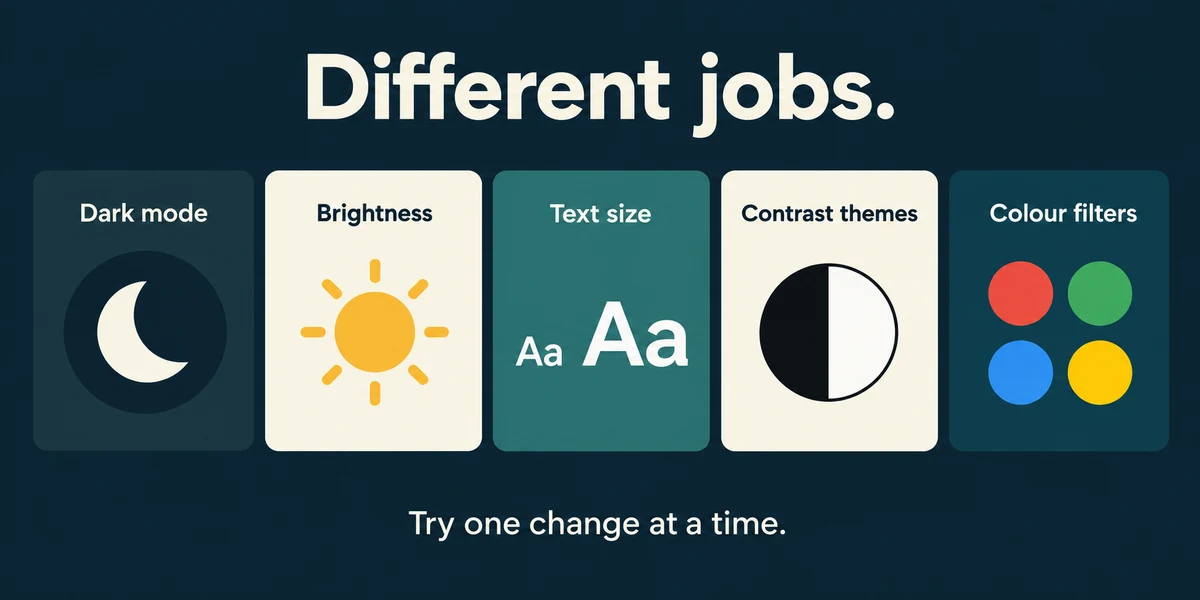
Dark mode, brightness, text size, contrast themes and colour filters have different jobs. Try one change at a time. The best choice is the one that helps you use the content, not a rule based on age or someone else’s preference.
Compare the examples
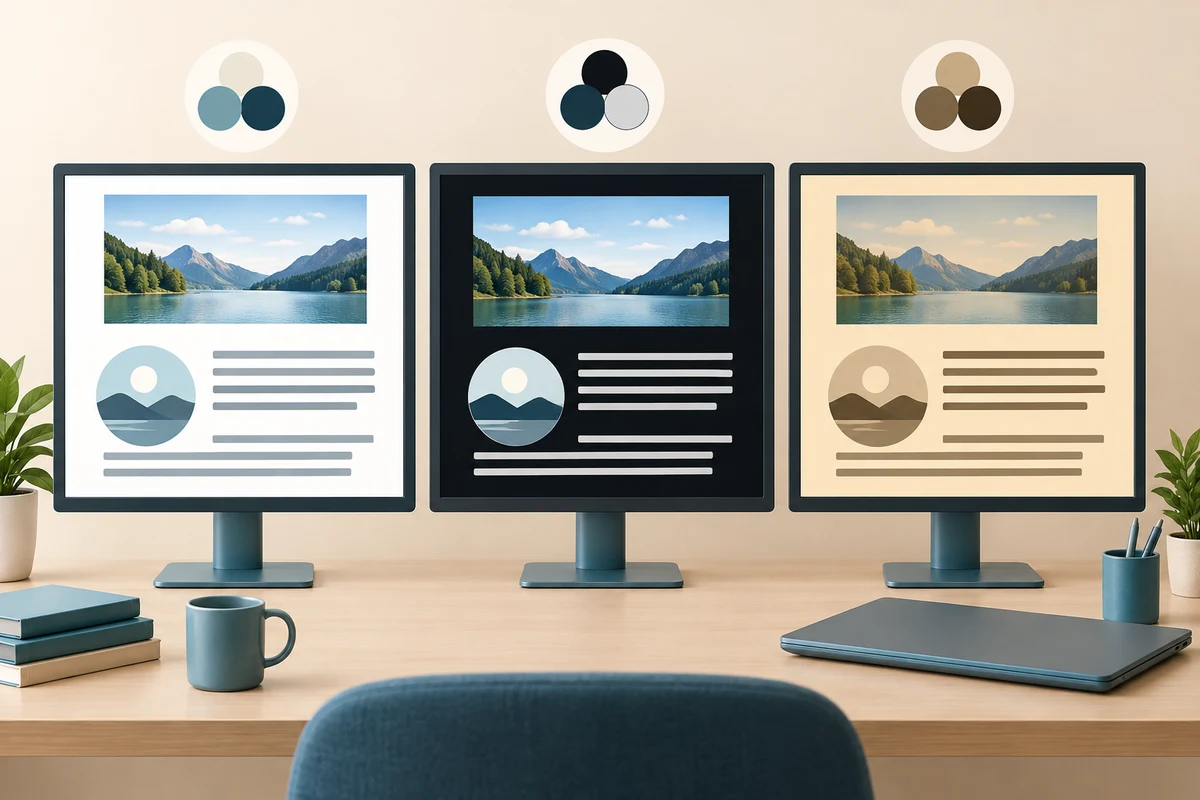
The same sample text can be shown as dark on light, light on dark, or high-contrast yellow on black. The setting that feels comfortable differs between people. Preview it and keep a way to return to the previous setting. These examples are not exact Windows themes or a simulation of anyone’s vision.
Text and buttons blend into their backgrounds. Which option specifically changes interface colour contrast?
A contrast theme.
Check what you understand
In guided learning, click Start 3 questions to receive a selection from this lesson. Click the circle beside an answer, then click Check answer. Read the feedback and try again if needed. Click Next question after each correct answer. Answer all 3 correctly to continue.
Returning to guided learning keeps the questions and answers in your current attempt.
Read all 3 questions and explanations
You need to distinguish information that differs only by colour. Which feature deserves a separate comparison?
Answer: Colour filters.
Filters change the palette and may help colour distinctions. Zoom affects size, while brightness changes the overall light level.
A contrast theme makes one app harder to read. What should you do?
Answer: Return to the theme list and restore the previous choice or None, then Apply.
Settings should help your actual tasks. You can reverse the theme directly without resetting the computer.
A chart uses colour without any labels. Can a filter guarantee you know each category?
Answer: No; it cannot supply labels that the chart lacks.
Changing colours cannot create missing information. Look for a labelled or otherwise accessible alternative.
Take this to your computer
- 1
Hold the Windows key, press I once, then release both keys to open Settings. Click Accessibility, then Contrast themes. Read the current choice and preview an alternative. Apply only if you wish.
- 2
If you changed it, compare a familiar app and restore None or the previous theme through the same list and Apply. Leave filters unchanged unless you intend a separate test.
The lesson uses fictional examples. Optional checks on your computer can be observational. Settings and available features vary by model and Windows version.
Prefer a more personal, one-to-one lesson? Basic Computing can help. Explore our services.