Make a chart that represents the data
Make the comparison honest
Spot a missing category or misleading scale in a comparison.
Create a simple labelled comparison chart from the correct source range.
A chart turns values into visual shapes so a pattern is easier to see. The same data can look very different if labels, categories or scales change. A good chart helps the reader understand the comparison without hiding important context.

Check the source before the style
How this works
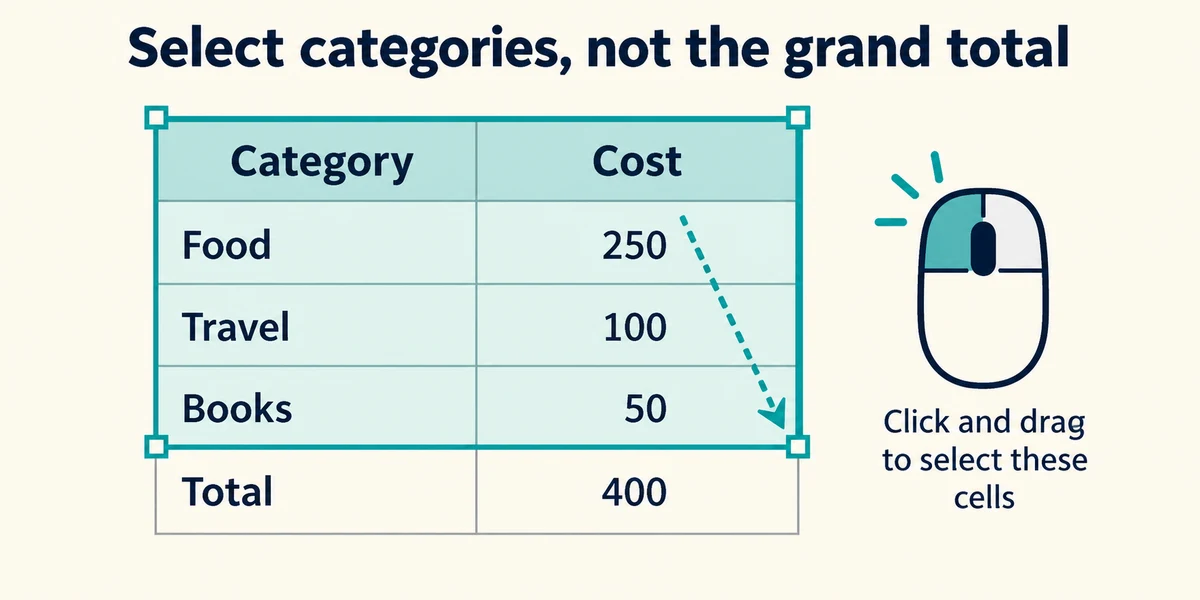
Use a small practice Excel table with Category and Cost headings. Select the headings and all categories you want to compare by dragging across the range while holding the left mouse button. Leave a grand total outside this selection when comparing individual categories, or it can appear as a misleading extra category.
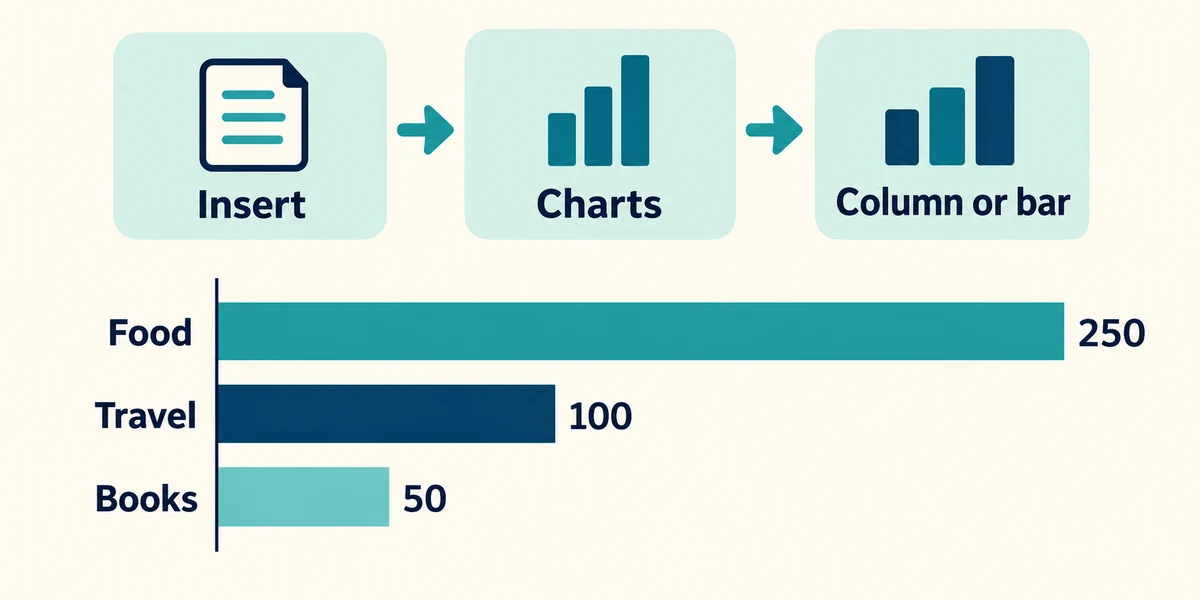
Click Insert in the ribbon and choose a simple column or bar chart from the Charts group. A bar or column chart is a useful starting point for comparing category amounts. Avoid decorative 3D effects that make lengths harder to judge. A line chart usually suggests a sequence, such as values over time.
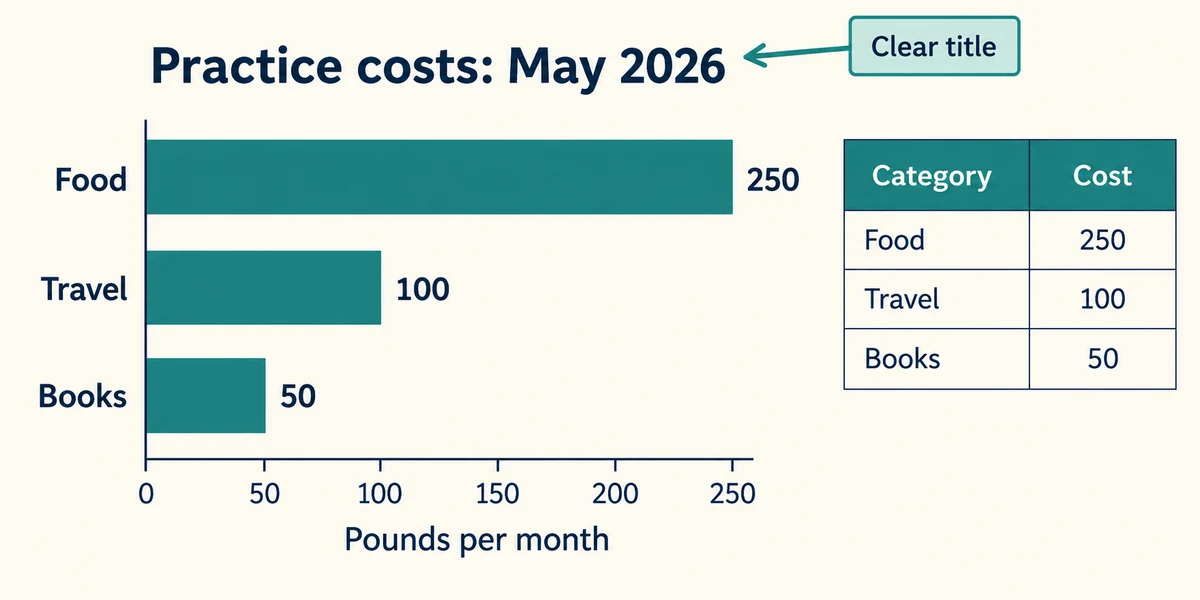
Click the chart title and enter a clear description, including the time period where relevant. Use the chart’s design or element controls to add useful axis titles or data labels. State units, such as pounds per month. Exact controls differ by Excel edition; a readable source table should remain available alongside the chart.
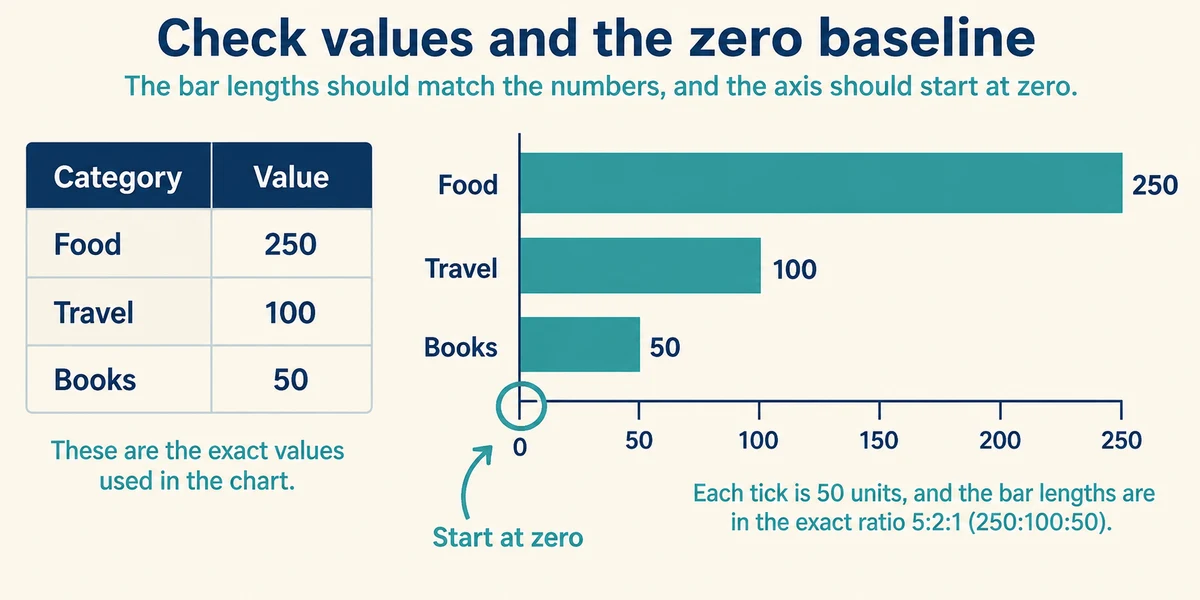
Compare each bar with its source value and check for missing categories. For a straightforward magnitude comparison, use a zero baseline so bar lengths are proportional to amounts. If you change the scale or display only part of the data, explain it rather than allowing the picture to exaggerate a difference.
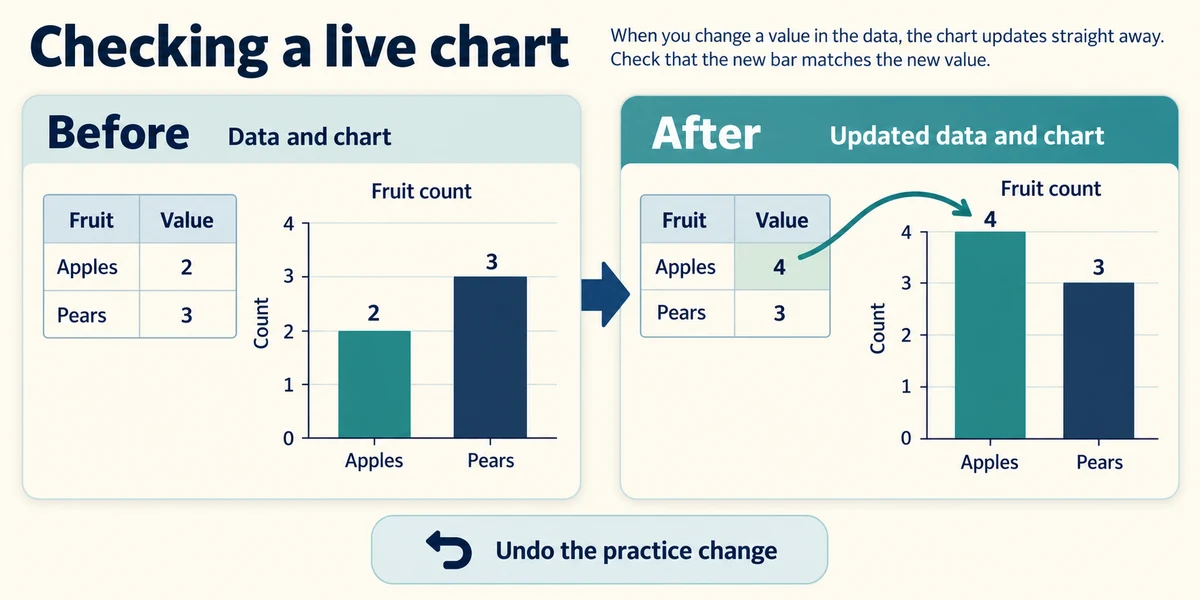
Change one practice value and check whether its chart updates. If it does not, inspect the chart’s selected data range or whether you are looking at a pasted picture instead of a live chart. Undo the change afterwards. Save and share a copy only after checking both the chart and its underlying values.
A small spreadsheet example
Notebooks cost £12, tea £8 and pens £5. A chart using all three rows needs those same labels and proportions, with a baseline at zero for comparing these bars. Missing a row would give an incomplete comparison.
A chart compares three costs but leaves out the largest category. What should be corrected first?
The selected data range so the intended comparison includes that category.
Check what you understand
In guided learning, click Start 3 questions to receive a selection from this lesson. Click the circle beside an answer, then click Check answer. Read the feedback and try again if needed. Click Next question after each correct answer. Answer all 3 correctly to continue.
Returning to guided learning keeps the questions and answers in your current attempt.
Read all 3 questions and explanations
You want to compare spending across unrelated categories. Which is a useful simple starting chart?
Answer: A labelled bar or column chart.
Bars or columns make category magnitudes easy to compare.
Two bars look dramatically different although their values are close. What should you inspect?
Answer: The axis baseline and scale.
A shortened scale can exaggerate visual differences.
A pasted chart image stays unchanged after the spreadsheet values change. Why?
Answer: It is a static picture rather than the live data-linked chart.
A picture preserves one view and does not track later cell changes.
Take this to your computer
- 1
Make a simple bar or column chart from fictional categories, excluding the total row.
- 2
Check every label and value, then change one input and compare the chart with the table.
Use fictional practice information. These explanations and decisions do not change your real files. Desktop Microsoft 365 controls are used where named; web editions and other versions can differ. No purchase or account is needed to complete this lesson.
Prefer a more personal, one-to-one lesson? Basic Computing can help. Explore our services.