Choose which app opens a file
Choose which app opens a file
Choose between trying a reader once and changing a default.
Try a compatible app once or change the usual app for a file type.
Windows associates file types with apps so a double-click knows what to open. This usual choice is called a default app. Choosing another app does not convert the file into a different format. The chosen app must still understand that kind of file.
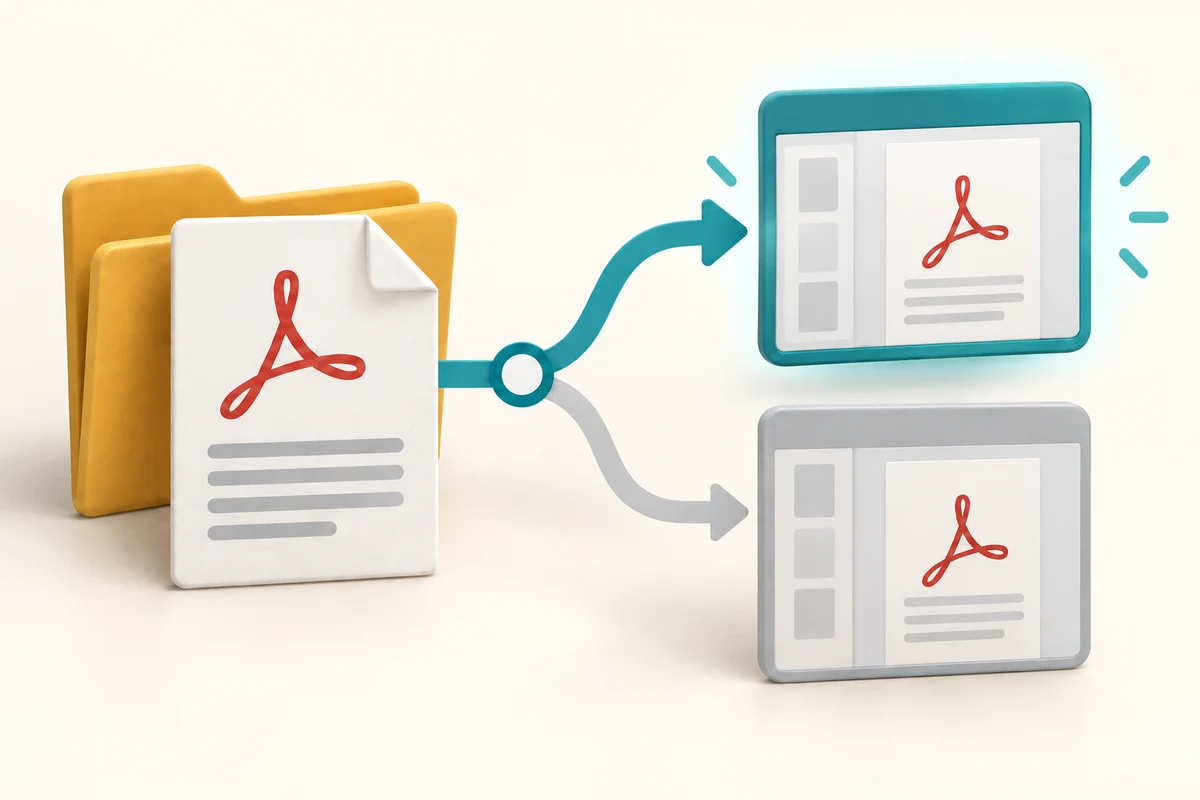
Make the choice that fits your task
How this works
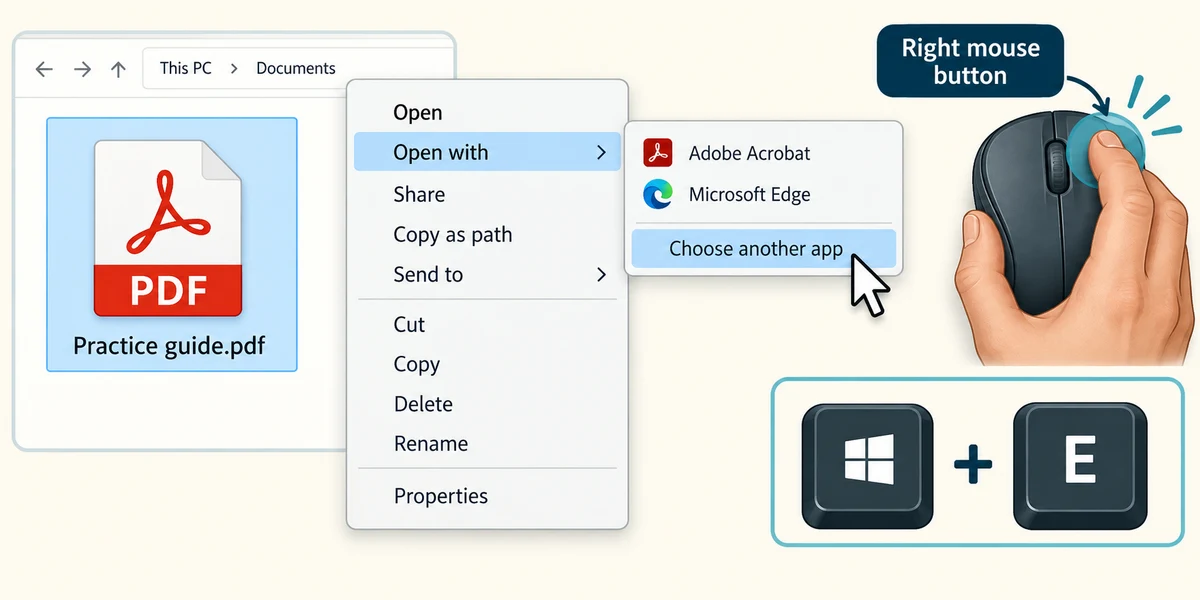
Hold Windows, press E, then release to open File Explorer. Find a harmless practice file. Click once with the right mouse button on its name and choose Open with. If needed, click Choose another app.
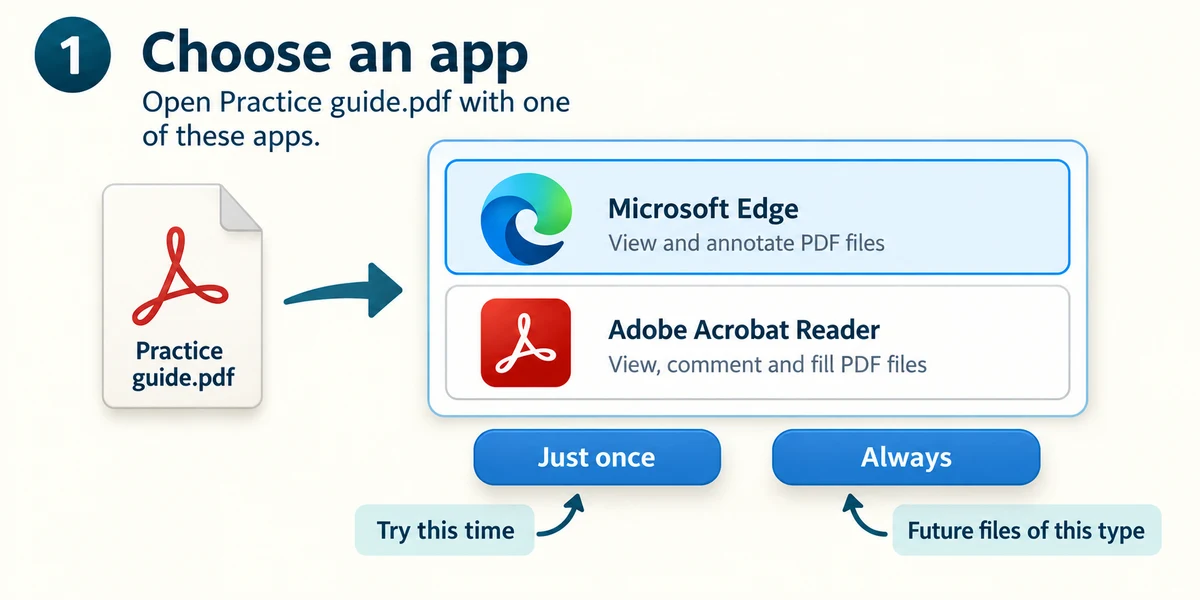
Choose a compatible installed app. If Windows offers Just once and Always, choose Just once for a trial. Read the wording carefully because choosing Always changes future opening behaviour for that type.
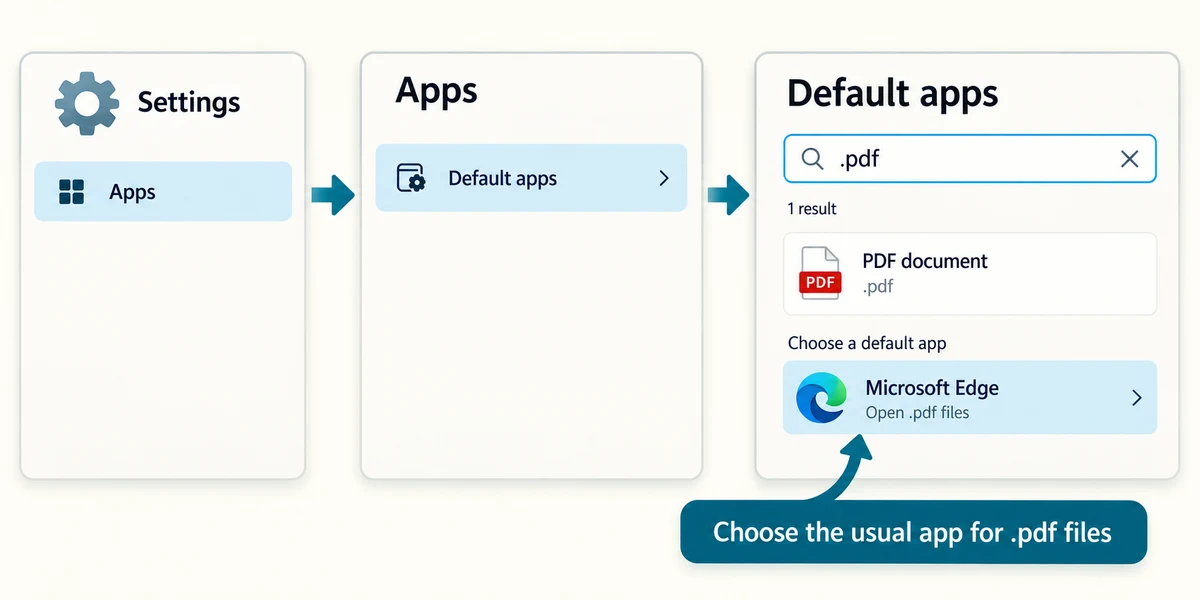
Hold the Windows key, press I once, then release both keys to open Settings. To review a lasting choice, click Apps, then Default apps. Click the search box for a file type or link type, type the extension, such as .pdf, then click its result. Choose a suitable installed app and confirm the displayed choice.
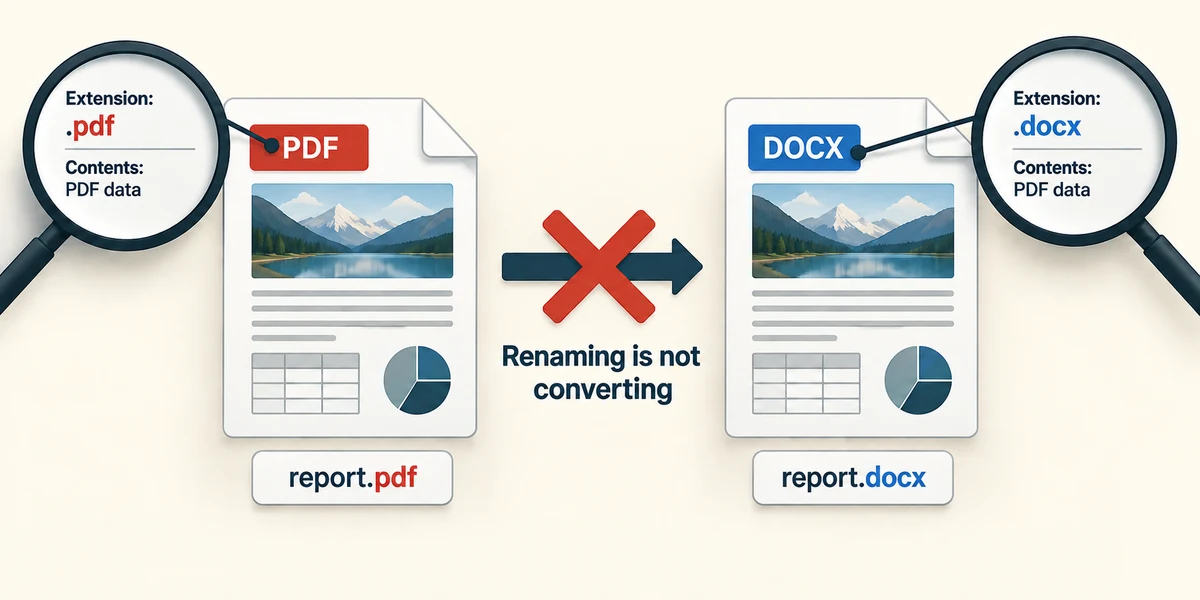
If an app says it cannot read the file, stop and check the extension and source. Renaming .pdf to .docx does not convert its contents. An unexpected attachment should be checked for safety before trying more apps.
You want to view one PDF in a different reader without changing future PDFs. Which option fits?
Open with a compatible reader and choose Just once
Check what you understand
In guided learning, click Start 3 questions to receive a selection from this lesson. Click the circle beside an answer, then click Check answer. Read the feedback and try again if needed. Click Next question after each correct answer. Answer all 3 correctly to continue.
Returning to guided learning keeps the questions and answers in your current attempt.
Read all 3 questions and explanations
What does a default app determine?
Answer: Which app Windows normally uses for a file type
It is a usual opening choice, not a new file format.
A photo app cannot read a PDF. What should you do?
Answer: Use an app that supports PDF files
Compatible apps understand the file’s actual format.
You select Always after choosing a reader for .pdf. What should you expect?
Answer: Future PDFs may use that reader by default
Always changes the usual association.
Take this to your computer
- 1
Hold Windows, press E and release. Find a harmless document and right-click its name once. Click Open with, then Choose another app if needed.
- 2
Inspect the available compatible apps. Choose Just once if you want a trial, or Cancel to leave everything unchanged. Avoid testing with unexpected attachments.
The lesson examples do not change your computer. On your PC, read each confirmation before continuing; available controls can vary.
Prefer a more personal, one-to-one lesson? Basic Computing can help. Explore our services.