Build a useful spreadsheet list
Give each value a clear place
Choose suitable cell contents and formatting for a short expense list.
Enter headings and values into cells and apply readable number formatting.
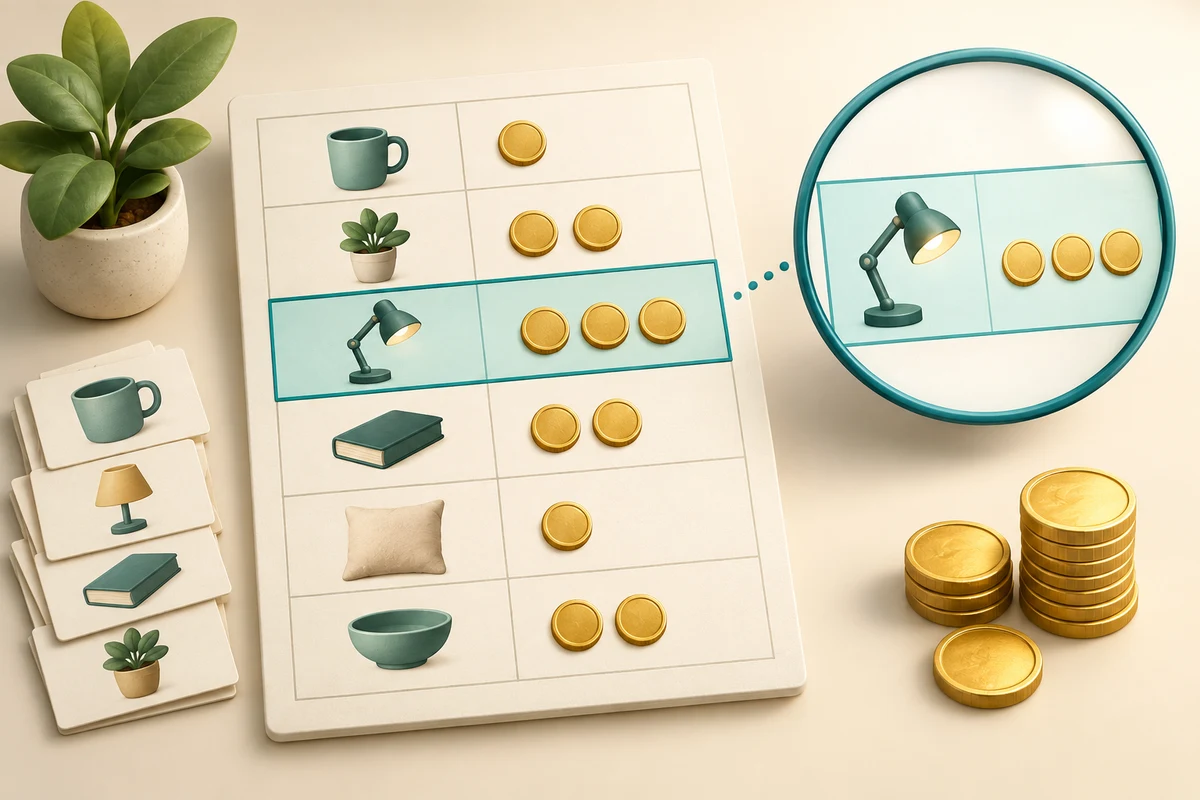
A spreadsheet works best when each column has one meaning and each row describes one item. Keeping values separate makes them easier to check, calculate and compare. The way a number looks is not always the same as the value stored underneath.
Enter a small, consistent table
How this works
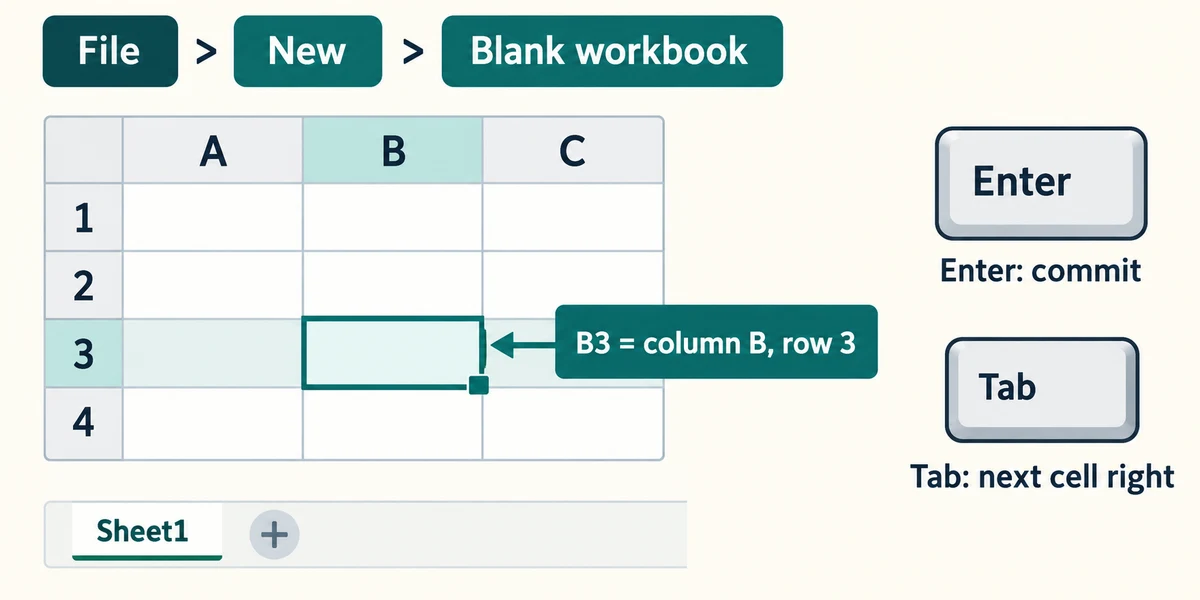
In desktop Excel, click File, then New and Blank workbook. A workbook is the saved file; its sheet tabs are near the bottom. Columns use letters and rows use numbers, so B3 is column B, row 3. Click a cell once to select it, type a value and press Enter to commit it. Tab commits and moves to the next cell to the right.
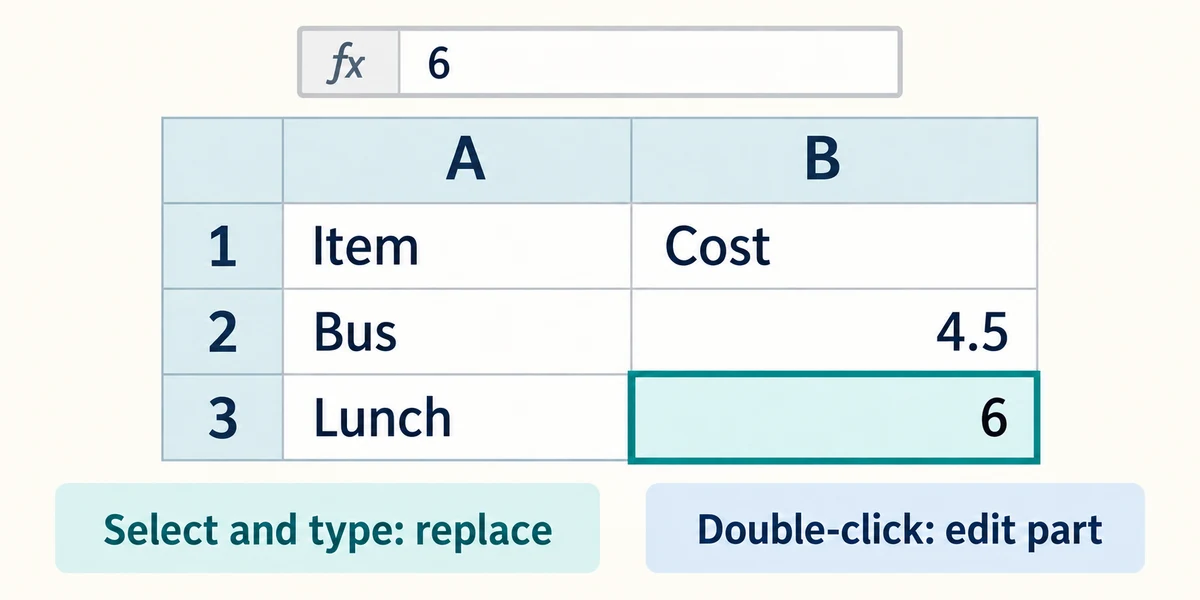
Make a fictional list with Item in A1 and Cost in B1. Put Bus in A2 and 4.5 in B2, then Lunch in A3 and 6 in B3. Keep one item per row and enter amounts as numbers rather than phrases such as about six pounds. To replace a cell, select it and type; to edit part of it, double-click the cell or use the formula bar above the grid.
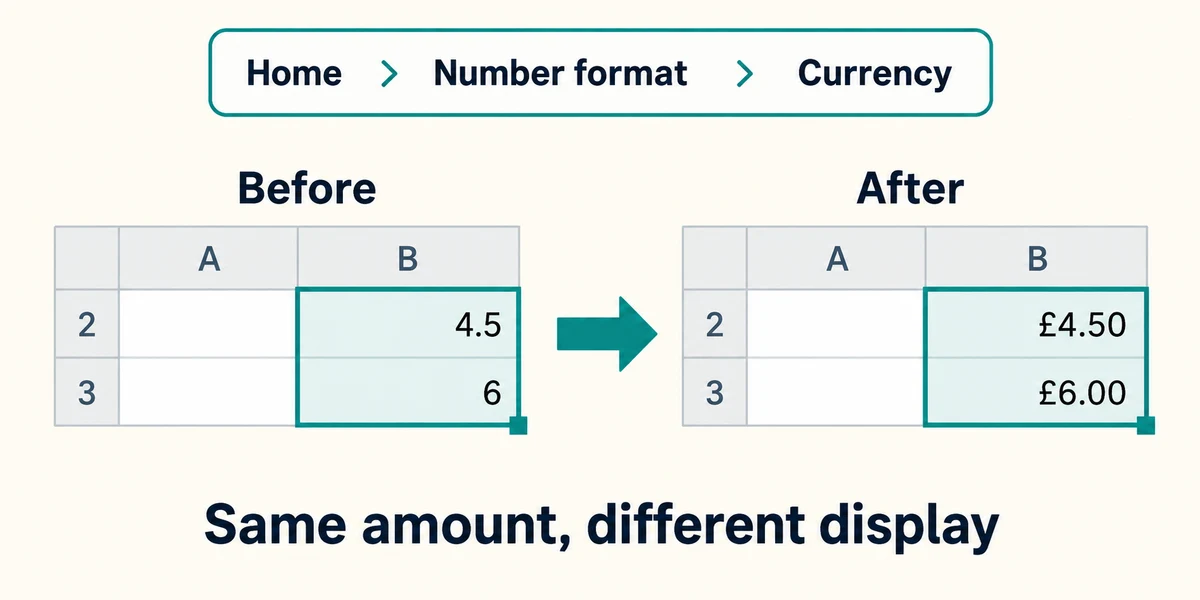
Select the cost cells by dragging from the first to the last while holding the left mouse button. In Home, use the Number format list to choose Currency and the appropriate symbol if offered. Formatting 4.5 as £4.50 changes its display, not the underlying amount. It does not convert currencies or correct a wrongly entered number.
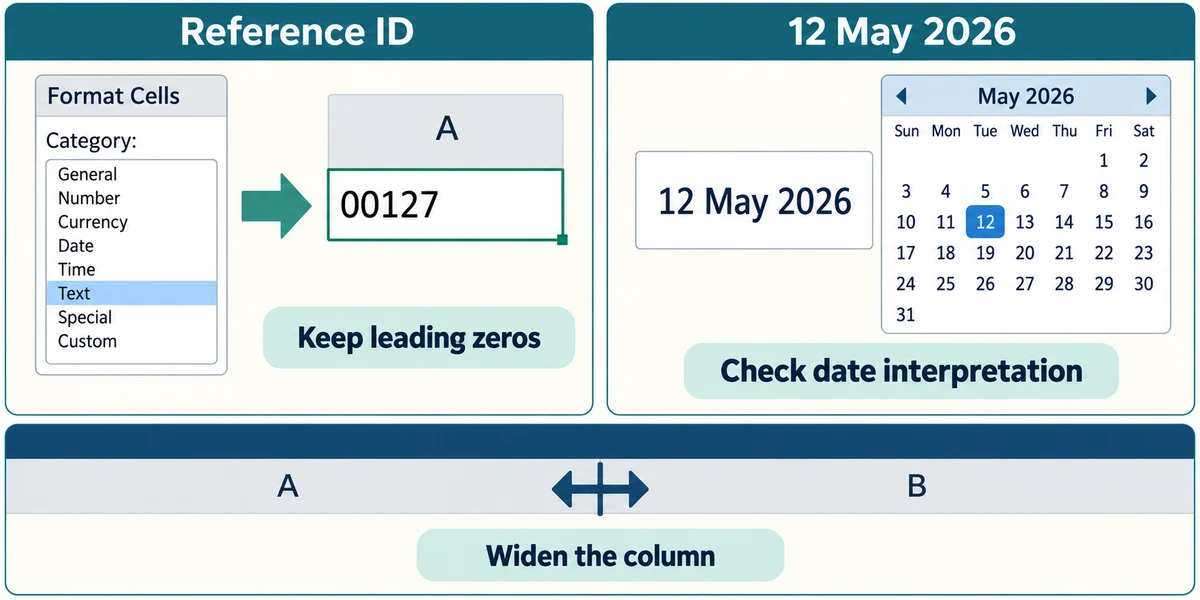
Dates and identifiers need care. Use clear dates and check Excel’s interpretation; regional settings affect date entry. A telephone number or reference with leading zeros is an identifier, not a quantity to add. Set its cells to Text before typing when you need those characters preserved. Widen a column by dragging the boundary between its letter headings if the contents are clipped.
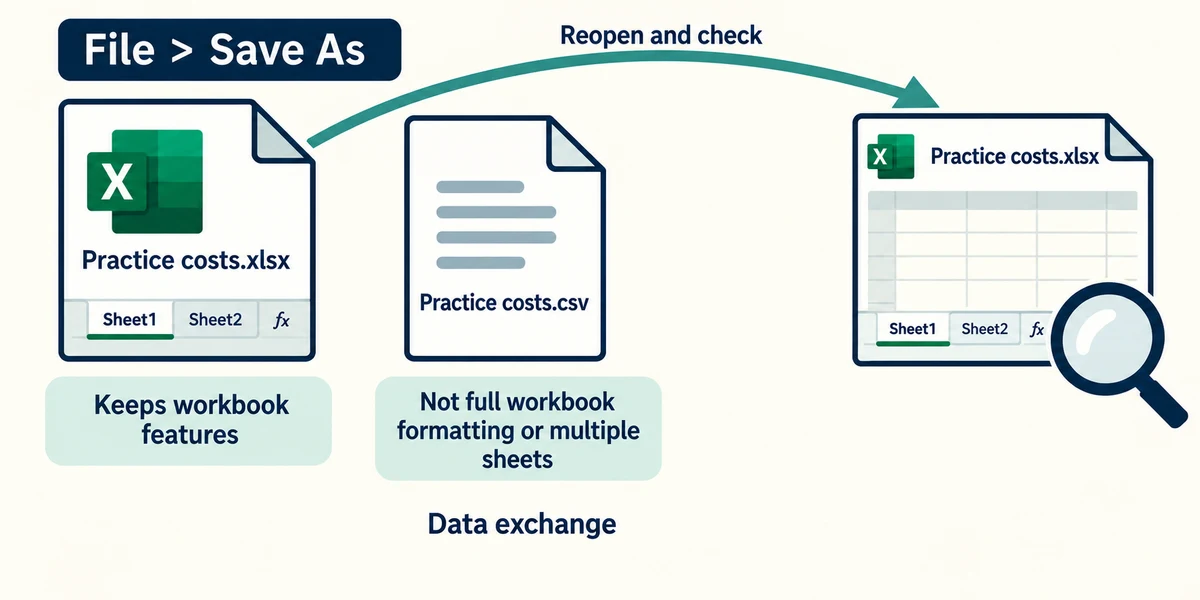
Save the workbook with a useful name using File and Save As or your edition’s saving choices. Keep the Excel workbook format when you need its sheets and formulas. A CSV file is a simpler data exchange format and does not preserve the full workbook’s formatting or multiple sheets. Reopen your saved practice file to check it.
A small spreadsheet example
Cells B2, B3 and B4 contain 12, 8 and 5. SUM(B2:B4) gives 25; AVERAGE(B2:B4) gives 8.33 when rounded to two decimal places. Changing a source value changes a formula result. Displaying currency does not change the value itself.
An expense cell contains “about six pounds”, and you want reliable calculations. What should change?
Enter the numeric amount and use a separate note if it is estimated.
Check what you understand
In guided learning, click Start 3 questions to receive a selection from this lesson. Click the circle beside an answer, then click Check answer. Read the feedback and try again if needed. Click Next question after each correct answer. Answer all 3 correctly to continue.
Returning to guided learning keeps the questions and answers in your current attempt.
Read all 3 questions and explanations
A cell shows £4.50 after previously showing 4.5. What most likely changed?
Answer: The number’s display format.
Currency formatting can add a symbol and decimal places without changing the value.
You need to keep a reference number beginning 0012 exactly as written. What is a useful preparation?
Answer: Set the destination cells to Text before entering it.
Text formatting suits identifiers whose digits are not quantities.
Your workbook contains two sheets and formatted totals. Which format best preserves that work for further Excel editing?
Answer: The normal Excel workbook format, such as .xlsx.
A workbook preserves sheets and spreadsheet features.
Take this to your computer
- 1
If Excel is available, create the two-column fictional list and format its cost cells as currency.
- 2
Select a cost cell and compare its displayed amount with the formula bar; save only a practice copy.
Use fictional practice information. These explanations and decisions do not change your real files. Desktop Microsoft 365 controls are used where named; web editions and other versions can differ. No purchase or account is needed to complete this lesson.
Prefer a more personal, one-to-one lesson? Basic Computing can help. Explore our services.